92
Note: The following shared folders can be mounted as network drives from NAS Navigator2: share, share2,
share3, share4, usbdisk1, usbdisk2, usbdisk3, usbdisk4, usbdisk5
3 An icon for the mapped share will appear in Computer or My Computer. You can use this network drive just like
any other hard drive.
Changing the IP Address
1 Double-click the icon to start NAS Navigator2.
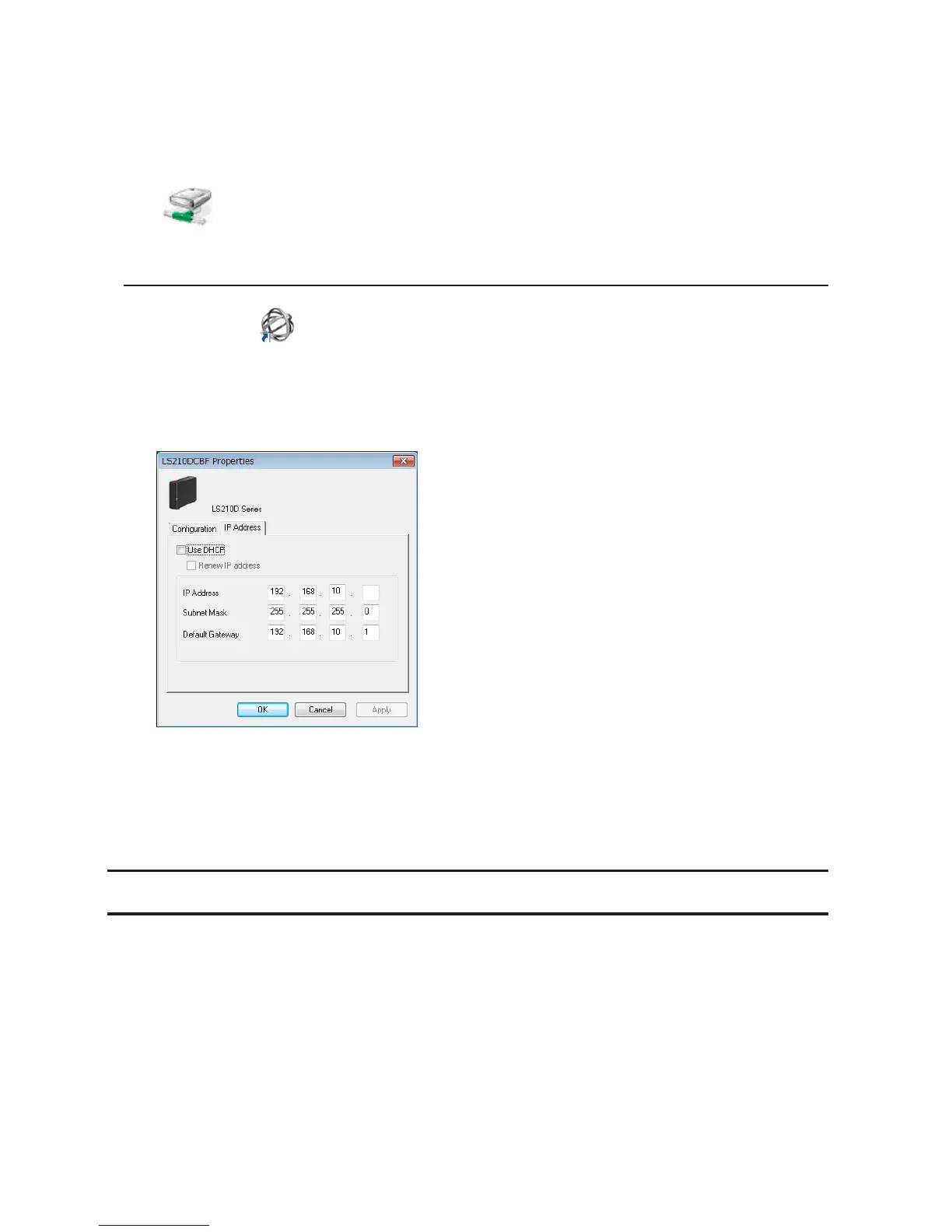
2 Right-click on your LinkStation's icon and choose Properties - IP Address.
3 Uncheck "Use DHCP", enter the IP address and subnet mask, and click OK. If the username and password
prompts appears, enter the admin username and password.
Note: The following IP addresses are reserved and should not be used. If you configure one of them by accident,
initialize settings with the function button on the LinkStation.
Local loopback address: 127.0.0.1, 255.255.255.0
Network address: 0.0.0.0, 255.255.255.0
Broadcast address: 255.255.255.255, 255.255.255.0
The IP address range from 224.0.0.0 to 255.255.255.255
NAS Navigator2 for Mac OS
NAS Navigator2 is a utility that makes it easy to display Settings, change the LinkStation's IP address, or check its
hard drive. If you installed the LinkStation with LinkNavigator, NAS Navigator2 was installed automatically.





 To Next Page