66
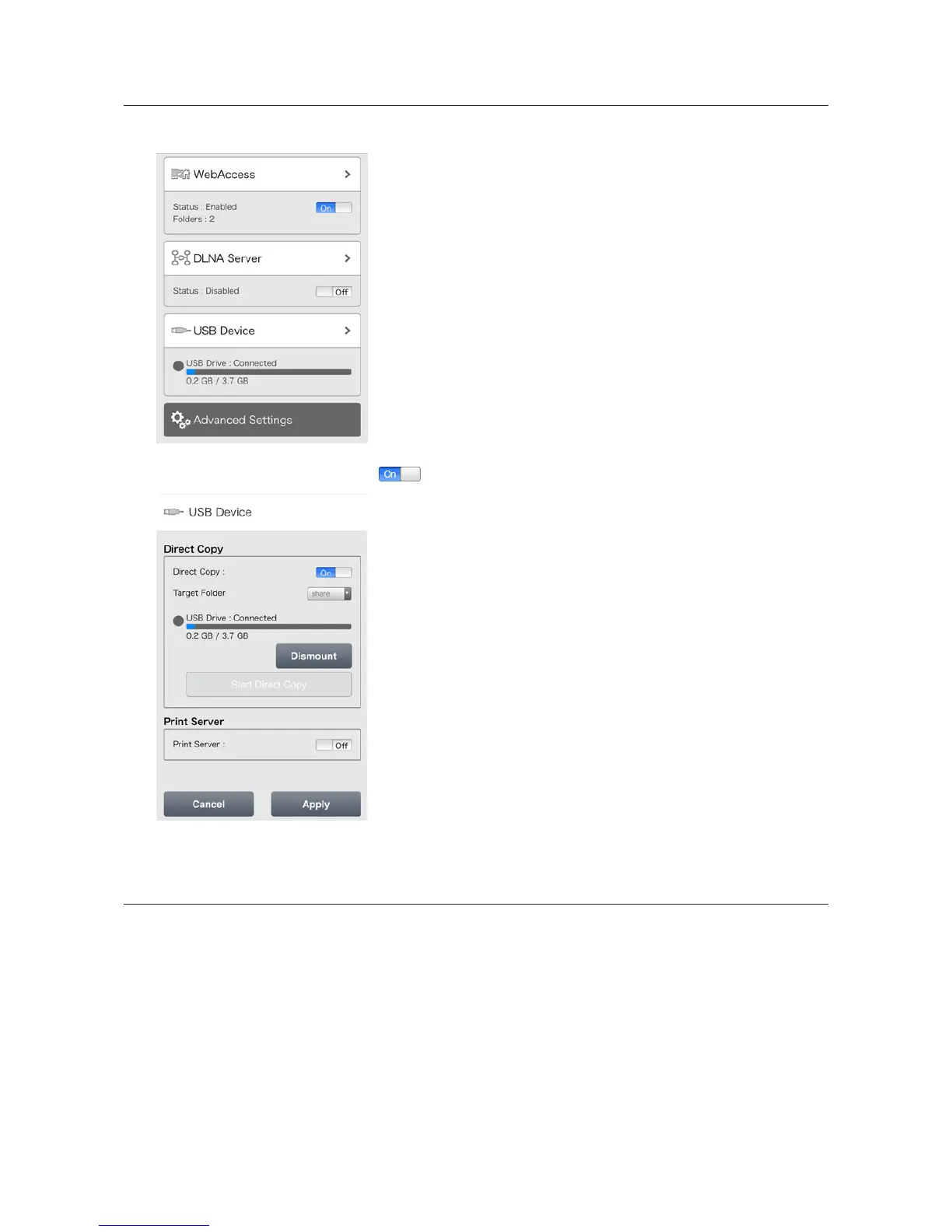
Configuring Direct Copy from a Mobile Device
1 In Settings, tap USB Device.
2 Move the Direct Copy switch to the position to enable Direct Copy, then tap Apply.
The data from the USB drive will be copied to the target folder. You may change the target folder from the
drop-down list if desired.
Starting Direct Copy
1 Connect the USB device. When it mounts (about 10 seconds), the function LED will light up.
Notes:
• Devices that don't trigger the function LED to light up are not supported.
• When you connect PTP devices, the function LED may not light up. In such case, disconnect the PTP device
from the LinkStation once, then reconnect it.
2 You now have 60 seconds to press the function button once. If you do, the function LED will flash as all the files
on the USB device are copied to the Direct Copy folder of the LinkStation.
Notes:
• While the function LED is flashing, hold the function button down for 3 seconds to cancel Direct Copy.





 To Next Page