76
Downloading Files
1 Open the download manager.
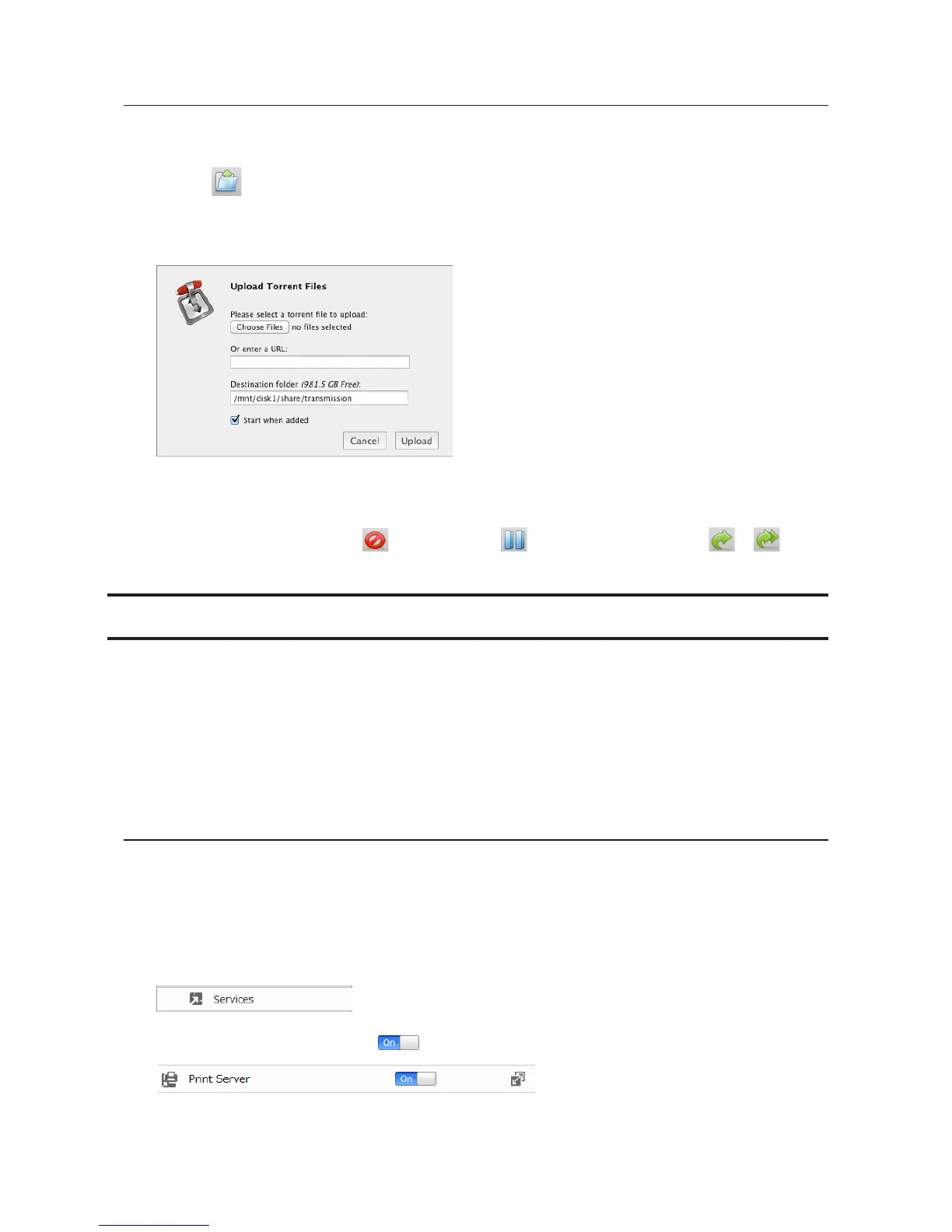
2 Click the icon.
3 Enter the URL at "Or enter a URL:" and click Upload. The downloaded file will be saved in the folder that is
specified in the "Destination folder" field.
Note: Check "Start when added" to start downloading immediately after clicking Upload.
4 The download will start.
Note: To cancel downloading, click and Remote. Click to pause the download. Click or to
resume.
Connecting a Printer
You can connect a printer to the USB port on the LinkStation.
Notes:
• Only one USB printer can be connected to the LinkStation.
• Bidirectional communication is not supported i.e., remaining ink quantities and other printer status
information is not supported.
• Don't disable the SMB protocol while the print server is enabled. If you do, you will need to enable SMB again
and reconfigure the print server from scratch.
Setting Up a Printer from a Computer
Windows 8.1, Windows 8, Windows 7, or Windows Vista
1 Connect a printer to the LinkStation's USB port, then turn the printer on.
2 In Advanced Settings, click Services.
3 Move the print server switch to the position to enable the print server.
4 Refer to the manual supplied with the printer and install the printer drivers.





 To Next Page