70
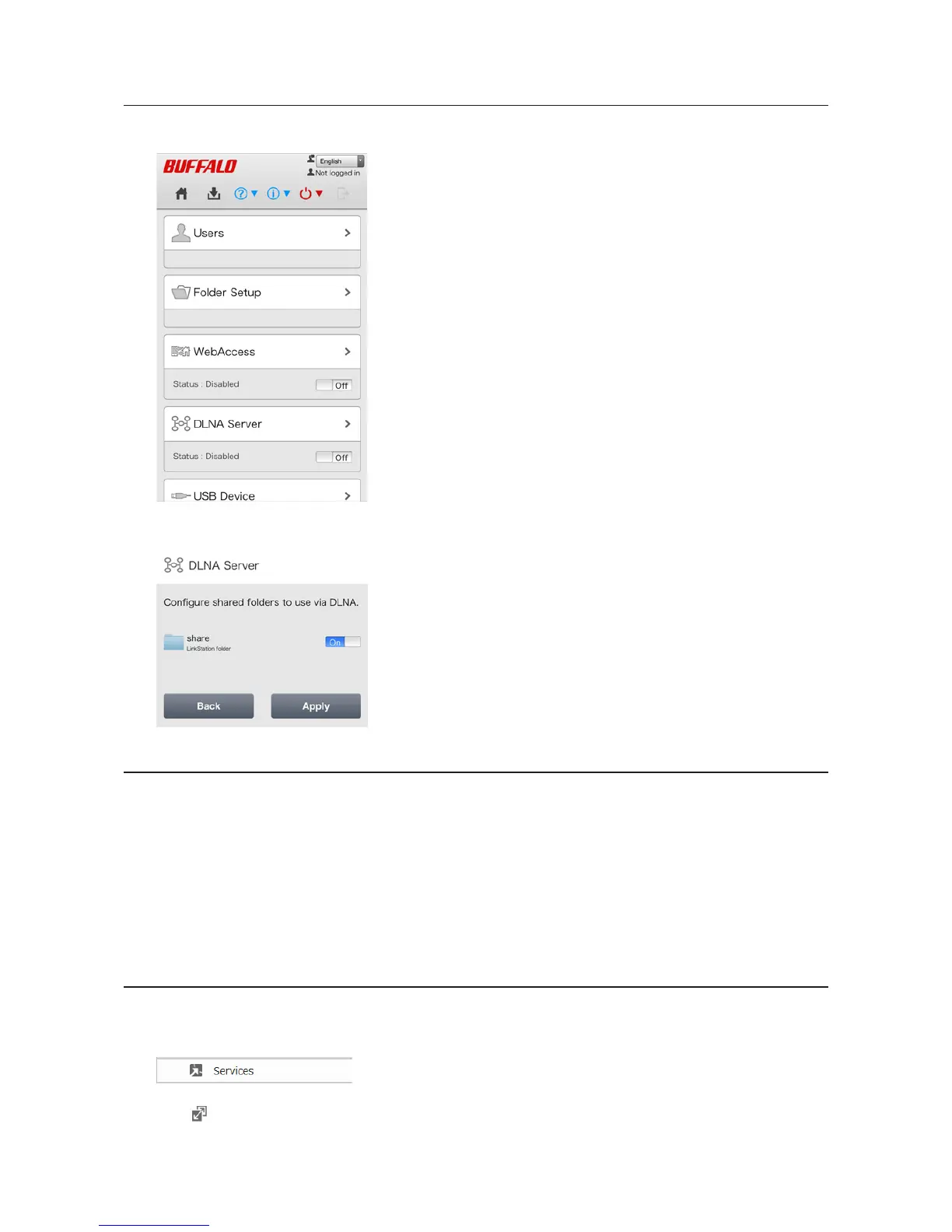
Configuration from a Mobile Device
1 In Settings, tap DLNA Server.
2 Enable the shared folder for DLNA and tap Apply.
Playing Files
To play back content from a DLNA-compatible device:
1 Connect the DLNA-compatible device to the same network as the LinkStation and turn it on.
2 Select the LinkStation in the software of the DLNA-compatible device.
3 Select the content to be played back.
Note: For more information on playing files, see the DLNA-compatible devices' manuals.
Connected DLNA-compatible Devices
Follow the procedure below to view the DLNA-compatible devices connected to your LinkStation.
1 In Advanced Settings, click Services.
2 Click to the right of "DLNA Server".





 To Next Page