41
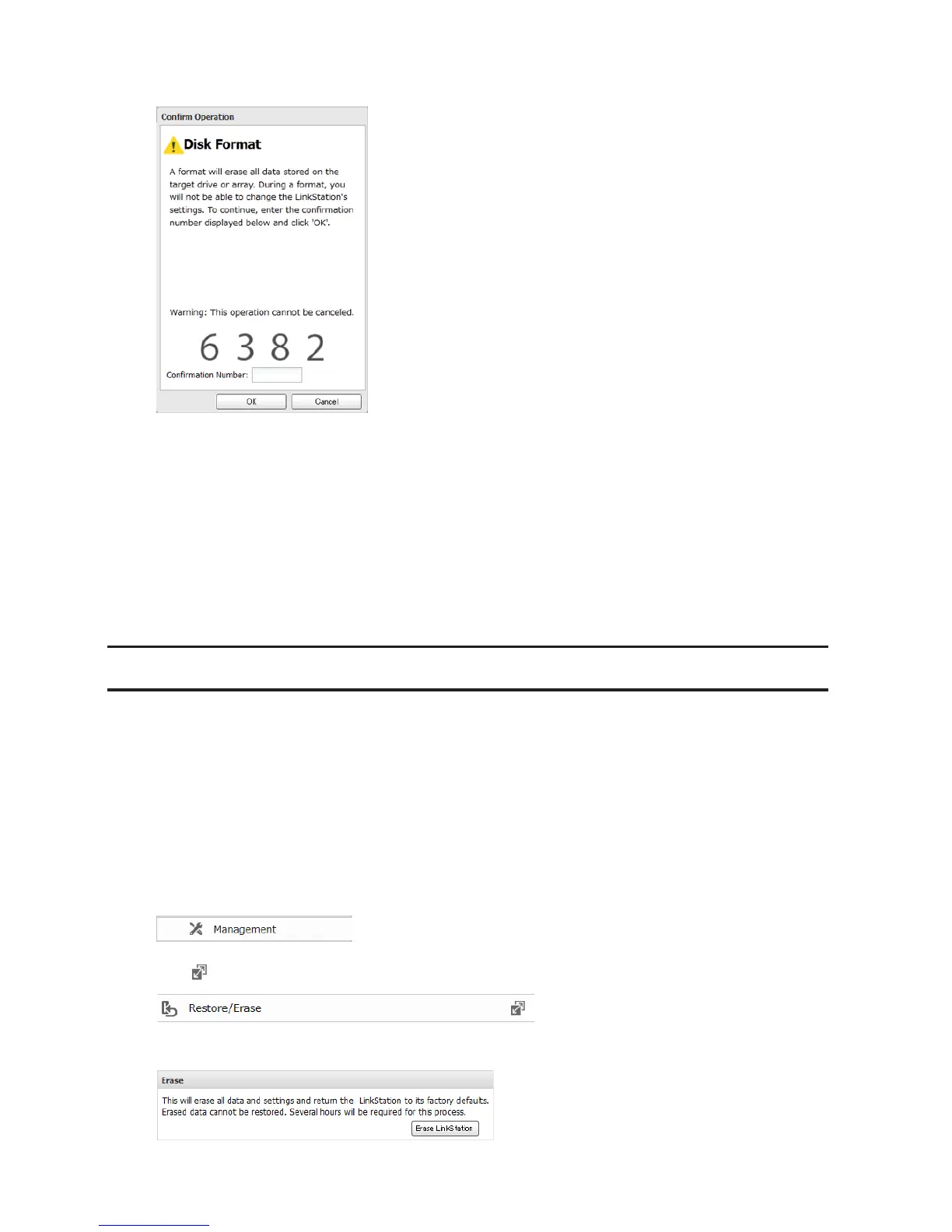
5 The "Confirm Operation" screen will open. Enter the confirmation number and click OK.
6 Depending on the size of your drive, the format may take several minutes to several hours to complete. The
power LED will flash during the format. Shared folders cannot be accessed during a format. Do not turn off the
LinkStation until the disk format is finished.
Notes:
• Do not turn off or disconnect power to the LinkStation while formatting a hard drive.
• For drives of 2.2 TB or larger, make sure that the "GPT Partition" checkbox is selected. If you accidentally
format a larger drive without GPT, disconnect and then reconnect it before reformatting with GPT.
• The following format types are supported to format from Settings: FAT32 (recommended for connecting to
computers) and XFS (recommended for adding additional external storage to a LinkStation).
Erase Data on the LinkStation Completely
Under some circumstances, data from formatted drives can be recovered. The disk erasure process in this section
does a much more thorough job of erasing data. This procedure is recommended for removing all data from a drive
in a way that makes it nearly impossible to recover with current tools. All data on the drives is completely erased.
The LinkStation will then be in the following state:
• Both drives in JBOD
• An empty shared folder on each drive
• All settings returned to their default values
• All logs deleted
1 In Advanced Settings, click Management.
2 Click to the right of "Restore/Erase".
3 Click Erase LinkStation.





 To Next Page