37
Adding an External Hard Drive
Connect an External Drive
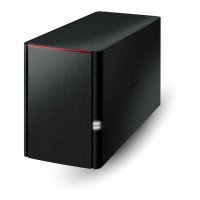
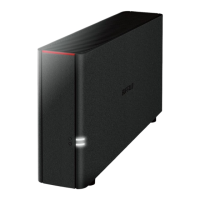
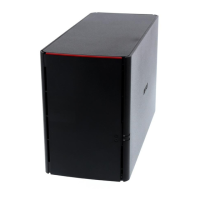
Your LinkStation includes a USB port and you can connect an external drive to this port. It will appear as a shared
folder on the LinkStation. Formatted drives are detected automatically. Unformatted drives should be formatted in
Settings.
After a USB drive is recognized, Windows adds "usbdisk X" under the LinkStation in "Network", where "X" is the USB
port where the hard drive is connected.
Notes:
• Hubs are not supported. Connect a single USB drive to the USB port.
• Backup data from Mac OS may include characters that cannot be written to FAT16 or FAT32 drives such as
".DS_Store". For best results, reformat the drive before using it as a backup target.
Compatibility
The following devices are supported by the LinkStation:
• USB storage devices
• Card readers (except for card readers that can recognize two or more memory cards)
• Digital cameras
• USB printers
Buffalo external USB drives are recommended.
These devices are not supported:
• DUB and DIU series drives
• Hubs, mice, and keyboards
Connect only one device to a USB port. Some external drives with automatic power-on don't turn on automatically
when connected to the LinkStation. Use their manual switch to turn them on. Be sure to connect only one bus-
powered drive at a time. If there is insufficient bus power for your USB drive, connect its AC adapter. Note that only
the first partition of a connected USB hard drive is mounted. Additional partitions are not recognized.
Note: Hard drives formatted with NTFS, exFAT, ext3, or HFS+ will have read-only access.
Dismounting Drives
If the LinkStation is powered on, dismount external drives before unplugging them. You may dismount external
drives with the function button, or any drives from Settings. If the LinkStation is off, then all drives are already
dismounted and may be unplugged safely.
Note: If you unplug your external drives without dismounting them, Settings may still show "usbdisk" in File
Sharing - Folder Setup. Reboot your LinkStation to clear it.
Dismounting with the Function Button
If the LinkStation is on, hold down the function button for 3 seconds. The white function LED will go out as all
attached USB drives are dismounted. You may now unplug them safely.
Dismounting from Settings on a Computer
1 In Advanced Settings, click Drives.





 To Next Page