25
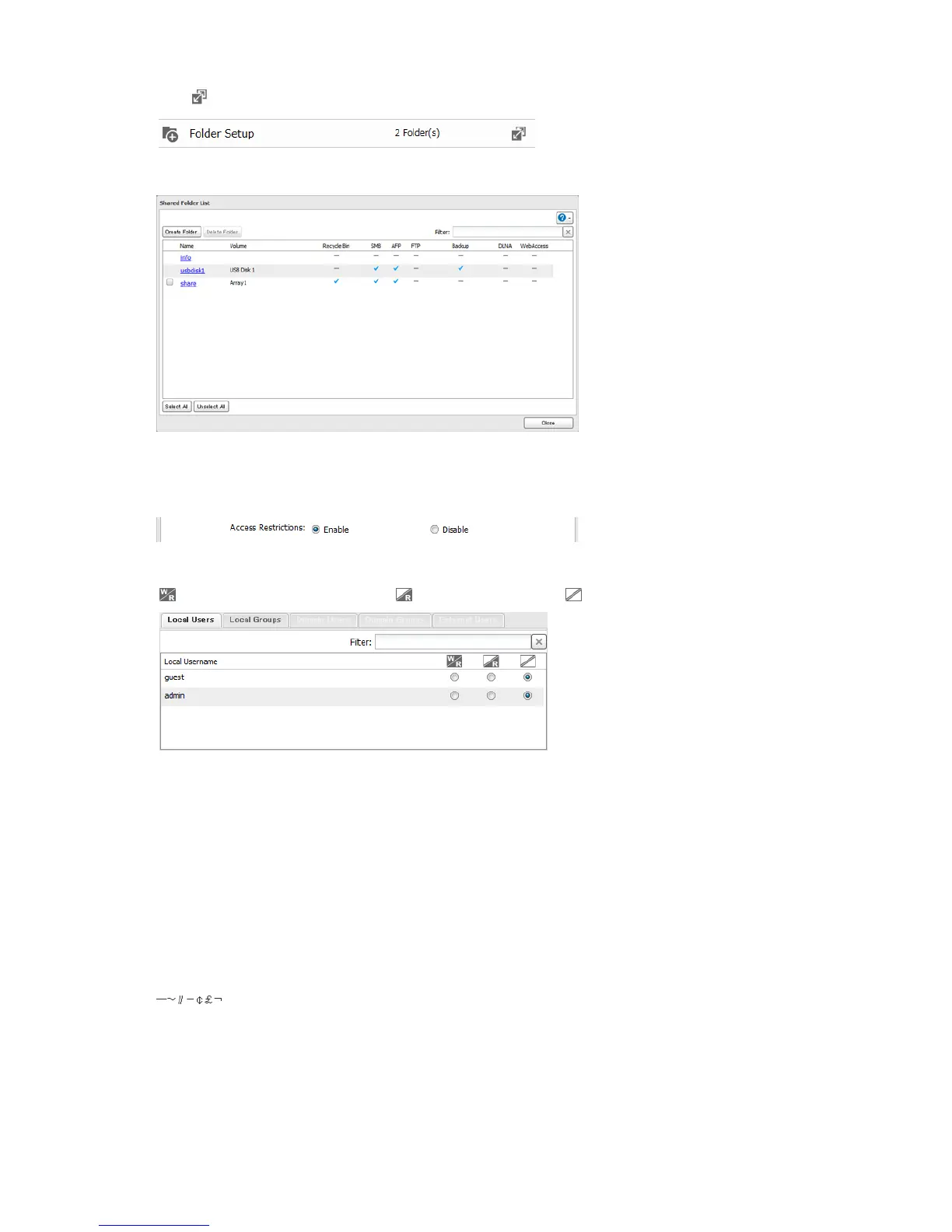
2 Click to the right of "Folder Setup".
3 Click the shared folder that you want to set access restrictions for.
4 Click Edit.
5 Enable "Access Restrictions".
6 Select the level of access for the user or group you added.
: Read and write access allowed : Read access allowed : Access prohibited
Notes:
• An example of access restrictions by user is shown in the screen. To apply access restrictions by group, click
the Local Groups tab and select group permissions.
• If both read-only and read & write permissions are given to a user, the user will have read-only access.
7 Click OK.
Notes
• The following characters are handled differently by Mac OS and Windows. Avoid using these characters when
sharing data between Mac OS and Windows:
• Windows does not support some characters that Mac OS and the LinkStation allow. If you create a filename on
a Mac with any of the following characters, it will not display correctly on a Windows computer and you may
have to connect to the LinkStation via AFP in order to display or copy any of the following characters on a Mac
computer.
? [ ] / \ = + < > ; : " , | *





 To Next Page