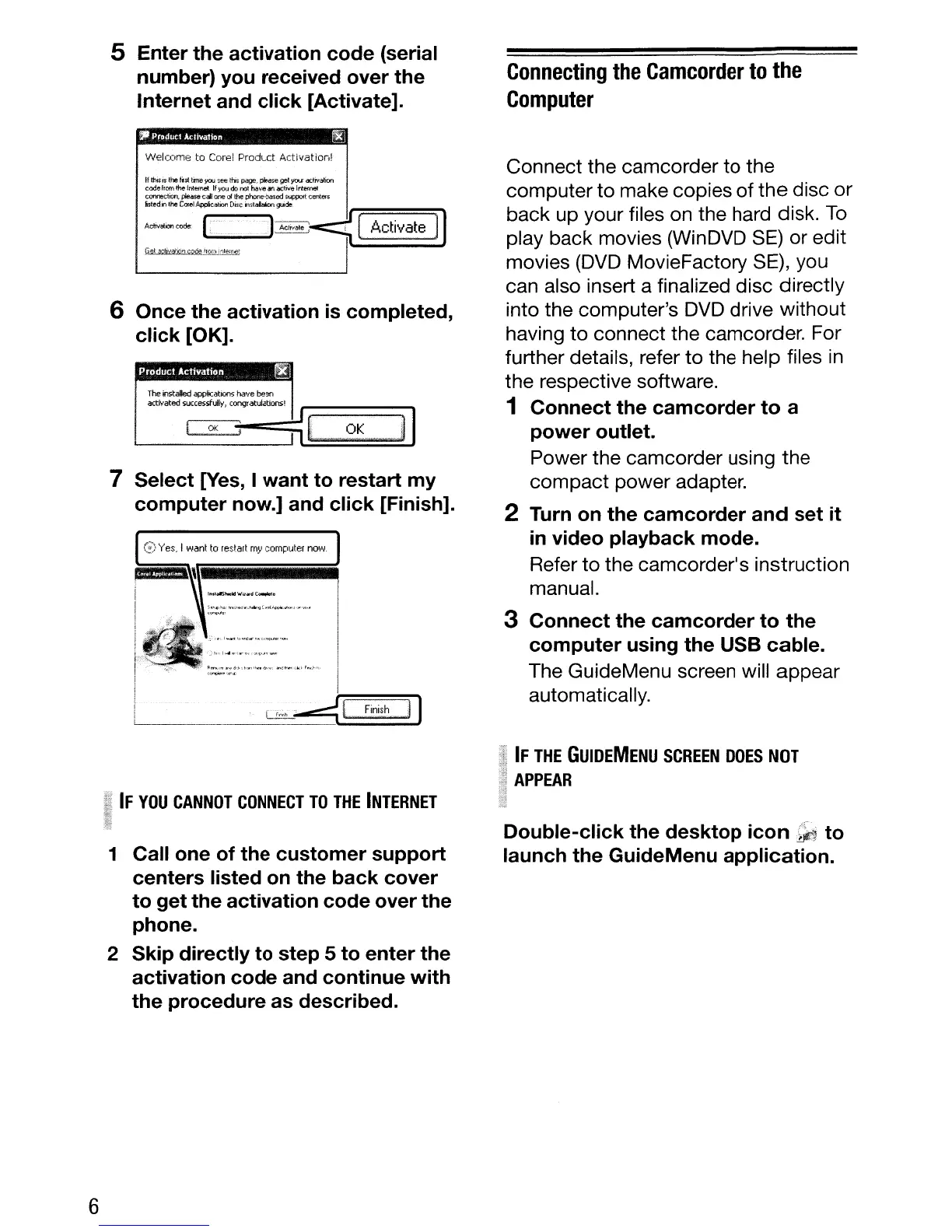
5 Enter the activation code (serial
number) you received over the
Internet and click [Activate].
Connecting
the
Camcorder
to
the
Computer
Welcome
to
Corel Product Activationl
(::)
Yes,
I
want
to
restart
my
computer
now.
7 Select [yes, I want to restart my
computer now.] and click [Finish].
Connect the camcorder
to
the
computer to make copies
of
the
disc or
back up your files on the hard disk.
To
play back movies (WinDVD
SE)
or edit
movies
(DVD
MovieFactory SE), you
can also insert a finalized disc directly
into the computer's
DVD
drive without
having
to
connect the camcorder. For
further details, refer to the help files
in
the respective software.
1 Connect the camcorder
to
a
power outlet.
Power the camcorder using the
compact power adapter.
2 Turn on the camcorder
and
set it
in
video playback mode.
Refer
to
the camcorder's instruction
manual.
3 Connect the camcorder
to
the
computer using the USB cable.
The GuideMenu screen will appear
automatically.
OK
I
OK
;
If
thisjg thehrst
time
you ree
tfli$"
page,
pfe.are
getyr.u
actr.,.alion
codefrOOt
the lfltetnel.
tf
you
do
MtMve
¥Il1Cti
....
e
Internet
~ction.
p1eas~
cal
one
or
the
pnooe-based
suppot't
centefs
irledin the
CorelApplka!ion
Disc
iHt~
~de
AcW~
..
wx~
L J
Ad".,.
4 [Activate
l)
v~'Q.OO.llQ:T,j~lA:nes
r~-.''I''¥Ila,..,;",rF'IC(~'"''''''''
I
",,,.,,
..
,,,.,,...
I
:=::,~,;'"'''''~'''
~.~"
..
,
...
"" I
u;,"
~(;=I
=Fin=lsh
=:ill
6 Once the activation
is
completed,
click [OK].
IF
THE
GUiDEMENU
SCREEN
DOES
NOT
APPEAR
IF
YOU
CANNOT
CONNECT
TO
THE
INTERNET
1 Call one of the customer support
centers listed
on
the back cover
to get the activation code over the
phone.
2 Skip directly to step 5 to enter the
activation code and continue with
the procedure as described.
Double-click the desktop icon to
launch the GuideMenu application.
6



 To Next Page