GuideMenu
-
Disc
Copy
Note that only the following discs can
be used with GuideMenu:
Source
disc
- Discs recorded and
finalized with this camcorder.
Copy
disc
- Standard-size
(12
cm)
DVD-R or DVD-RW discs. DVD-R DL
and 8 cm discs cannot be used for the
copies.
[~~~!~~~~.~~:~*~~.e
~~~~
*0
~*_*_
...
J
You
can make exact copies
of
your
discs onto standard-sized DVD-R or
DVD-RW discs. Refer also to the
computer's instruction manual
as
necessary.
1 Camcorder:
Insert
the
disc
you
want
to
copy.
Insert a finalized disc.
2 Computer:
Insert
a standard-size
(12
cm) DVD
disc
into
the
DVD
drive.
If
the source disc is a DVD-RW
recorded
in
VR
mode, be sure to use
a DVD-RW disc for the copy as well.
Otherwise, you can use either a
DVD-RW or a brand new DVD-R
disc.
3 Click
[Copy
to
Disc].
4 Select
the
DVD drive as
the
target
device and
click
[Next].
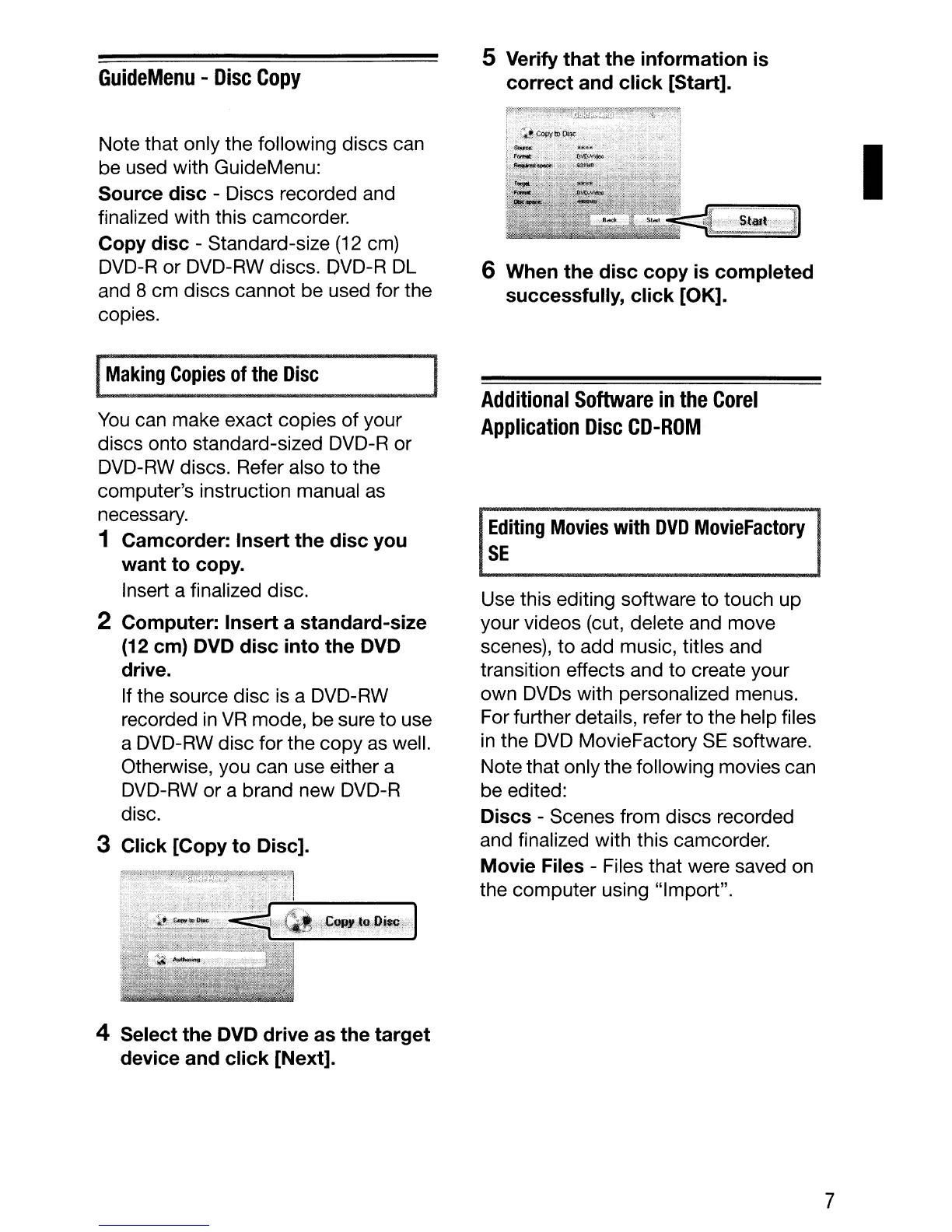
5 Verify
that
the
information
is
correct
and
click
[Start].
6 When
the
disc
copy
is
completed
successfully,
click
[OK].
Additional
Software
in
the
Corel
Application
Disc
CD-ROM
Editing
Movies
with
DVD
MovieFactory
SE
Use this editing software to touch up
your videos (cut, delete and move
scenes), to add music, titles and
transition effects and to create your
own DVDs with personalized menus.
For further details, refer to the help files
in
the DVD MovieFactory
SE
software.
Note that only the following movies can
be edited:
Discs - Scenes from discs recorded
and finalized with this camcorder.
Movie Files - Files that were saved on
the computer using "Import".
7
I



 To Next Page