8
o
IMPORTANT
• When using this software with a
standard-definition
DVD
camcorder, we
do
not recommend that you use
MovieFactory
SE
to create high-
definition AVCHD discs for the following
reasons:
- The image quality does not improve
when creating
an
AVCHD disc from a
standard-definition
DVD
disc.
- Converting data
to
AVCHD
specifications takes a considerable
amount of time.
- High-definition discs created or
copied using Corel software can be
played back only with AVCHD-
compatible
DVD
players.
Do
not
insert such discs into a
DVD
player
that
is
not compatible with AVCHD
specifications
as
you may not be able
to
eject the disc.
• When using a computer that has only
one
DVD
drive to read and write data,
you will be able to use only DVD-RW
discs; DVD-R and DVD-R DL discs
cannot be copied
in
such case.
CD
NOTES
• If you include
in
a disc scenes that were
not recorded with this camcorder, the
disc may not be played back correctly.
• If you have the editing software Roxio
MyDVD for Canon installed
in
your
computer, you will not be able to burn
the disc if more than one copy
is
selected
in
the [Copies:] option.
In
such
case, burn only one copy at a time.
• When editing video files, you can select
the option [Save As]
in
the
~
(Settings
and options) menu to save the edited
scenes. Later, you can open
an
existing
project
to
continue editing or burn
additional copies of the disc.
Using
DVD
MovieFactory
SE
to
convert
discs
to
DVD-VIDEO
mode
You
can
use
the
DVD MovieFactory SE
software
to
convert
discs
into
standard
DVD-VIDEO discs. This
function
allows
you
to
convert
discs
recorded in
VR
mode
into
standard DVD-VIDEO
mode
discs
that
can be played with
most
common
DVD devices.
1 Connect the camcorder
to
the
computer.
Refer
to
Connecting the Camcorder
to the Computer
(OJ
6).
2 Camcorder: Insert the disc
you
want to convert and copy.
Insert a finalized disc.
3 Computer: Insert a standard-size
(12 cm) DVD disc into the DVD
drive.
You can use either a DVD-RW or a
brand-new
DVD-R disc.
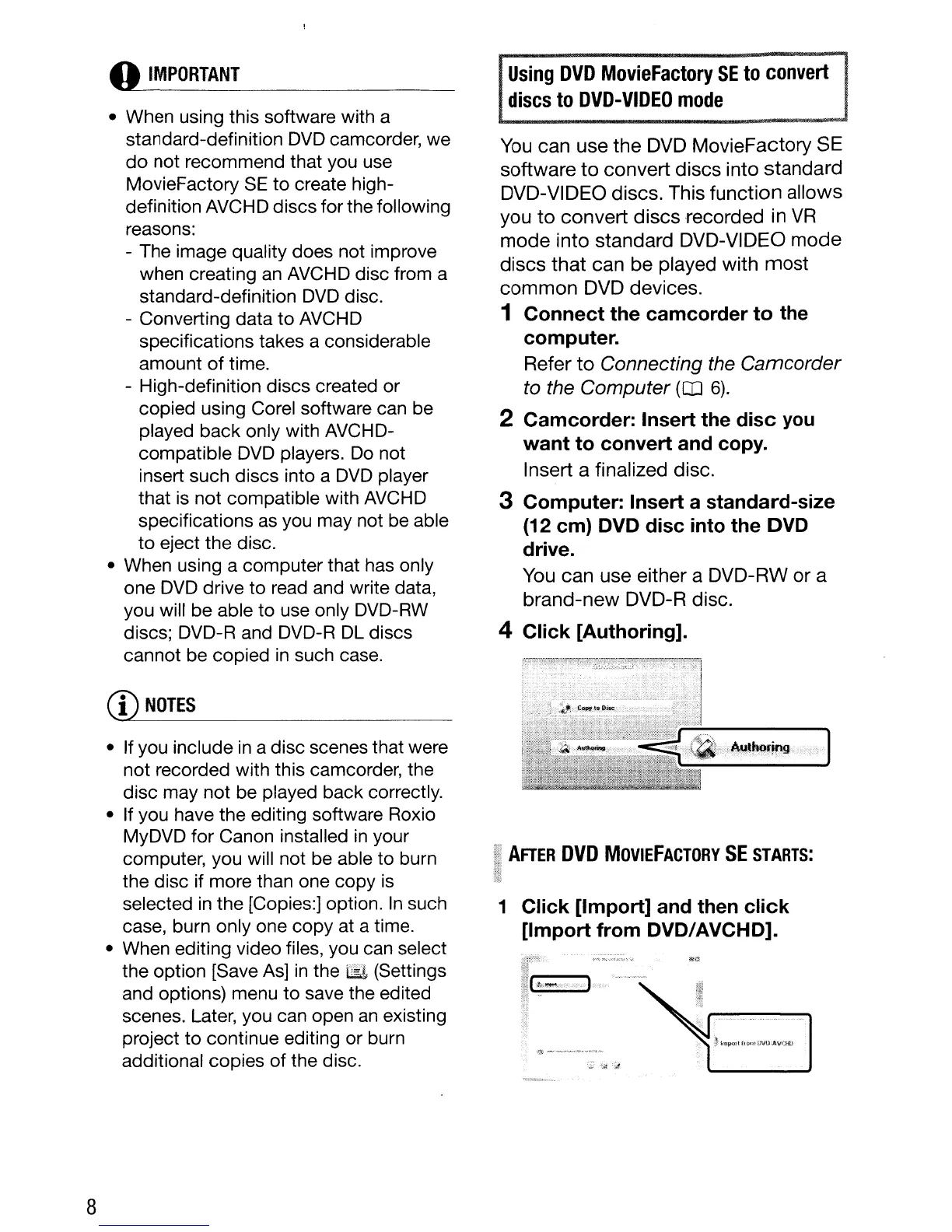
4 Click [Authoring].
AFTER
DVD
MOVIEFACTORY
SE
STARTS:
1 Click [Import] and then click
[Import from DVD/AVCHD].
:~
-"._,,~,-,,''',>".y
...
:~.¥,
>:~
oed



 To Next Page