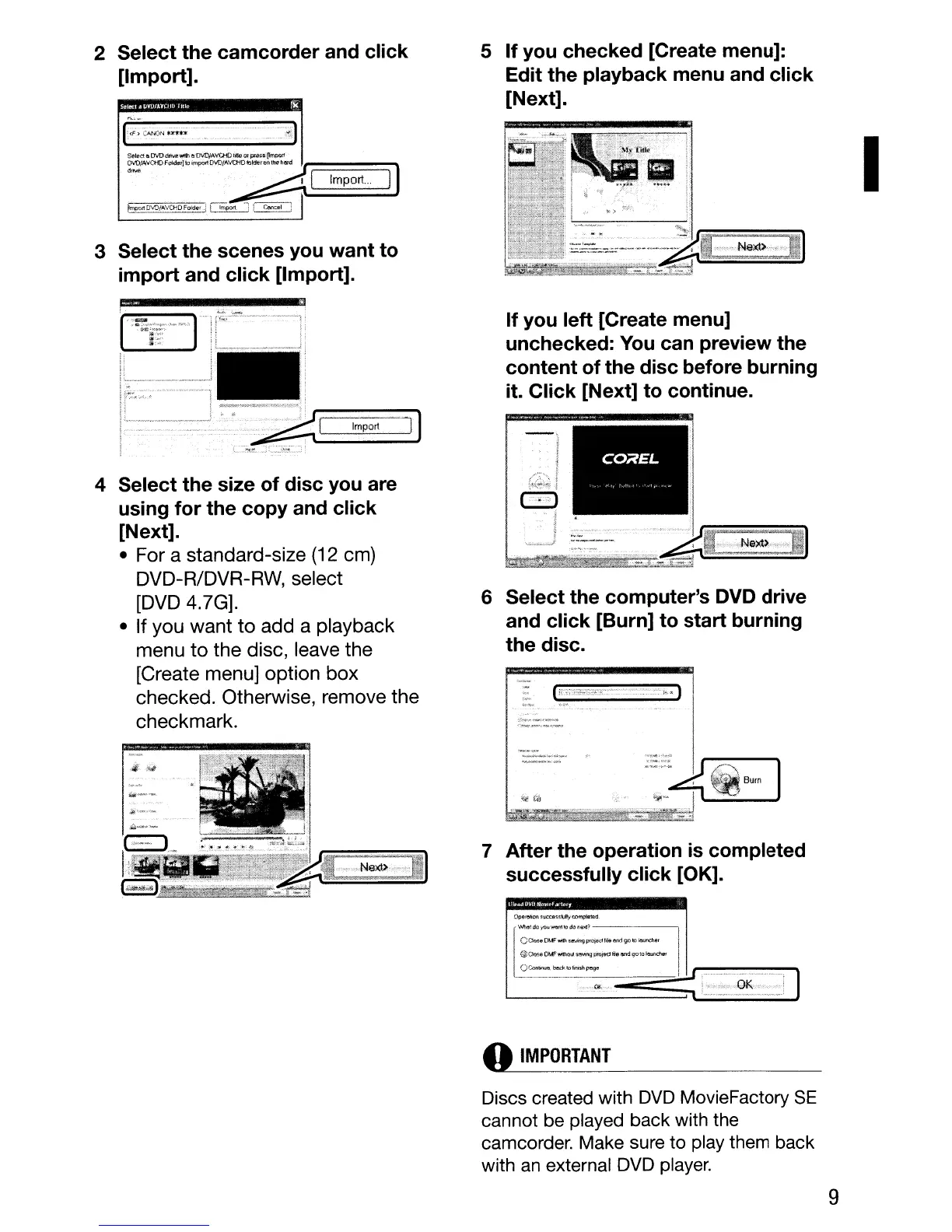
2 Select the camcorder and click
[Import].
li!ttallVl.lfAYWlllffk:
f!f
5 If you checked [Create menu]:
Edit the playback menu and click
[Next].
3 Select the scenes you want to
import and click [Import].
1<,;2""0";;......
····f)
Select
III
[M)
drNe
With
"rMJIAVCHb
i.tk>.
lJtpt0$lO
pmport
~~~F~~)loim~D~IA~
[
~~.orlD'.ffi/AVOiD
FOlder
__
i
L-'-~:~~~
Import
..
,
I)
I
6 Select the computer's DVD drive
and click [Burn] to start burning
the disc.
If you left [Create menu]
unchecked:
You
can preview the
content of the disc before burning
it. Click [Next] to continue.
COiiEL
,
II
1 I e ~"
}
-.,~,,,,
....
,,,
..
,.f
-,
(',
I
i
i
4 Select the size of disc
you
are
using for the copy and click
[Next].
• For a standard-size
(12
em)
DVD-R/DVR-RW, select
[DVD
4.7G].
• If you want
to
add a playback
menu
to
the disc, leave the
[Create menu] option box
checked. Otherwise, remove the
checkmark.
7 After the operation
is
completed
successfully click [OK].
Opertl~ofl.
SIJa:tistlo*;y
oompleled
Wheld[lOyo"W'C1l1lodOIlIr4?---~
CaoseDMFwn!>
sllllingproied~I9MdgolO
IIWncher
@<;:lQ!;l'l
OMFwrlh:;ltl~I!"JIng:prui&dlileand9otQ
IcwI\Chef
«)
IMPORTANT
Discs created with
DVD
MovieFactory
SE
cannot be played back with the
camcorder. Make sure to play them back
with
an
external DVD player.
9



 To Next Page