Printing Multiple Pages Continuously (Mac OS)
Printing Multiple Pages Continuously (Mac OS)
This topic describes how to print multiple pages as a single continuous image, without margins between pages.
Important
•
This feature is only available with rolls. It cannot be used when printing on sheets.
•
When using Banner Printing, some of the settings are disabled, including Borderless Printing, Enlarge/Reduce Print-
ing, and Layout.
1
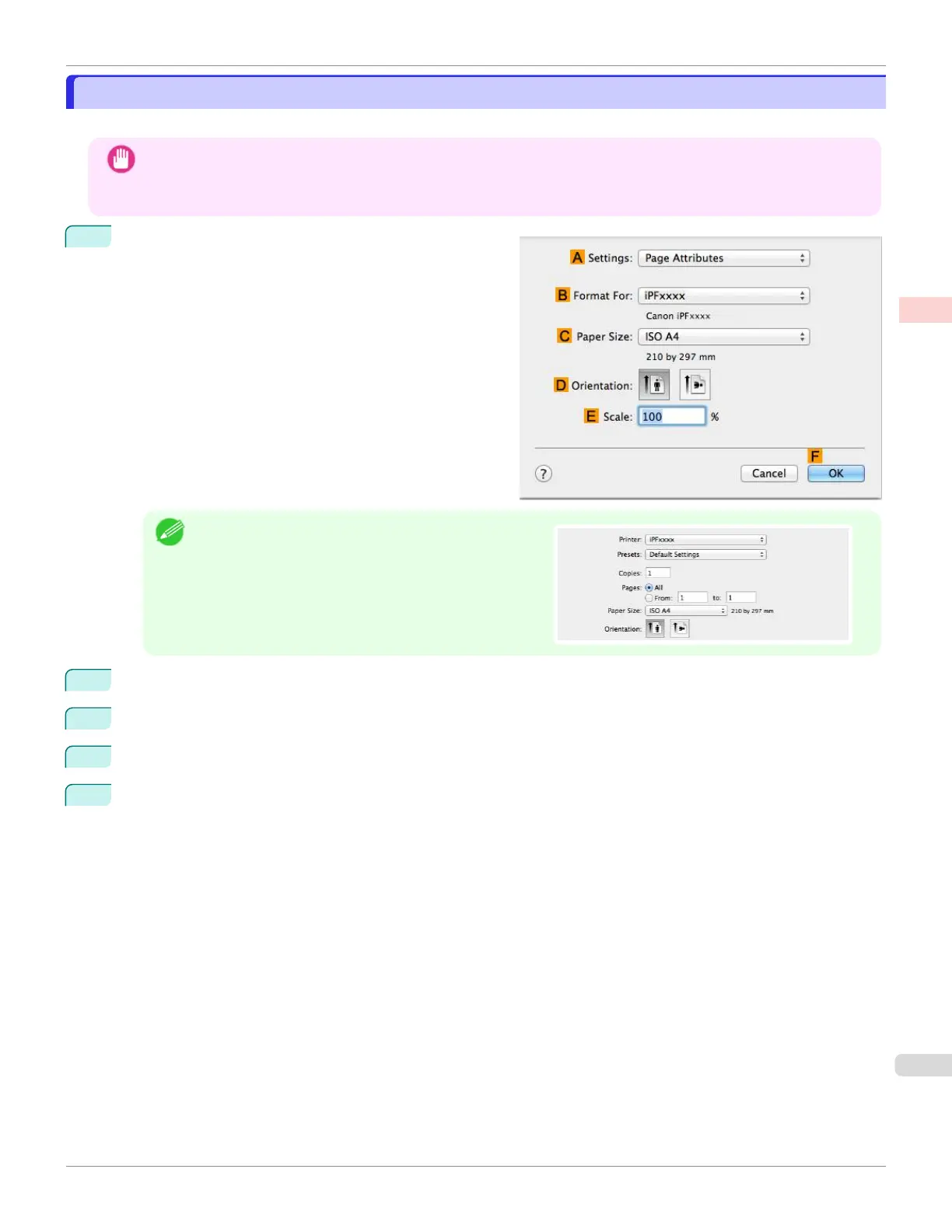
Choose Page Setup from the application menu to dis-
play the Page Attributes dialog box.
Note
•
Page Setup might not be displayed in the menu de-
pending on the OS you are using and the application
software.
In this case, select Print from the menu in the applica-
tion software, and configure the settings in the upper
part of the printer driver screen that is displayed.
2
Select the printer in the B Format for list.
3
Choose the original size in the C Paper Size list.
4
Click F OK to close the dialog box.
5
Choose Print in the application menu.
iPF670
Printing Multiple Pages Continuously (Mac OS)
User's Guide
Enhanced Printing Options Tiling and multiple pages per sheet
115













 To Next Page