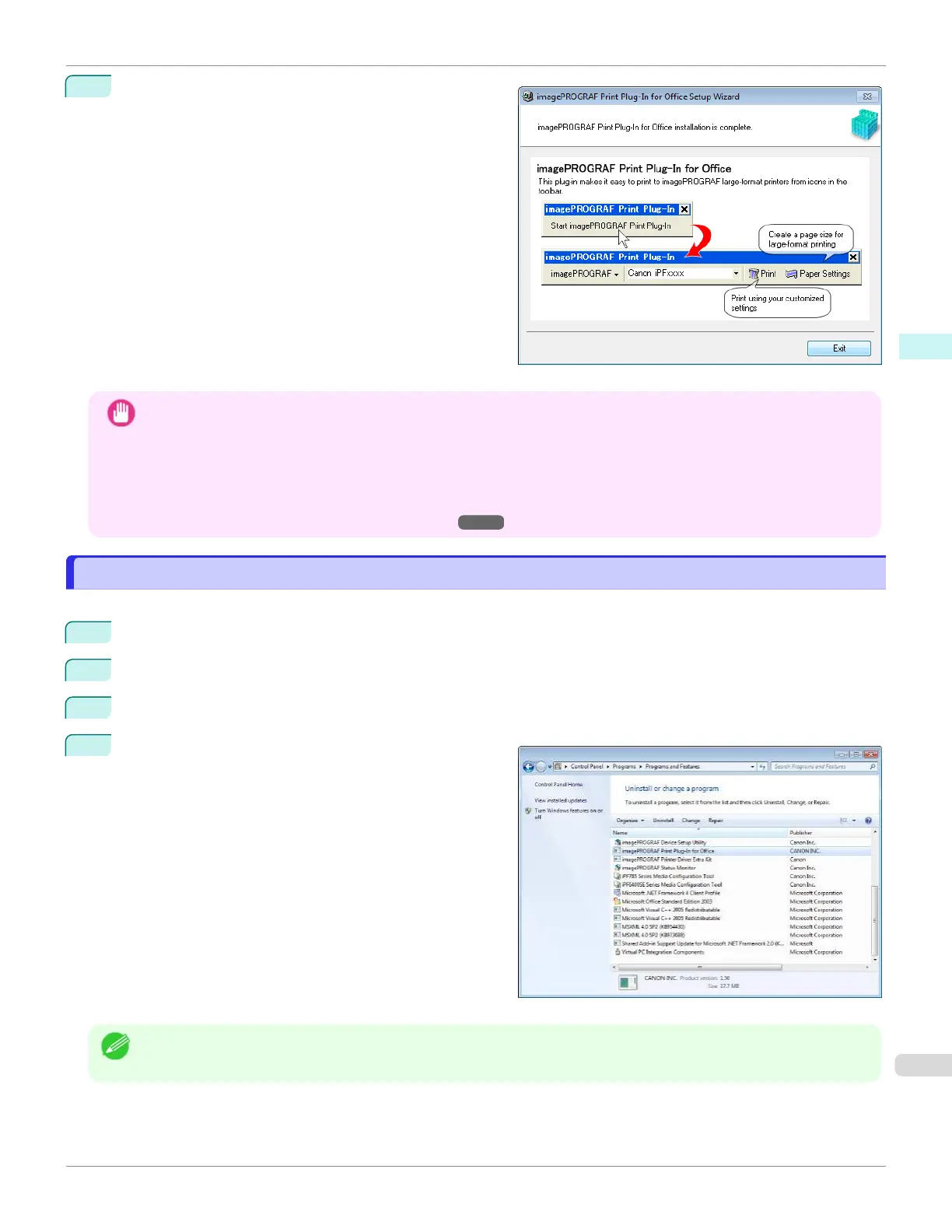
7
Click the Exit button.
The installation for Print Plug-In for Office is com-
plete.
Important
•
When you install this software, the virtual printer Canon imagePROGRAF PrintPlugIn may be installed. If you want
to use this software, do not uninstall the virtual printer Canon imagePROGRAF PrintPlugIn.
•
The Print Plug-In for Office toolbar/ribbon might not be displayed in Microsoft Office after installing imagePROG-
RAF Print Plug-In for Office.
Refer to the following topic for details on how to display the imagePROGRAF Print Plug-In for Office toolbar/ribbon.
•
When Print Plug-In for Office is not displayed ➔P.238
Steps to uninstall
Steps to uninstall
Below are the steps to uninstall Print Plug-In for Office.
1
If Microsoft Office is open, close it.
2
Select Control Panel from the start menu.
3
Select Uninstall a program.
4
Select imagePROGRAF Print Plug-In for Office, and
then click the Uninstall button.
Note
•
You cannot uninstall Print Plug-In for Office if an Office application is running. When a message appears, select Can-
cel and close all Office applications that are running.
iPF670
Steps to uninstall
User's Guide
Windows Software Print Plug-In for Office
237













 To Next Page