Colors in printed images are uneven
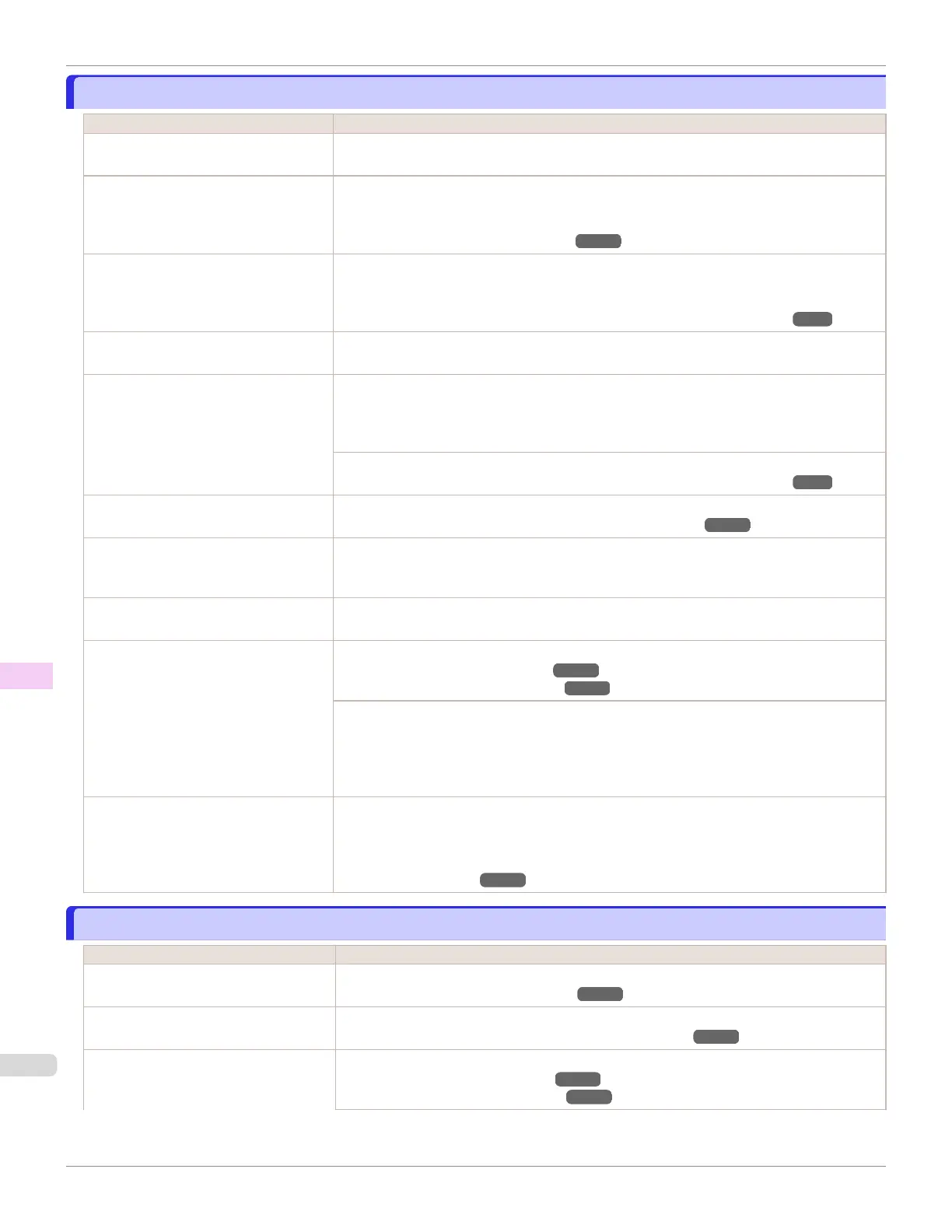
Colors in printed images are uneven
Cause Corrective Action
Line Drawing/Text is selected when
printing images in many solid colors.
In Print Priority in the Advanced Settings of the printer driver, choose Image.
You are printing on paper that curls easi-
ly.
Printed colors may appear uneven on the leading edge of paper that is susceptible to curling.
Select a stronger level in VacuumStrngth in the Control Panel menu to increase suction
against the paper, or specify a leading margin of 20 mm (0.79 in) or more.
(See "Adjusting the Vacuum Strength.") ➔ P.539
Printed colors may be uneven if you set
the Print Quality too low.
Choose a higher level of Print Quality in the Advanced Settings of the printer driver.
Printing in Fast or Standard mode is faster and consumes less ink than in Highest or High
modes, but the printing quality is lower.
(See "Giving Priority to Particular Graphic Elements and Colors for Printing.") ➔P.56
Color may be uneven between dark and
light image areas.
Select Unidirectional Printing in the Advanced Settings of the printer driver.
When borderless printing is used, the
edge of the paper is cut during printing.
Thus, ink density may be slightly uneven
at the leading edges.
Specify No in Automatic Cutting in the printer driver before printing. In this case, the paper
can be printed without borders on the left and right sides only. Cut the printed document ejec-
ted from the printer, and then use scissors or a cutting tool to cut away the edges on the top
and bottom.
Choose a higher level of Print Quality in the Advanced Settings of the printer driver.
(See "Giving Priority to Particular Graphic Elements and Colors for Printing.") ➔P.56
The Printhead is out of alignment. Adjust the Printhead alignment.
(See "Automatic Adjustment to Straighten Lines and Colors.") ➔P.526
Allowing printed documents to dry on
top of each other may cause uneven
colors.
To avoid uneven colors, we recommend drying each sheet separately.
Density may be uneven if you use Glos-
sy Paper or Coated Paper.
In Advanced Settings of the printer driver, choose Highest or High in Print Quality.
The type of paper specified in the printer
driver does not match the type loaded in
the printer.
Load paper of the same type as you have specified in the printer driver.
(See "Loading Rolls in the Printer.") ➔P.357
(See "Loading Sheets in the Printer.") ➔P.375
Make sure the same type of paper is specified in the printer driver as you have loaded in the
printer.
1.
Press the Stop button and stop printing.
2.
Change the type of paper in the printer driver and try printing again.
Scan Wait Time > Area in the Control
Panel menu is set to Leading edge.
When Scan Wait Time > Area is set to Leading edge, colors may be uneven 110–140 mm
from the leading edge. (The position varies depending on the Print Quality setting.)
In this case, select Scan Wait Time > Area > Entire area.
However, note that printing will now take longer.
(See "Menu Settings.") ➔P.458
Image edges are blurred or white banding occurs
Image edges are blurred or white banding occurs
Cause Corrective Action
The Platen suction is too strong. In the Control Panel menu, reduce the level of VacuumStrngth.
(See "Adjusting the Vacuum Strength.") ➔ P.539
Incorrect Printhead alignment value. In the Control Panel menu, set Head Height to a lower height.
(See "Troubleshooting Paper Abrasion and Blurry Images.") ➔ P.532
The type of paper specified in the printer
driver does not match the type loaded in
the printer.
Load paper of the same type as you have specified in the printer driver.
(See "Loading Rolls in the Printer.") ➔P.357
(See "Loading Sheets in the Printer.") ➔P.375
Colors in printed images are uneven
iPF670
User's Guide
Troubleshooting Problems with the printing quality
594













 To Next Page