Specifying the Ink Drying Time for Rolls
Specifying the Ink Drying Time for Rolls
When you are using paper that takes longer for ink to adhere, ink may be transferred onto the paper surface during
ejection, soiling it. In that case, you may be able to improve the condition by setting the time to wait for the ink to dry
after printing.
Note
•
If the Cutter touches the print surface on which the ink is not dry, the paper surface may become scratched or soiled, or
the paper surface may rub when the paper falls and the surface may become soiled.
To wait for the ink to dry without allowing printed documents to fall after printing, set Cutting Mode on the menu of the
printer to Eject. (See "Specifying the Cutting Method for Rolls.") ➔P.369
•
The settings can also be made from the Control Panel on the printer. Select the type of paper from Paper Details in
Paper Menu. (See "Menu Settings.") ➔P.458
Windows
1
Display the printer driver dialog box.
(See "Accessing the Printer Driver Dialog Box from the Operating System Menu (Windows).") ➔ P.163
2
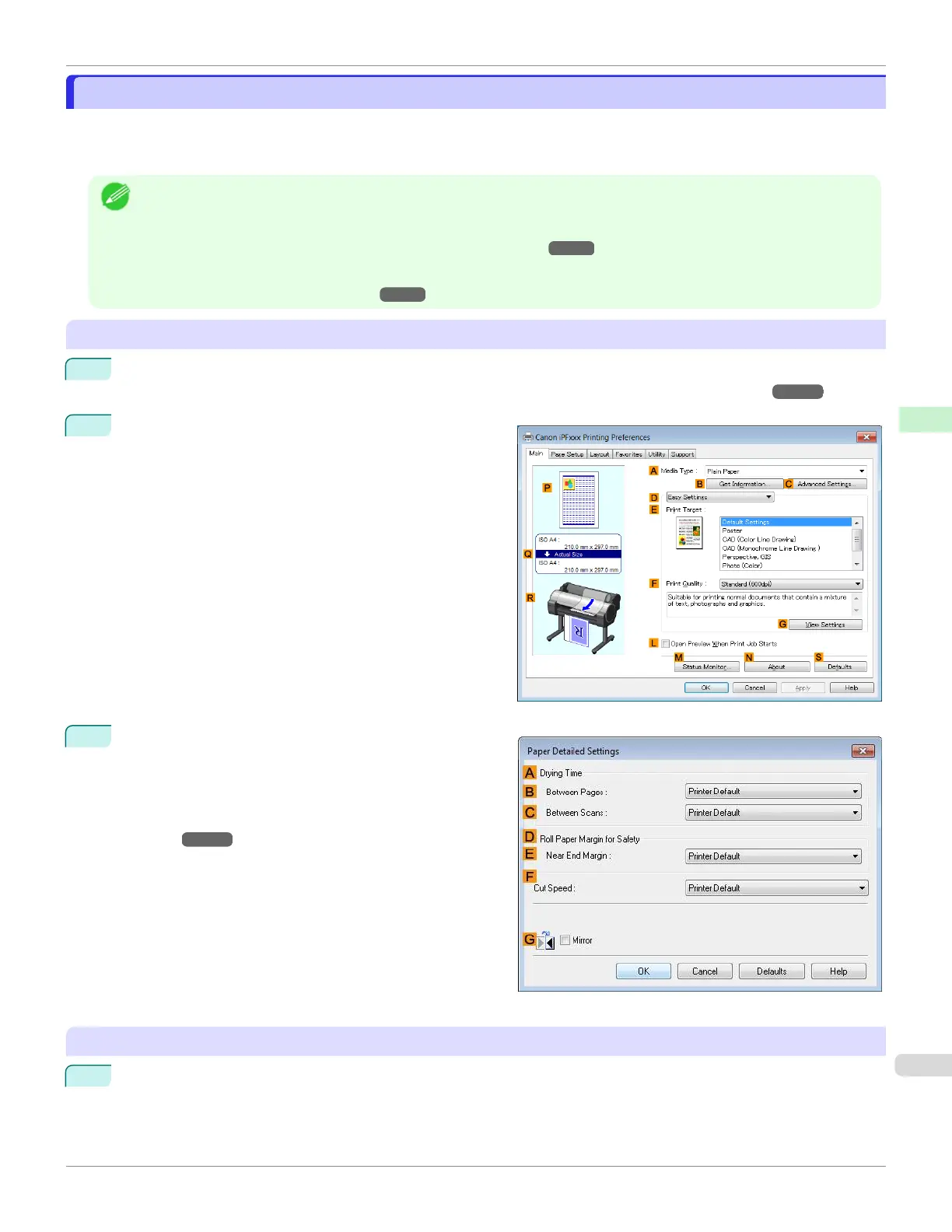
Select the Main sheet and click C Advanced Settings
in A Media Type.
3
In the Paper Detailed Settings dialog box displayed
next, select the desired settings values in B Between
Pages and C Between Scans in A Drying Time, and
then click OK.
(See "Paper Detailed Settings Dialog Box (Win-
dows).") ➔P.168
Mac OS
1
Choose Print in the application menu.
iPF670
Specifying the Ink Drying Time for Rolls
User's Guide
Handling and Use of Paper Handling rolls
367













 To Next Page