2
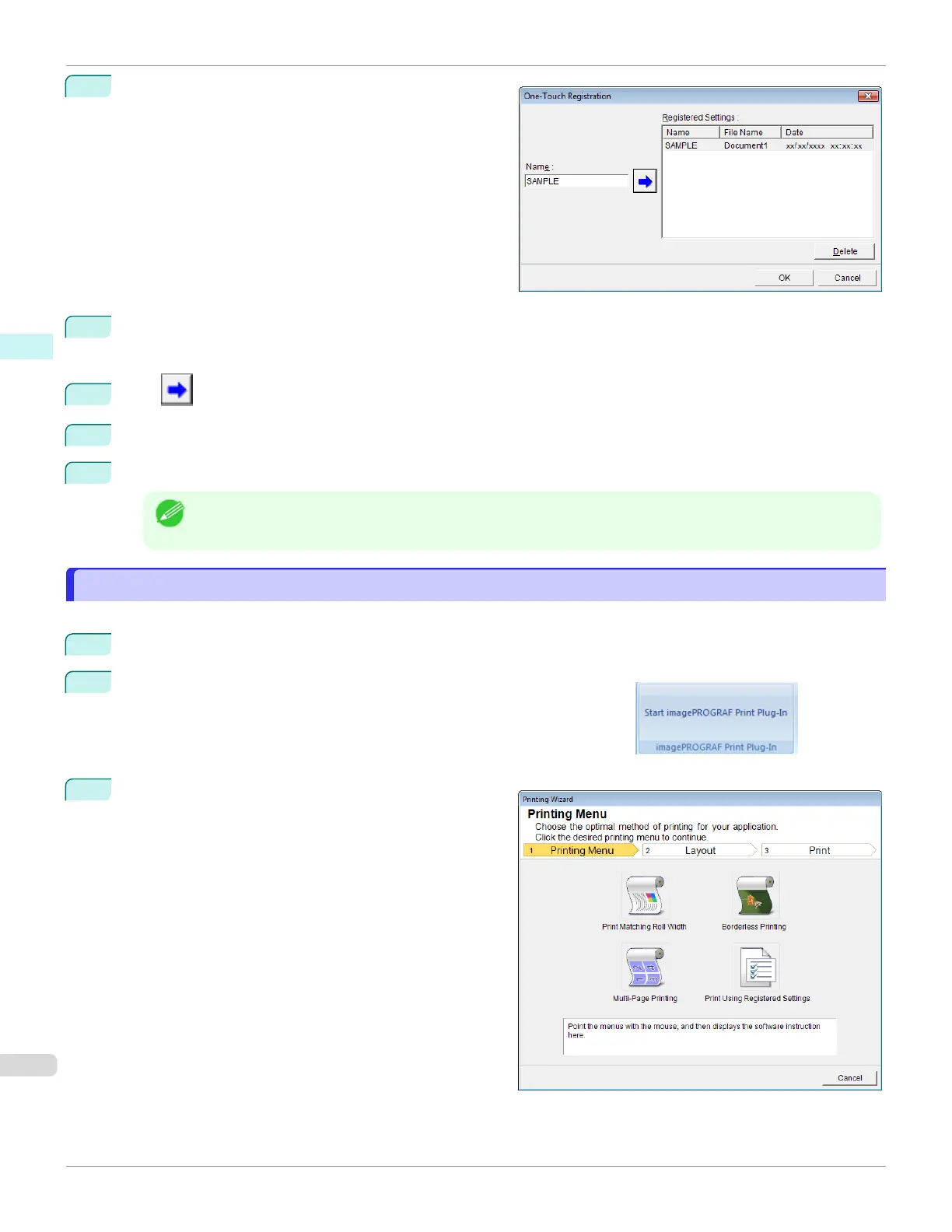
Click the One-Touch Registration button.
3
Enter name in Name.
Up to 31 characters can be entered.
4
Click . The name you entered is displayed in Registered Settings.
5
Click OK, and return to the Print screen.
6
Click Print to print, and click Cancel to cancel the print.
Note
•
Clicking Cancel in the Print screen will not delete the registered settings.
Print Using Registered Settings(PowerPoint)
Print Using Registered Settings(PowerPoint)
Prints using the registered settings.
1
Start Microsoft PowerPoint.
2
If Start imagePROGRAF Print Plug-In is displayed, click it.
3
Click Print from the imagePROGRAF Print Plug-In
toolbar/ribbon.
The Printing Wizard dialog box is displayed.
Print Using Registered Settings(PowerPoint)
iPF670
User's Guide
Windows Software Print Plug-In for Office
262













 To Next Page