Cleaning the Printer
Cleaning the Printer
Cleaning the Printer Exterior ................................................................................................................................. 563
Cleaning Inside the Top Cover .............................................................................................................................. 563
Cleaning the Printhead ......................................................................................................................................... 550
Cleaning the Printer Exterior
Cleaning the Printer Exterior
Clean the printer regularly to maintain better printing quality and help prevent problems.
To ensure a comfortable working environment, clean the printer exterior about once a month.
1
Turn the printer off. (See "Turning the Printer On and Off.") ➔P.17
2
Unplug the power cord from the outlet.
Caution
•
Always turn off the printer and unplug the power cord before cleaning or maintenance. Accidentally leaving
the printer on poses a risk of injury if you touch moving parts inside the printer.
3
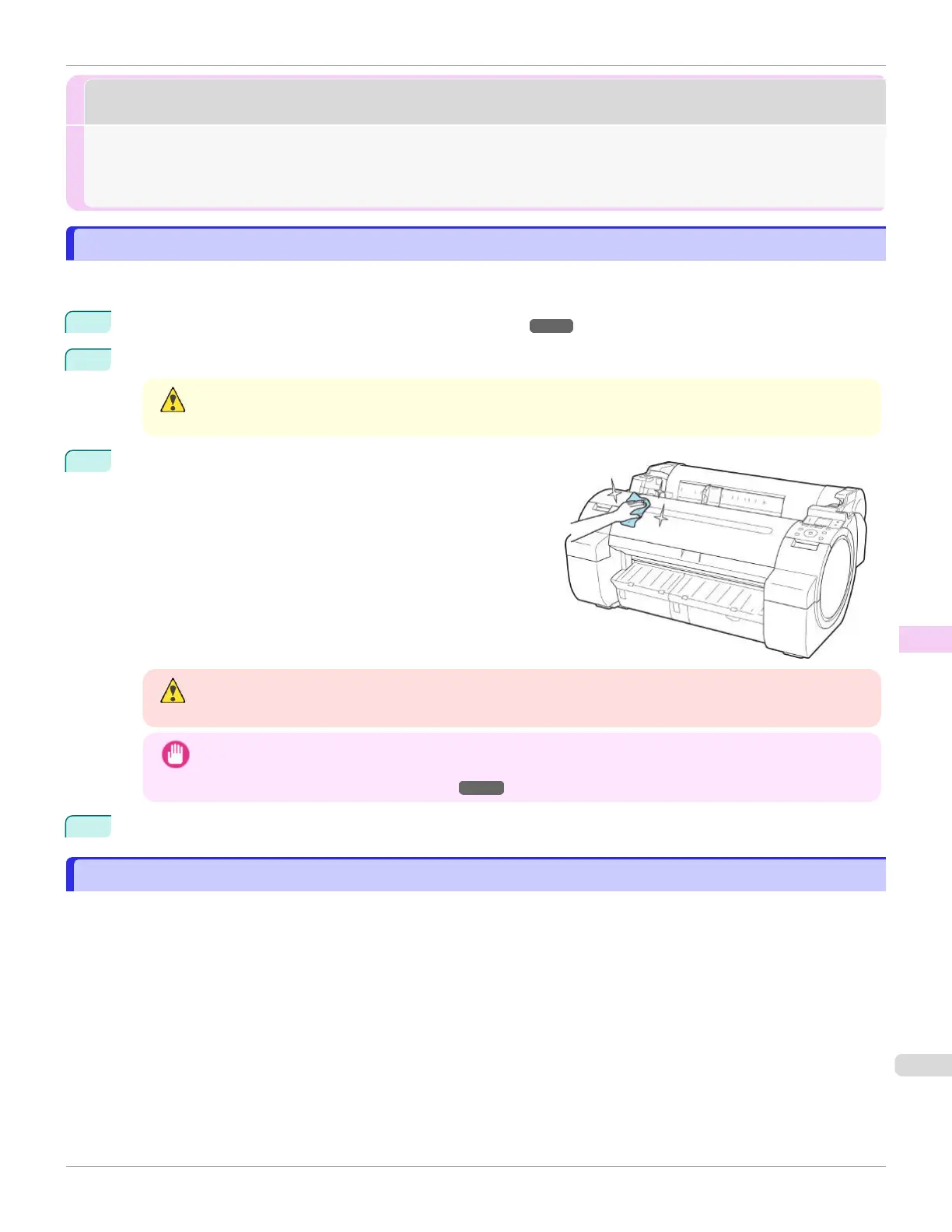
Using a damp cloth that you have wrung out completely, wipe
the exterior surfaces of the printer. Dry the surfaces with a dry
cloth.
Warning
•
Never use flammable solvents such as alcohol, benzene, or thinner. If these substances come into contact
with electrical components inside the printer, there is a risk of fire or electrical shock.
Important
•
If the Ejection Guide is dirty, it may soil the edge of the paper when the paper is cut. We recommend clean-
ing the Ejection Guide even if it does not appear dirty, because it may actually be covered with paper dust.
(See "Cleaning Inside the Top Cover.") ➔ P.563
4
Plug the power cord into the outlet.
Cleaning Inside the Top Cover
Cleaning Inside the Top Cover
Clean inside the Top Cover about once a month to maintain better printing quality and help prevent problems.
Also clean inside the Top Cover in the following situations to ensure optimal operation.
•
If the printed surface or the underside of paper is dirty after printing
•
After you have used up a roll
•
After borderless printing
•
After printing on small paper
•
After printing on paper that generates a lot of cutting debris
•
If you have replaced the roll
•
After printing on paper that generates a lot of paper dust
•
After printing on adhesive paper
iPF670
Cleaning the Printer Exterior
User's Guide
Maintenance and Consumables Cleaning the Printer
563













 To Next Page