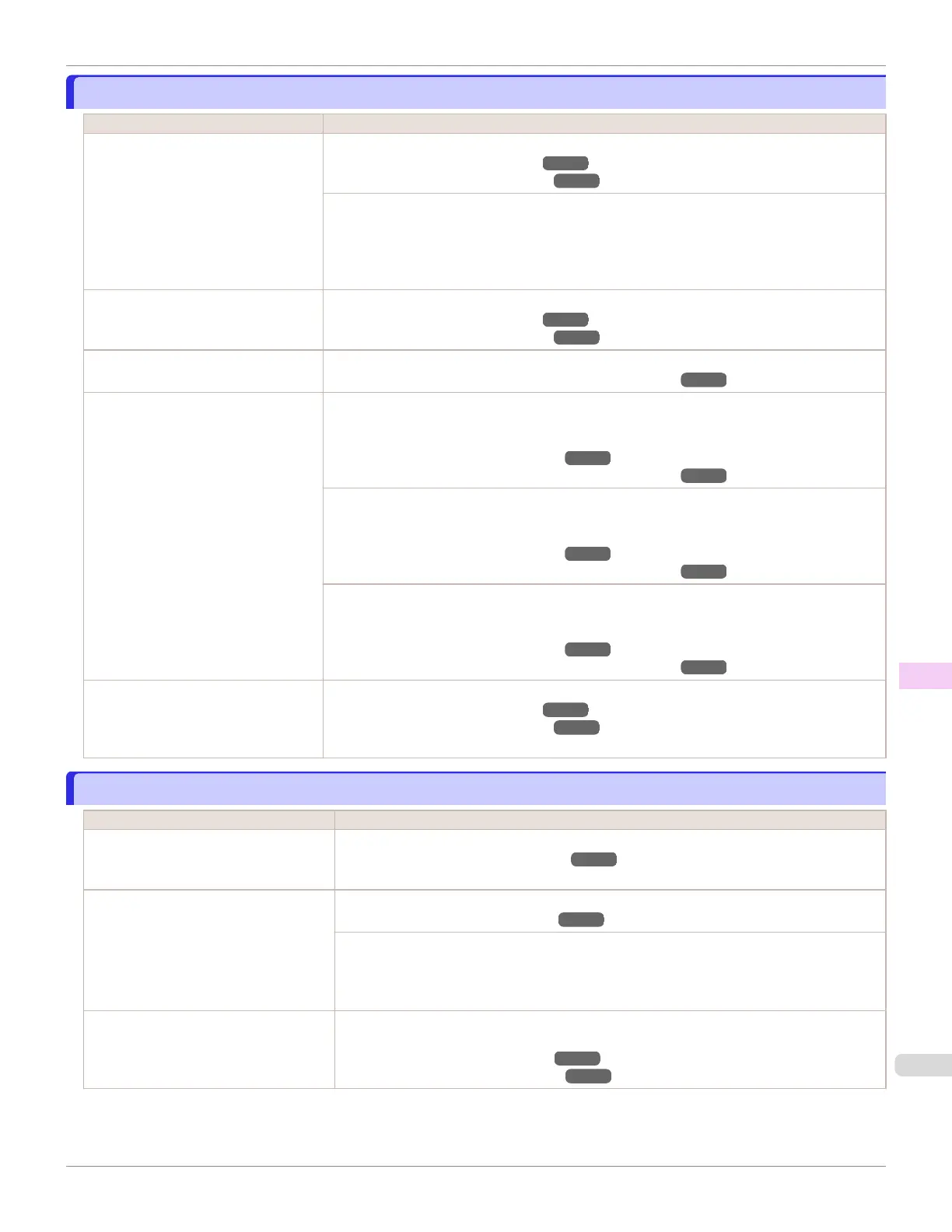
Paper rubs against the Printhead
Paper rubs against the Printhead
Cause Corrective Action
The type of paper specified in the
printer driver does not match the type
loaded in the printer.
Load paper of the same type as you have specified in the printer driver.
(See "Loading Rolls in the Printer.") ➔P.357
(See "Loading Sheets in the Printer.") ➔P.375
Make sure the same type of paper is specified in the printer driver as you have loaded in the
printer.
1.
Press the Stop button and stop printing.
2.
Change the type of paper in the printer driver and try printing again.
Paper has been loaded incorrectly,
causing it to wrinkle.
Reload the paper.
(See "Loading Rolls in the Printer.") ➔P.357
(See "Loading Sheets in the Printer.") ➔P.375
The Printhead is set too low in the
Control Panel menu.
In the Control Panel menu, set Head Height to Automatic.
(See "Troubleshooting Paper Abrasion and Blurry Images.") ➔ P.532
You are printing on heavyweight paper
or paper that curls or wrinkles easily
after absorbing ink.
For paper-based media such as Heavyweight Coated Paper, set the VacuumStrngth to
Strong or Strongest in the Control Panel menu. If the paper still rubs against the printhead, set
the Head Height in the Control Panel menu to a higher value than the current setting.
(See "Adjusting the Vacuum Strength.") ➔ P.539
(See "Troubleshooting Paper Abrasion and Blurry Images.") ➔ P.532
For film-based media such as Tracing Paper, set the VacuumStrngth to Standard, Strong or
Strongest in the Control Panel menu. If the paper still rubs against the printhead, set the Head
Height in the Control Panel menu to a higher value than the current setting.
(See "Adjusting the Vacuum Strength.") ➔ P.539
(See "Troubleshooting Paper Abrasion and Blurry Images.") ➔ P.532
When printing on paper 0.1 mm (0.004 in) thick or less, choose a VacuumStrngth setting of
Weakest in the Control Panel menu. If rubbing still occurs, in the Control Panel menu, use a
higher Head Height setting.
(See "Adjusting the Vacuum Strength.") ➔ P.539
(See "Troubleshooting Paper Abrasion and Blurry Images.") ➔ P.532
When you have loaded paper, the pa-
per you have loaded does not match
the type selected on the Control Pan-
el.
Be sure to select the correct type of paper in the Control Panel menu when loading paper.
(See "Loading Rolls in the Printer.") ➔P.357
(See "Loading Sheets in the Printer.") ➔P.375
The edges of the paper are dirty
The edges of the paper are dirty
Cause Corrective Action
The Platen has become dirty after bor-
derless printing or printing on small pa-
per.
Open the Top Cover and clean the Platen.
(See "Cleaning Inside the Top Cover.") ➔ P.563
The type of paper as specified on the
printer does not match the type specified
in the printer driver.
Make sure the same type of paper is specified on the printer as in the printer driver.
(See "Changing the Type of Paper.") ➔ P.360
Make sure the same paper type is specified in the printer driver as on the printer.
1.
Press the Stop button and stop printing.
2.
Change the type of paper in the printer driver and try printing again.
The paper is wrinkled or warped. Straighten out the wrinkles or curls and reload the paper. Do not use paper that has been
printed on previously.
(See "Loading Rolls in the Printer.") ➔P.357
(See "Loading Sheets in the Printer.") ➔P.375
iPF670
Paper rubs against the Printhead
User's Guide
Troubleshooting Problems with the printing quality
591













 To Next Page