9
In the A Media Type list, select the type of paper that is loaded. In this case, click Plain Paper.
10
Make your selection in the E Print Target list.
11
Make your selection in the F Print Quality list.
12
Access the Page Setup pane.
13
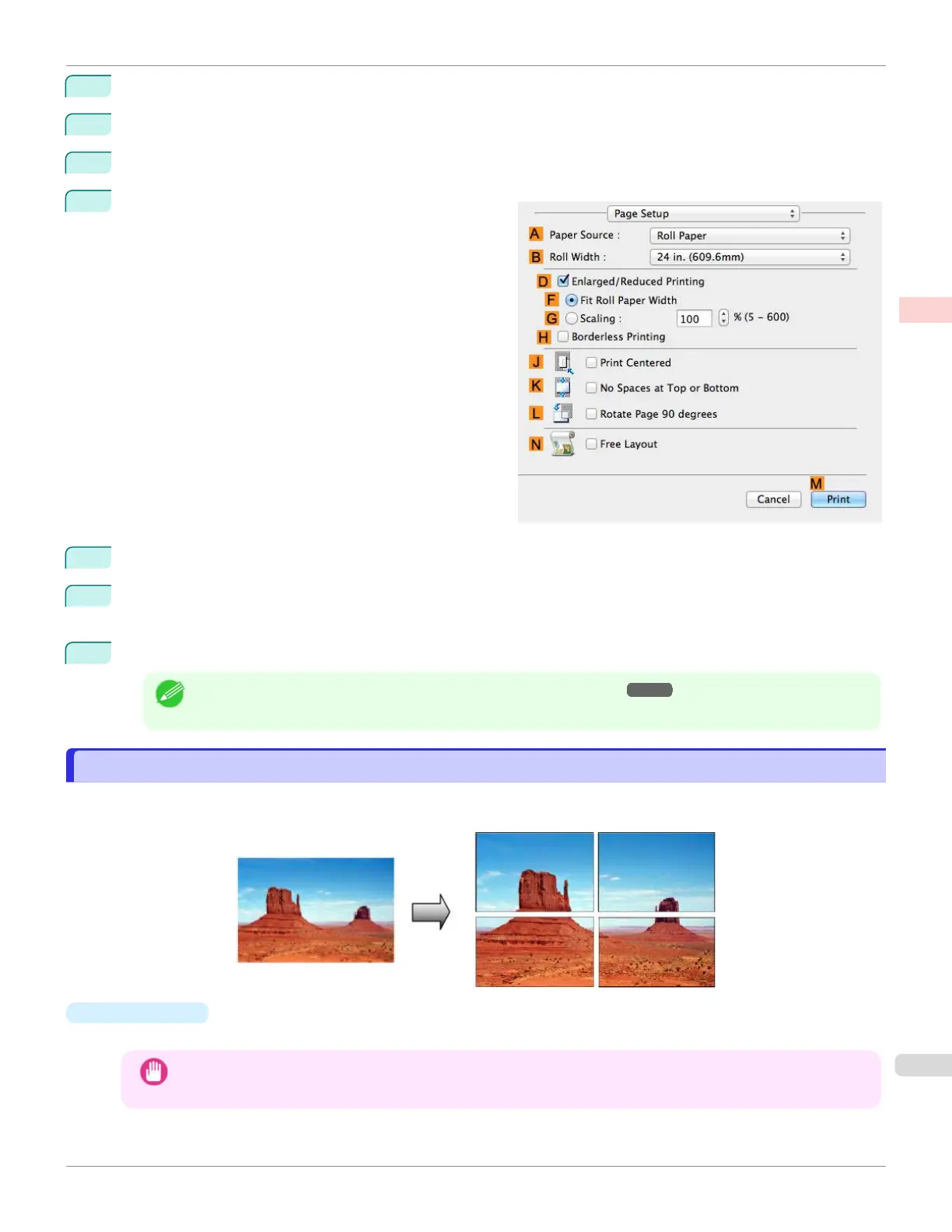
Select and click a roll paper in the A Paper Source list.
14
Select the paper width of the roll loaded in the printer for B Roll Width. In this case, ISO A2/A3 (420.0mm) is
selected.
15
Confirm the print settings, and then click M Print to start printing.
Note
•
For tips on confirming print settings, see "Confirming Print Settings ." ➔P.279
Printing Posters in Sections
Printing Posters in Sections
You can enlarge an original to print it in sections on several sheets. By assembling the printed sheets, you can create a
poster larger than the maximum supported paper size of the printer.
•
Page Layout
Choose poster printing.
Important
•
When printing using this function, the Print Centered, Watermark, No Spaces at Top or Bottom (Conserve
Paper), and Page Options settings are disabled.
iPF670
Printing Posters in Sections
User's Guide
Enhanced Printing Options Tiling and multiple pages per sheet
121













 To Next Page