•
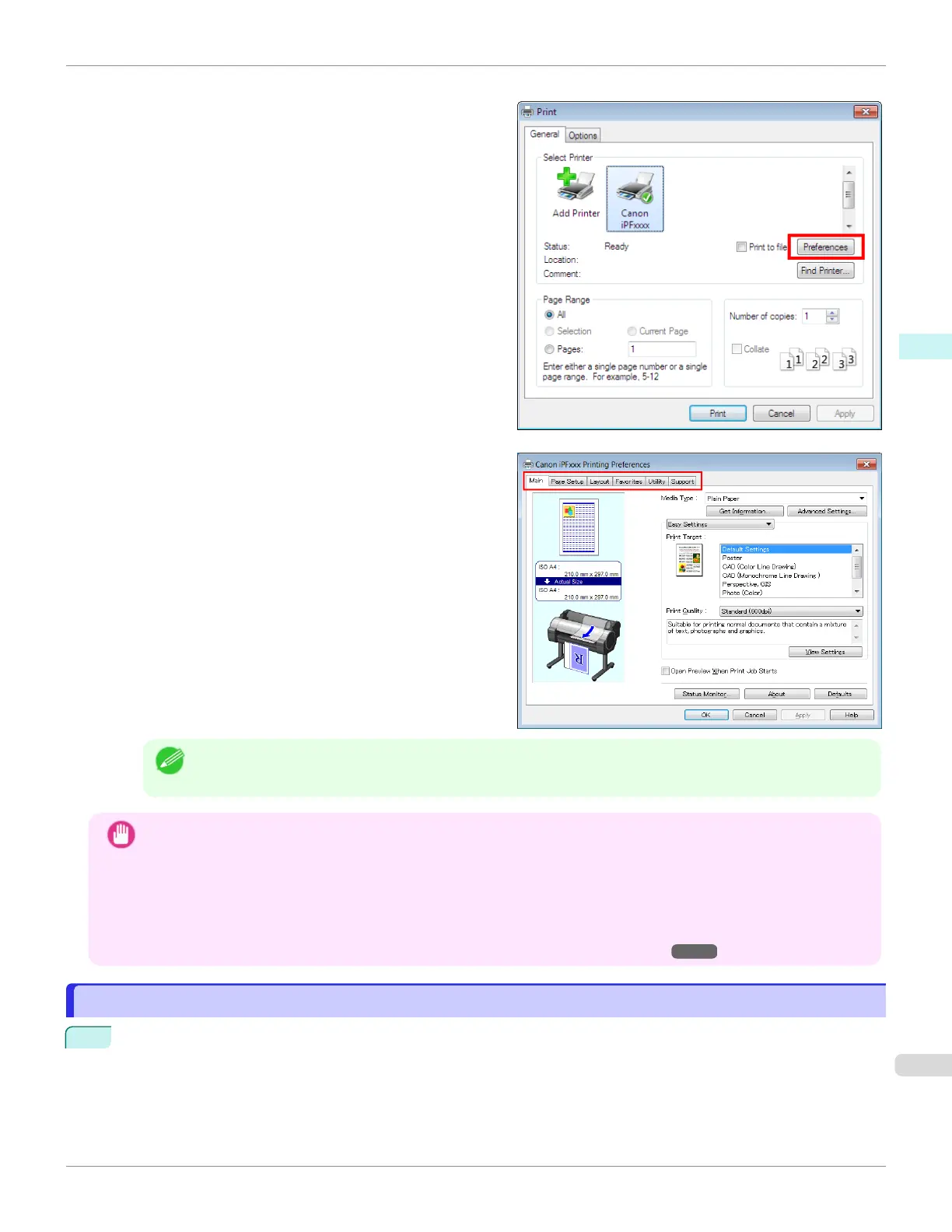
Example: Print dialog box displayed by the application software
Six sheets of print settings are displayed by the printer
driver: Main, Page Setup, Layout, Favorites, Utility,
and Support.
Note
•
The titles of dialog boxes may vary depending on the application, and sheets other than these six sheets may
be displayed.
Important
•
If you access the printer driver dialog box from the source application, changes you make to the settings will only
apply temporarily to that application. Because these are sizes you specify temporarily in the printer driver, the sizes
will not be available after you exit the application.
•
You can also access the printer driver dialog box from the Windows system menu.
To use the settings continuously in all applications, open the printer driver from the system menu to make the set-
tings.
(See "Accessing the Printer Driver Dialog Box from the Operating System Menu .") ➔P.163
Accessing the Printer Driver Dialog Box from the Operating System Menu
Accessing the Printer Driver Dialog Box from the Operating System Menu
1
Open the folder of the OS you are using for configuring printers.
For example, on Windows 7, click the start button on the Desktop and open the Devices and Printers window.
iPF670
Accessing the Printer Driver Dialog Box from the Operating System Menu
User's Guide
Windows Software Printer Driver
163













 To Next Page