6
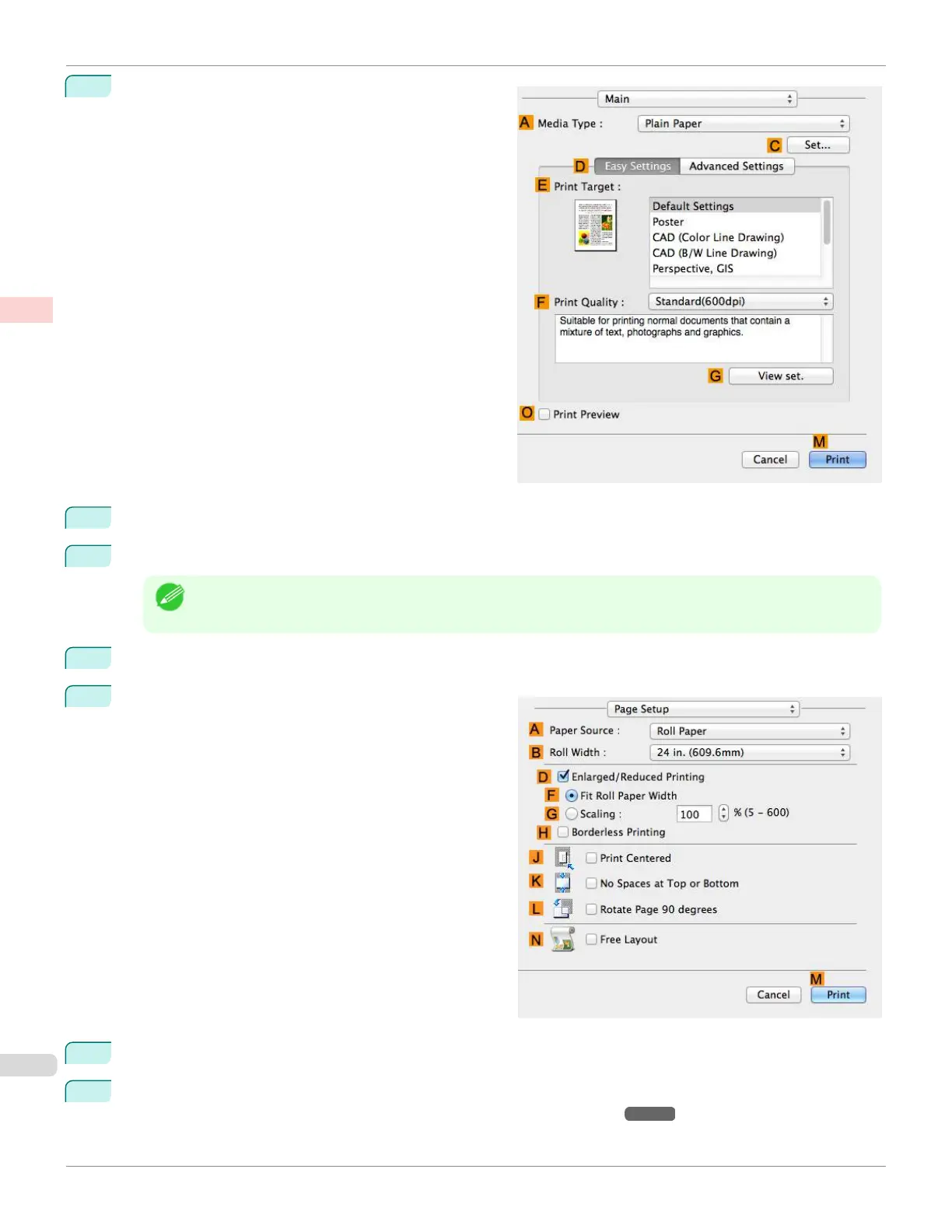
Access the Main pane.
7
In the A Media Type list, select the type of paper that is loaded. In this case, click Plain Paper.
8
After confirming that D Easy Settings is selected, click Office Document in the E Print Target list.
Note
•
You can check the settings values selected in the E Print Target list by clicking GView set..
9
Make your selection in the F Print Quality list.
10
Access the Page Setup pane.
11
Click Manual in the A Paper Source list.
12
Specify additional printing conditions.
For details on available printing conditions, see "Printer Driver Settings ." ➔P.276
Printing Office Documents (Mac OS)
iPF670
User's Guide
Enhanced Printing Options Printing Photos and Office Documents
38













 To Next Page