2
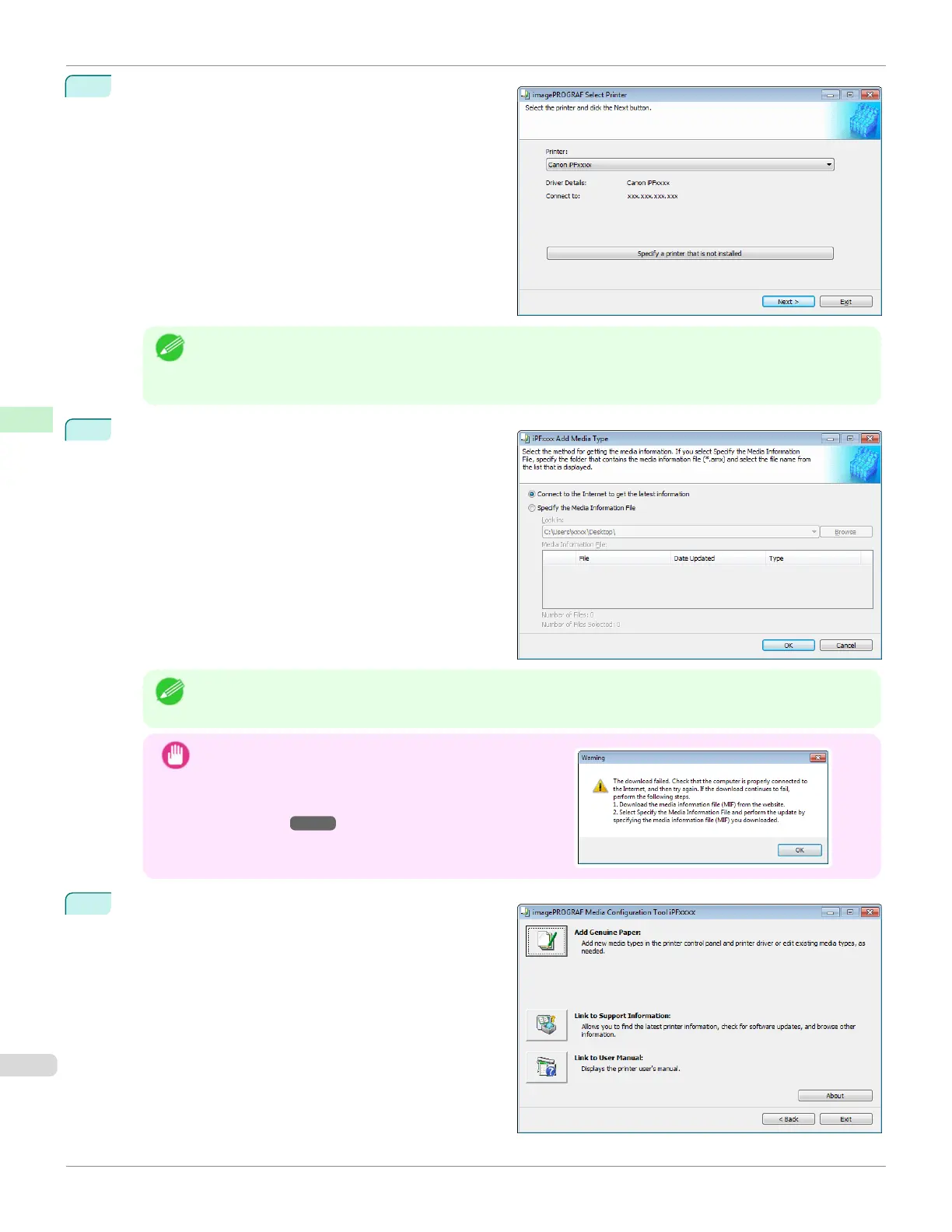
The Select Printer dialog box is displayed. Select the
printer for which to configure the media information,
and then click the Next button.
Note
•
If you are using the printer without installing the printer driver, click the Specify a printer that is not installed
button and specify the printer by following the on-screen instructions.
•
In the following screens, you cannot change the printer where media type information is to be updated.
3
The Add Media Type dialog box is displayed. Make
sure that Connect to the Internet to get the latest in-
formation is selected, and then click the OK button.
The latest media information file is downloaded from
the Internet.
Note
•
If the main window is displayed at this time, it means that the media information has already been updated
and the rest of the operation is not needed.
Important
•
If the message on the right is displayed, the media infor-
mation file cannot be downloaded automatically from the
Internet. Configure the settings by referring to If the Media
Information File Does Not Download Automatically From
the Internet ➔P.391 .
4
The Media Configuration Tool main window is dis-
played. Click the Add Genuine Paper button.
Updating Media Information After Installation
iPF670
User's Guide
Handling and Use of Paper Media Configuration Tool (Windows)
390













 To Next Page