1
Copy the saved media information file (.amx) onto the other computer.
2
Install and run the Media Configuration Tool on the other computer.
3
Select the printer in the Select Printer dialog box, and then click the Next button.
Note
•
Select the printer model that matches the media information file you are attempting to import.
4
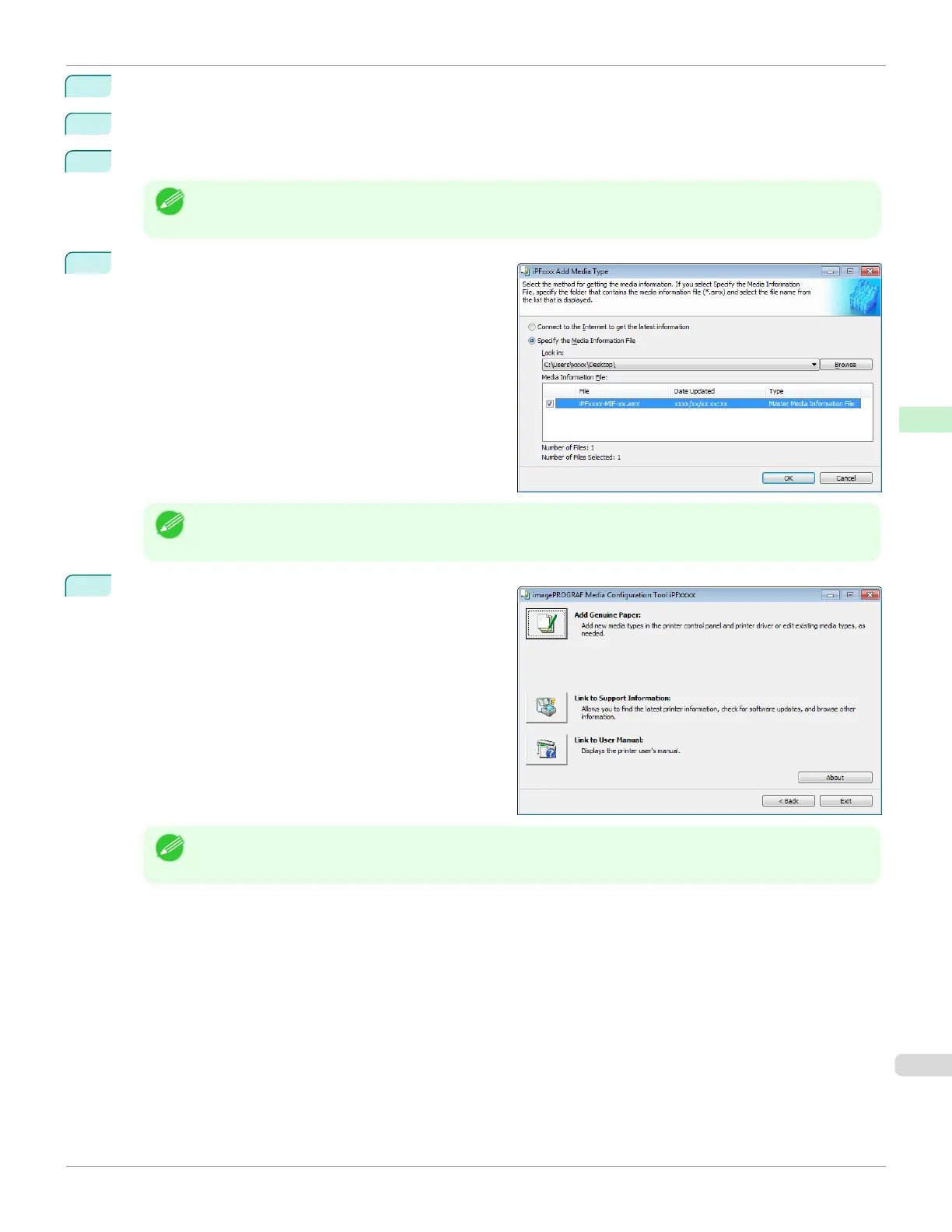
Select Specify the Media Information File in the Add
Media Type dialog box, click the Browse button, and
then specify the folder that contains the .amx file you
copied.
Select the check box for the media information file
name and click the OK button.
Note
•
If the Media Configuration Tool main window is displayed at this time, click the Add Genuine Paper button,
and then click the Add button on the screen that opens.
5
The Media Configuration Tool main window is dis-
played. Click the Add Genuine Paper button.
Note
•
If the Edit Media Types dialog box is displayed without the main window appearing, proceed to the following
step.
iPF670
Applying a Saved Media Information File on Another Computer
User's Guide
Handling and Use of Paper Media Configuration Tool (Windows)
409













 To Next Page