2
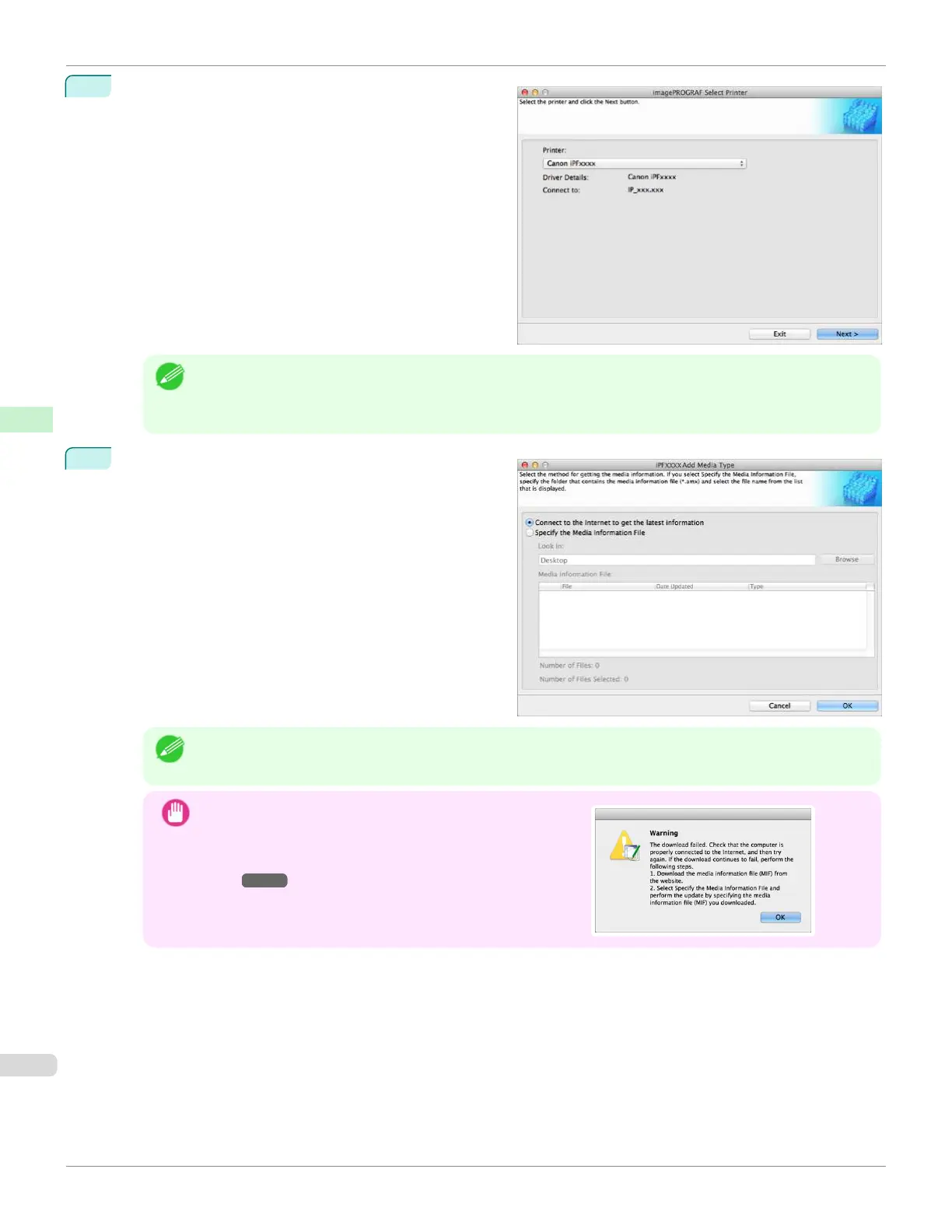
The Select Printer dialog box is displayed. Select the
printer for which to configure the media information,
and then click the Next button.
Note
•
The printers for which the printer driver is installed are displayed. If the printer you want to configure is not
displayed, check whether the printer driver for the target model is correctly installed.
•
In the following screens, you cannot change the printer where media type information is to be updated.
3
The Add Media Type dialog box is displayed. Make
sure that Connect to the Internet to get the latest in-
formation is selected, and then click the OK button.
The latest media information file is downloaded from
the Internet.
Note
•
If the main window is displayed at this time, it means that the media information has already been updated
and the rest of the operation is not needed.
Important
•
If the message on the right is displayed, the media informa-
tion file cannot be downloaded automatically from the Inter-
net. Configure the settings by referring to If the Media Infor-
mation File Does Not Download Automatically From the Inter-
net ➔P.416 .
Updating Media Information After Installation
iPF670
User's Guide
Handling and Use of Paper Media Configuration Tool (Mac OS)
414













 To Next Page