4
Press ▲ or ▼ to select Prep.MovePrinter, and then press the OK button.
Ink is now drawn into the Maintenance Cartridge.
Once preparations are finished, a message on the Display Screen requests you to open the Ink Tank Cover.
Important
•
Do not remove the Maintenance Cartridge except when the message for replacing it is displayed.
If you remove the Maintenance Cartridge while ink is being drawn out, the ink may leak out.
•
If consumables must be replaced, the message "Consumables must be replaced. Call for service." is
shown on the Display Screen and preparation is not possible. If this message is displayed, press the OK
button and contact your Canon dealer for assistance.
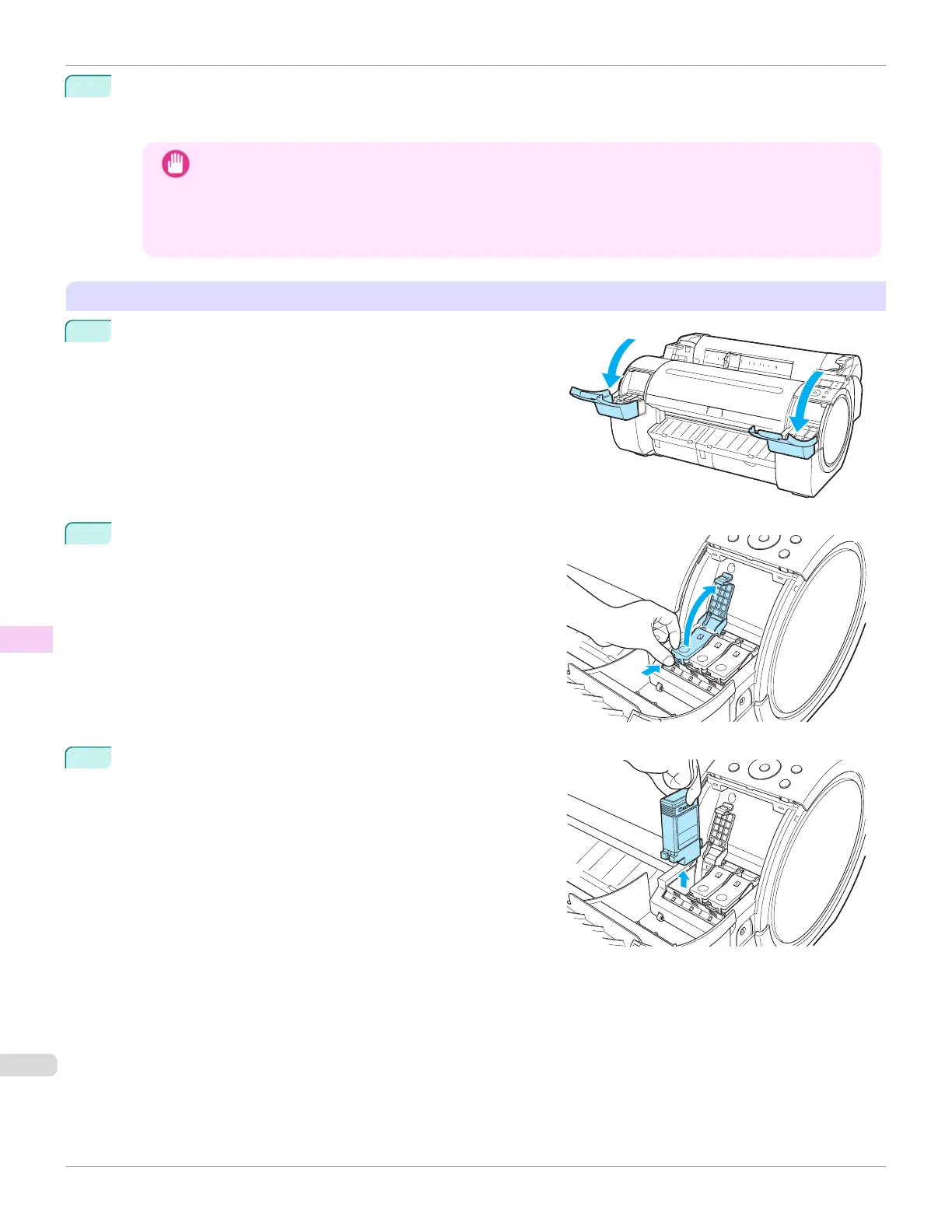
Remove the Ink Tank
1
Open the Ink Tank Cover.
2
Pressing the tip of the Ink Tank Lock Lever horizontally, lift the
Ink Tank Lock Lever to release the lock.
3
Holding the ink tanks by the grips, remove them.
Preparing to Transfer the Printer
iPF670
User's Guide
Maintenance and Consumables Other Maintenance
568













 To Next Page