Chapter 4 More Sophisticated Fault Isolation Tasks
3-37
Cause Point to check Action
C4
Check to see if an error has been detected by running Nozzle Check Print in
User mode.
T03 (P4-3)
C1, 2, 3 Check to see if the latest release of the service pack is installed. Install.
C1 AutoCAD general problems Flow 1
C2 Adobe Illustrator problem Flow 2
C4 Underpowered HP-GL/2, HP RTL Flow 3
C3 Other general application problems Flow 4
C2 Postscript data (Adobe Acrobat, Illustrator, etc.)
Recommend the use of
RIP.
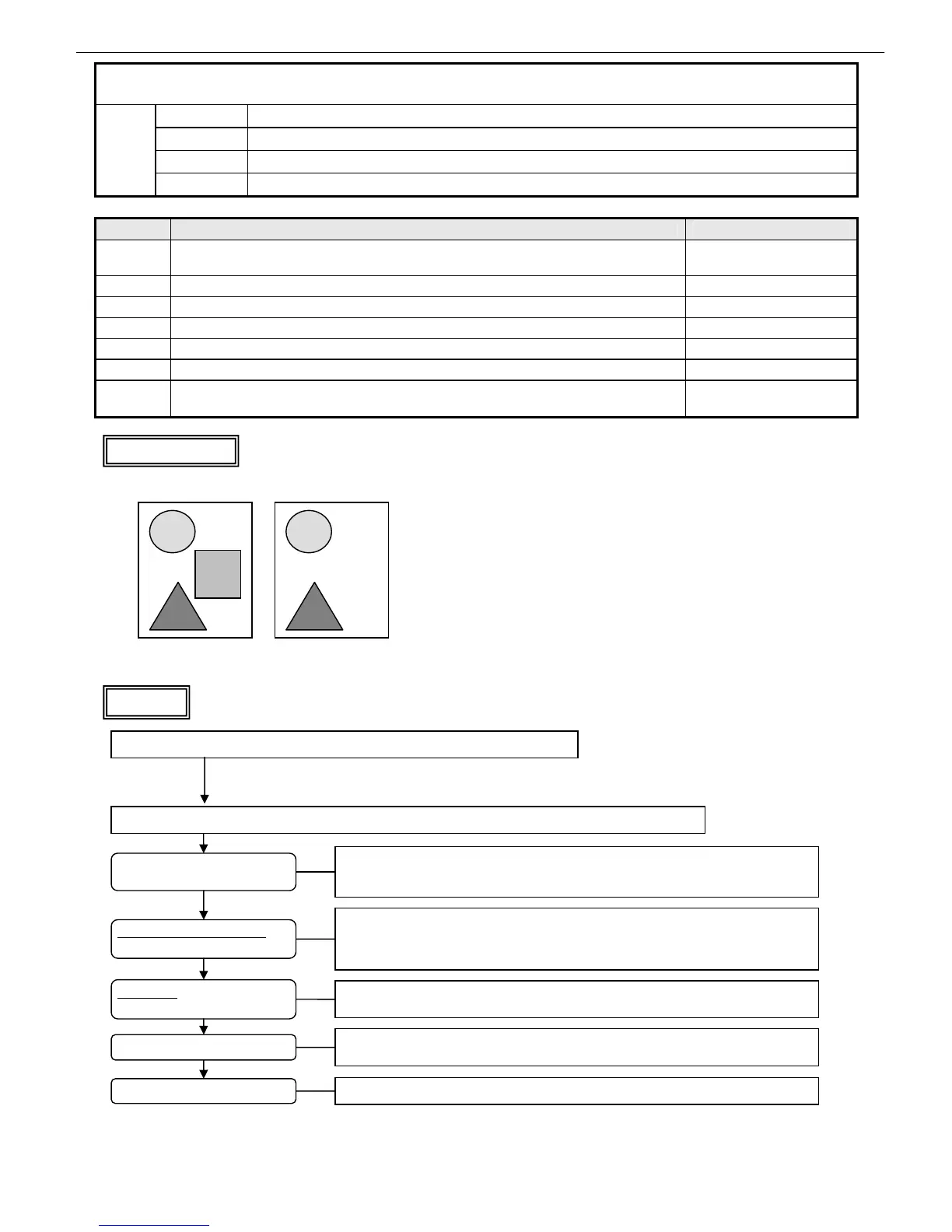
20. Imaging Failures ⑥ Missing lines or images
C1 AutoCAD (Windows only)
C2 Adobe Illustrator
C3 Other applications
Failure
causes
C4 Main unit
Flow 1
Too high image quality setting for
AutoCAD
Driver setting of A1 or higher
FineZoom set to [Auto]
In the printer driver properties dialog box, choose [Layout] ⇒ [Special Settings] and change
[Set FineZoom]
*The default setting is [Auto]. Seek confirmation from the customer because the new setting
could worsen image quality.
Driver used
Too high print quality setting
In the printer driver properties dialog box, choose [Main] ⇒ [Advanced Settings] and
change [Print Quality] to [Draft]
Too large an image pasted
Reduce the image resolution using an application, such as Photoshop, to hold the number
of pixels to 2,000,000 or below
Not enough PC memory
Expand PC memory
With AutoCAD2007 or 2007LT, install Service Pack 2
*For all AutoCAD programs including AutoCAD2007, there are fix patches released. Be sure to
install the latest patch as much as possible.
Choose [Properties] in the [AutoCAD Print] dialog box
Choose [Graphics] → [Raster Graphics]
Change the setting of [Raster and Shading/Rendering View Port] and move the slider to left
*In addition to missing image, phenomena, such as “Dimmed print,” “Print failure” and “Abnormal tinting (fewer colors)” might be observed.
Where a large image is pasted, for example, the problem can be avoided by cutting the workload on AutoCAD
Explanatory drawings
Missing objects
Normal Defective








 To Next Page