Chapter 5 Fault Isolation Tool Collection
4-31
(2) Using PCB Replacement Mode
① Start in PCB Replacement Mode.
The message “REPLACE MODE / CPU BOARD” appears on the display.
②Select the board you want to replace with the [<] and [ >] buttons and press the [OK] button.
CPU BOARD: Select if the main PCB has been replaced.
MC BOARD: Select if the maintenance cartridge relay PCB has been replaced.
③When the message “Turn off printer.” appears to signify the completion of restore, switch off the printer to exit PCB
Replacement Mode.
3.Download Mode
Use Download Mode to transfer (download) firmware from the PC to the printer when the printer does not start normally or
when it is necessary to replace the main controller.
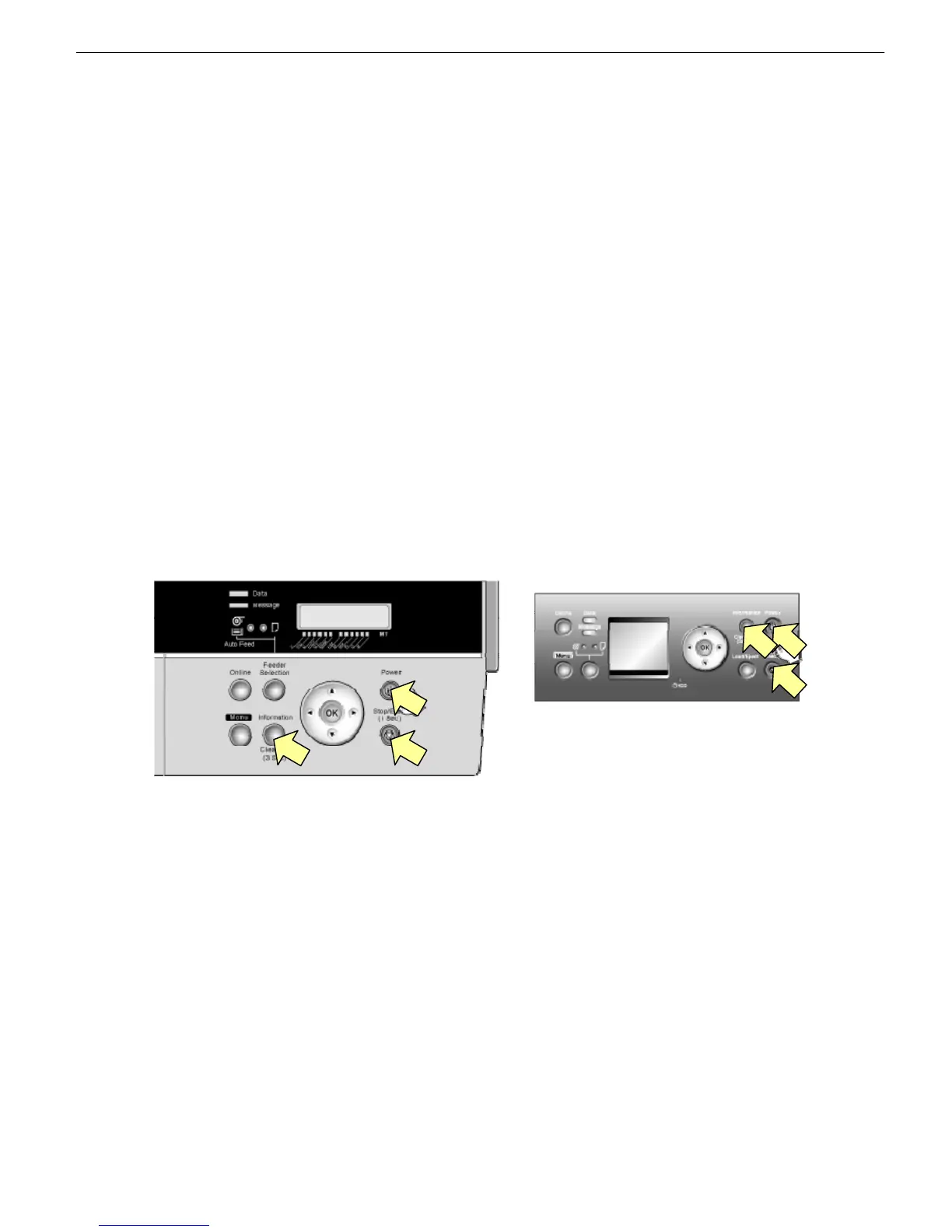
The procedure to invoke download mode varies depends on whether the model is with or without [Navigate] button.
Model without [Navigate] button: Switch on the printer while pressing the [Stop] button and the [Information] button
simultaneously.
Model with [Navigate] button: Switch on the printer while pressing the [Stop] button and the [Navigate] button
simultaneously.
To exit service mode, switch off the printer, then back on.
To exit Download Mode, switch off the printer, then back on.
Use the service tool “L Printer Service Tool” to upgrade the firmware. For the latest release of the firmware see Technical
Information.








 To Next Page