Troubleshooting Guide
5-12
3. Description of L Printer Service Tool, and How to Use It
(1) What you can do with this tool
View/save Print Inf and status information, and upgrade the firmware.
For more details, see (3) and later sections.
(2) Installation procedure
1) Log on to the tooling PC as an administrator and copy the L Printer Service Tool installer.
2) Run “setup.exe” in the installer.
3) When a dialog box appears, press the [Next] button.
4) In the license agreement window, check the [I agree to all terms of the license agreement] radio button
and press the [Next] button.
5) When the destination folder selection dialog box appears, select a destination folder and press the [Next]
button.
6) When the installation preparation complete dialog box appears, press the [Install] button.
7) When the Windows firewall block setting window appears, check the [Unblock] radio button and press
the [Next] button. (This window may not appear depending on the version of your OS.)
8) When the installation has completed, press the [Finish] button.
9) Add a printer.
To use this tool with one of these printers, perform “Add a printer”:
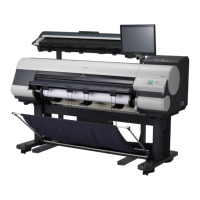
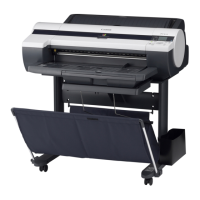
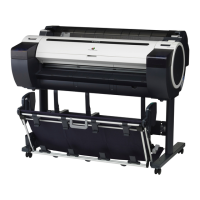
【Example】iPF510, iPF610, iPF700, iPF710, iPF5100, iPF6100, iPF8000, iPF9000, iPF8000S, iPF9000S
① On the Service menu, choose [Add a printer].
② When the printer addition dialog box appears, press the [Add] button.
③ Enter the product name and firmware identification information with single-byte characters according
to the table below and press the [OK] button.
Model Product Name
Firmware Identification
Information
imagePROGRAF iPF510 iPF510 iPF510
imagePROGRAF iPF610 iPF610 iPF610
imagePROGRAF iPF700 iPF700 iPF700
imagePROGRAF iPF710 iPF710 iPF710
imagePROGRAF iPF5100 iPF5100 iPF5100
imagePROGRAF iPF6100 iPF6100 iPF6100
imagePROGRAF iPF8000 iPF8000 iPF8000
imagePROGRAF iPF9000 iPF9000 iPF9000
imagePROGRAF iPF8000S iPF8000S iPF8000S
imagePROGRAF iPF9000S iPF9000S iPF9000S
④ When the printer is added, it appears on the [Printers List].








 To Next Page