Adding a port
When an incorrect port was selected while installing a printer driver from the Windows printer folder, add a
new port. There are two types of port: "MFNP Port" and "Standard TCP/IP Port." Select the port type
according to your environment.
MFNP Port
(only for IPv4 environment)
This is a port that allows the IP address of the machine to be detected automatically.
Even if the IP address of the machine is changed, the connection is maintained,
provided that the machine and the computer are in the same subnet. You do not need
to add a new port every time the IP address is changed. If you are using the machine
in an IPv4 environment, you should normally select this type of port.
You can add an MFNP port only when you installed the printer driver from the
provided DVD-ROM, or when you downloaded and installed the printer driver from the
Canon website.
Standard TCP/IP Port This is a standard Windows port. When you use this type of port, you need to add a
new port every time that the IP address of the machine is changed. Select this type of
port when you are using the machine in an IPv6 environment and when you cannot
add an MFNP port.
Adding an MFNP port
1
Click [Add Port].
2
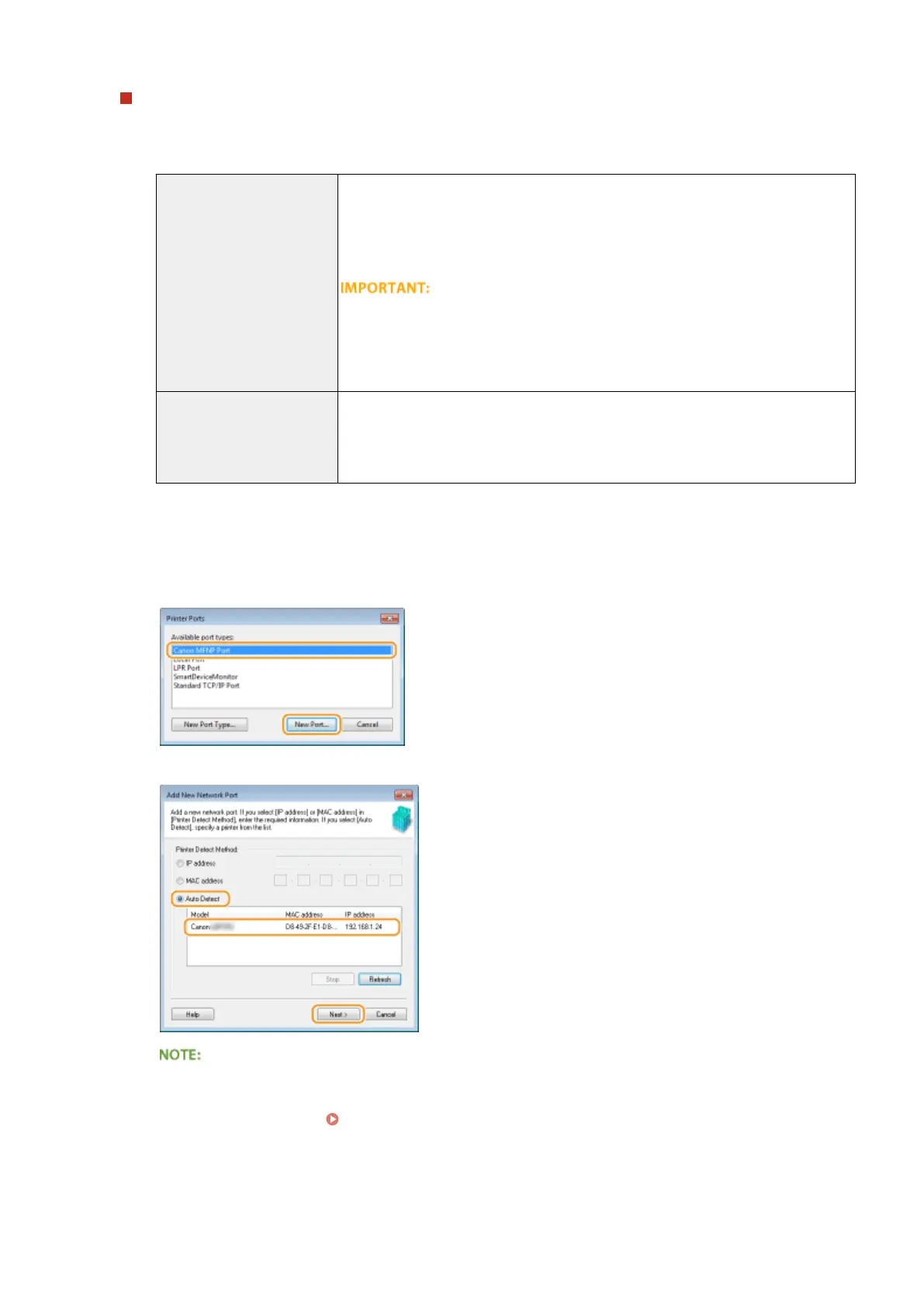
Select [Canon MFNP Port] in [Available port types] and click [New Port].
3
Select [Auto Detect] and select the machine when it is detected, and then click [Next].
If the machine is not detected
Click [Refresh]. If the problem persists, select [IP address] or [MAC address], enter the IP address or MAC
address of the machine ( Viewing Network Settings(P. 161) ) and then click [Next].
Network
169




 To Next Page