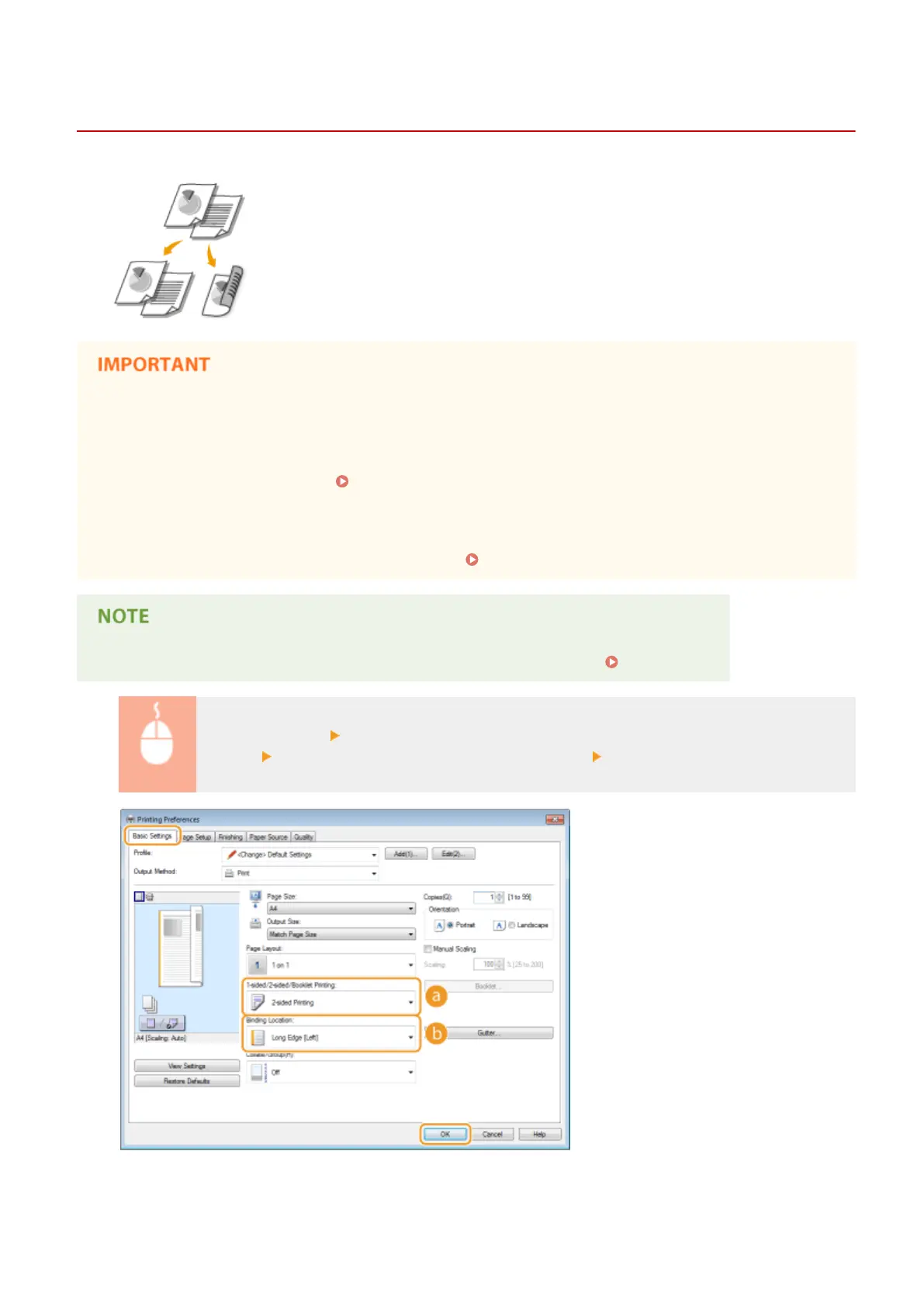
Switching 1-Sided and 2-Sided Printing
0W20-01J
You can make both 1-sided and 2-sided printouts. The default setting is [2-sided
Printing]. Change the setting as necessary.
Make sure that the paper size switch lever is set properly
● When performing 2-sided printing, improper setting of the paper size switch lever can cause misfeeds or
paper jams. When performing 2-sided printing, make sure that the paper size switch lever is set properly for
the size of the paper to be used. Interior(P. 21)
Make sure that the sub-output tray is closed
● When the sub-output tray is open, you cannot perform 2-sided printing. When performing 2-sided printing,
always make sure that the sub-output tray is closed. Back Side(P. 19)
● 2-sided printing may not be available with some sizes and types of paper. Paper(P. 440)
[Basic Settings] tab Select [1-sided Printing] or [2-sided Printing] in [1-sided/2-sided/Booklet
Printing] Select the position to bind in [Binding Location] [OK]
Printing
84




 To Next Page