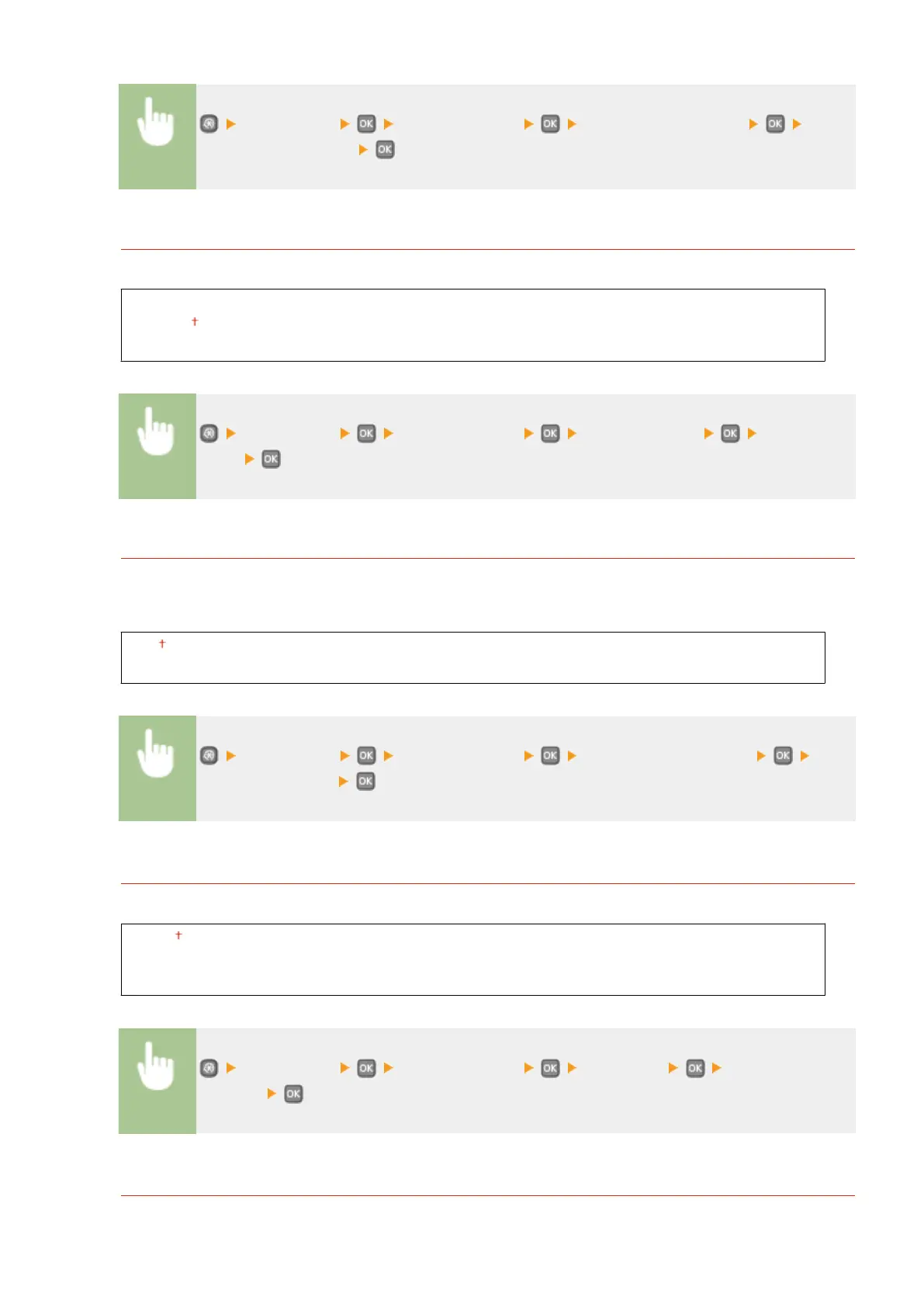
<Preferences> <Display Settings> <Message Display Time> Enter a
number for the interval
Scrolling Speed
Adjust the speed for scrolling the screen by selecting from three levels.
Slow
Standard
Fast
<Preferences> <Display Settings> <Scrolling Speed> Select the
speed
Cursor Movement Type
Congure how the cursor moves after a character is entered on the screen. Select <Auto> to automatically move
the cursor to the right of the entered character after approximately 1 second. Select <Manual> to manually
move the cursor to the right of the entered character.
Auto
Manual
<Preferences> <Display Settings> <Cursor Movement Type> Select
<Auto> or <Manual>
Language
*
Select the display language used for the display, reports, and lists.
English ,Japanese, French, Spanish, German, Italian, Dutch, Finnish, Portuguese, Norwegian, Swedish,
Danish, Slovene, Czech, Hungarian, Russian, Turkish, Greek, Estonian, Romanian, Slovak, Croatian,
Bulgarian, Catalan, Polish, Chinese (Simplied), Chinese (Traditional), Korean, Latvian, Lithuanian, Arabic
<Preferences> <Display Settings> <Language> Select a
language
Remote UI Language
*
Select the display language used for the Remote UI screens.
Setting Menu List
305




 To Next Page