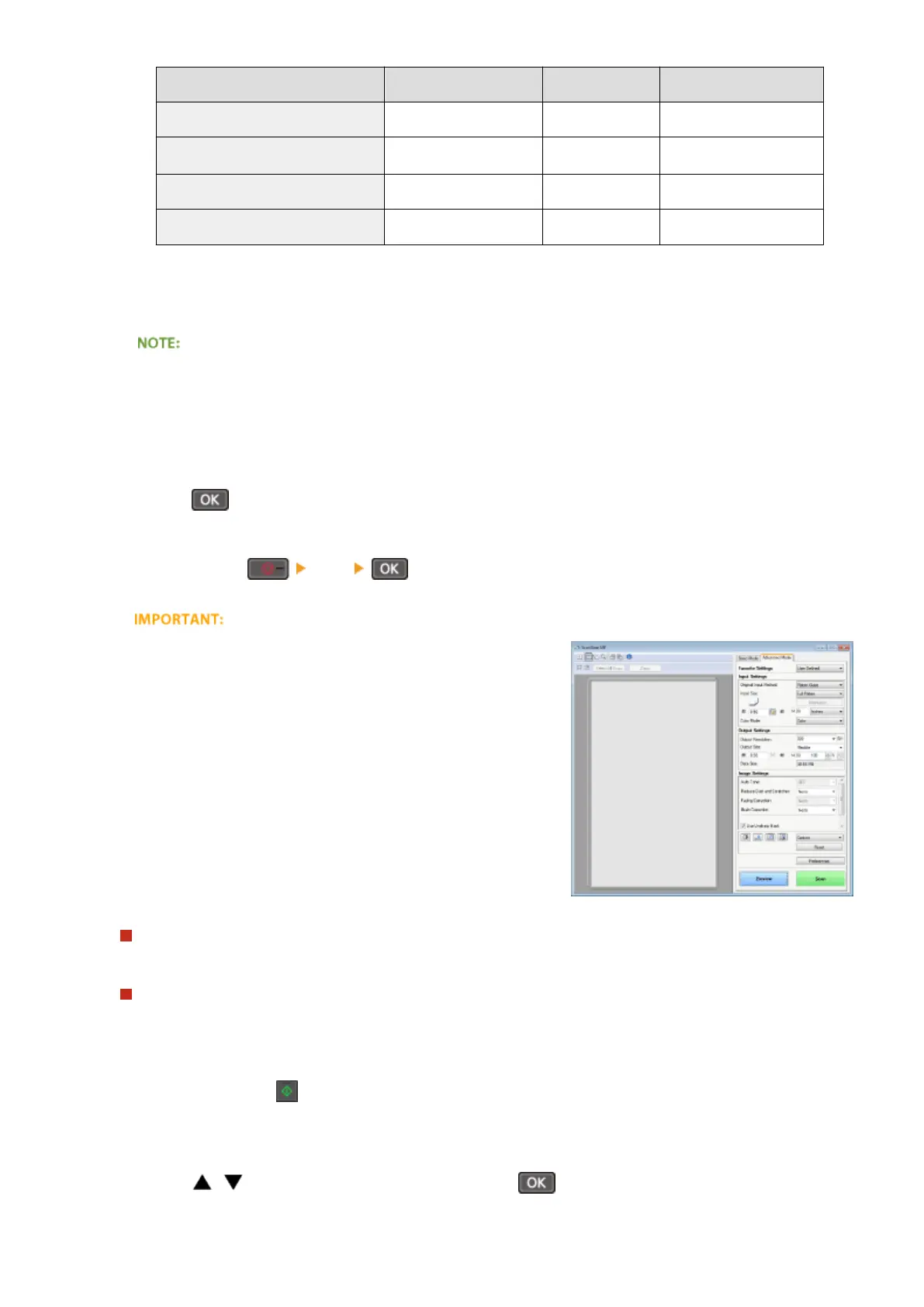
Scan type Color Resolution File format
<Color Scan> Color 300 dpi JPEG (Exif)
<B&W Scan>
Black and white
*1
300 dpi
PDF (searchable
*2
)
<Custom 1> Color 300 dpi JPEG (Exif)
<Custom 2> Color 300 dpi JPEG (Exif)
*1
Documents are scanned in black and white only, with no intermediate shades of gray.
*2
A PDF format where characters on the document are scanned as text data and the text can be searched using a computer.
To change settings
● The
settings in the table above are all factory default settings. You can change settings from MF Scan
Utility. For more information, click [Instructions] on MF Scan Utility.
● If you are a Mac OS user, see the User's Guide for ScanGear MF.
6
Press
.
● Scanning starts.
● T
o cancel, press
<Yes> .
You cannot scan while the ScanGear MF is displayed. Close the
scr
een before scanning.
When placing documents in the feeder in step 1 (MF244dw)
When scanning is complete, the save destination folder is displayed on the computer.
When placing documents on the platen glass in step 1
When scanning is complete, follow the procedure below (when le format is PDF).
1
If there are additional pages of documents to be scanned, place the next document on the platen
glass, and pr
ess
.
● Repeat this step until you nish scanning all of the pages.
● When ther
e is only one page to be scanned, proceed to the next step.
2
Use
/ to select <Finish Scanning>, and press .
Using the Machine as a Scanner
131








 To Next Page