Checking whether the settings are correct
Mak
e sure that the Remote UI screen can be displayed with your computer (
Starting Remote UI(P. 273) ). If
a computer is not available, you can check the connection b
y using the operation panel (
Testing the
Network Connection
(P. 190) ).
Testing the Network Connection
1
Press .
2
Use
/ to select <Network Settings>, and press .
● If a scr
een for entering a PIN is displayed, enter the PIN with the numeric keys and press
. Setting
the System Manager PIN
(P. 229)
3
Select <TCP/IP Settings>
<IPv4 Settings> <PING Command>.
4
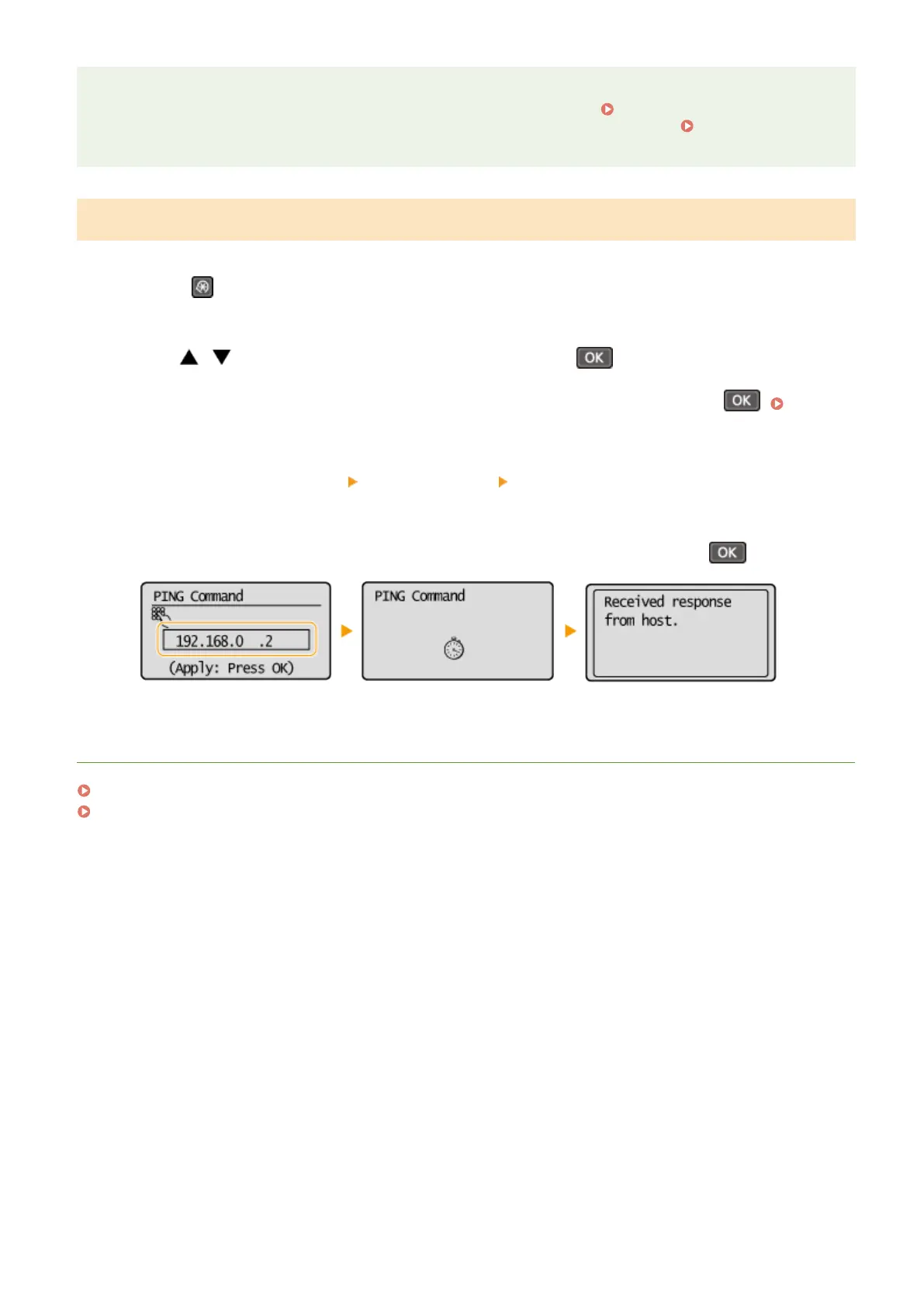
Enter the IPv4 address of another device on the network, and press
.
● If a pr
oper connection has been established, the result is displayed as shown above.
LINKS
Setting IPv6 Addresses(P. 191)
Viewing Network Settings(P. 194)
Network (MF244dw / MF232w)
190








 To Next Page