Setting Up Connection Using WPS PIN Code Mode
15A8-03H
If your wir
eless router supports WPS PIN code mode, generate a PIN code with the machine and register the code to
the networking device.
How to operate the wireless router may vary on each device. See the instruction manuals for your networking
de
vice for help.
From a Computer
1
Access your wireless router from a computer and display the screen for entering a
WPS PIN code.
● For more information, see the instruction manuals for your networking device.
From the Operation Panel
2
Press .
3
Use / to select <Network Settings>, and press .
● If a scr
een for entering a PIN is displayed, enter the PIN with the numeric keys and press
. Setting
the System Manager PIN
(P. 229)
4
Select <Wireless LAN Settings>, and press
.
● If the <Enable the wir
eless LAN?> message is displayed, select <Yes>, and press
.
● If the <Dir
ect Connection will be disabled. Is it OK?> message is displayed, select <Yes>, and press
.
5
Read the message that is displayed, and press .
6
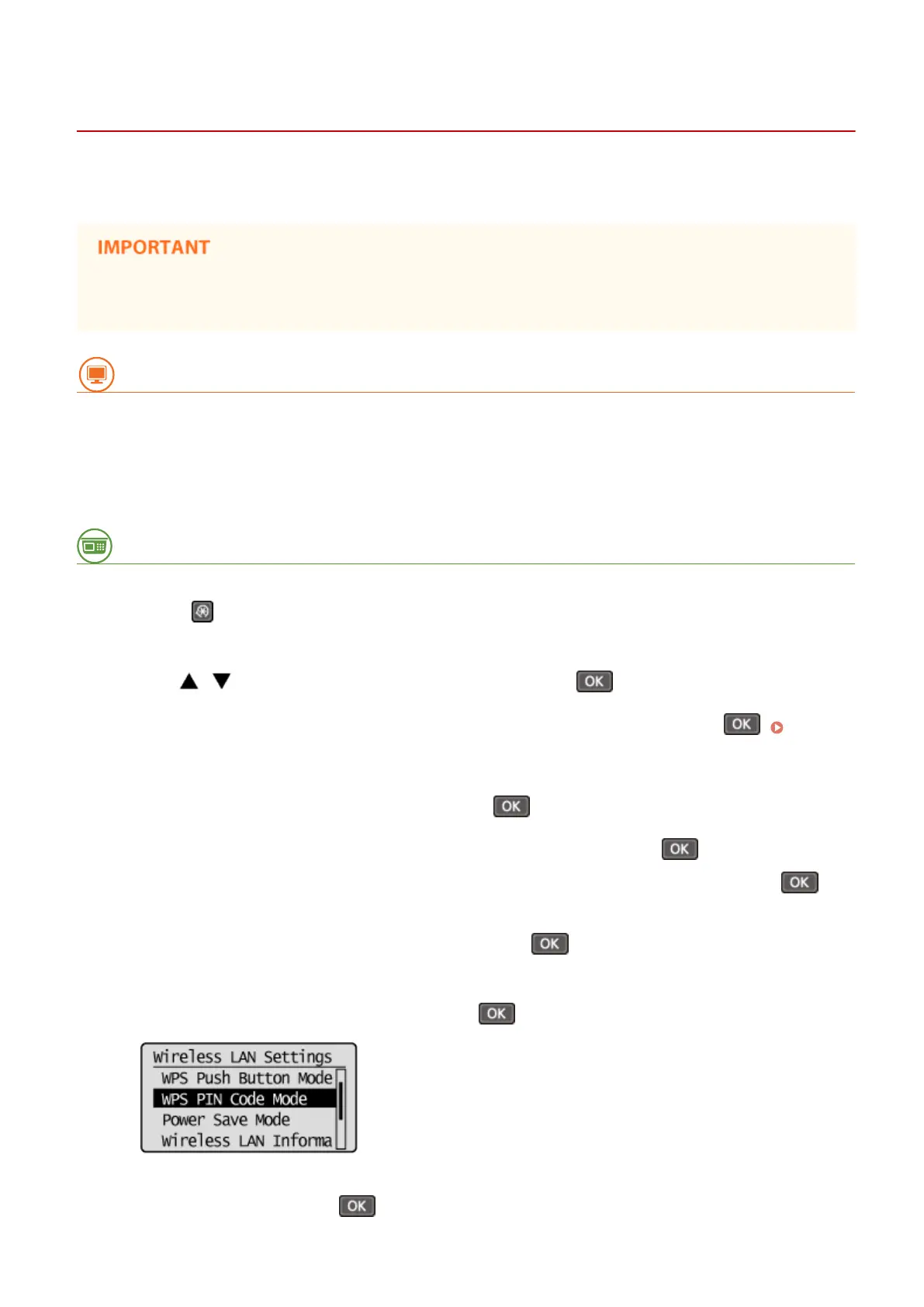
Select <WPS PIN Code Mode>, and press
.
7
Select <Yes>, and press
.
Network (MF244dw / MF232w)
174








 To Next Page