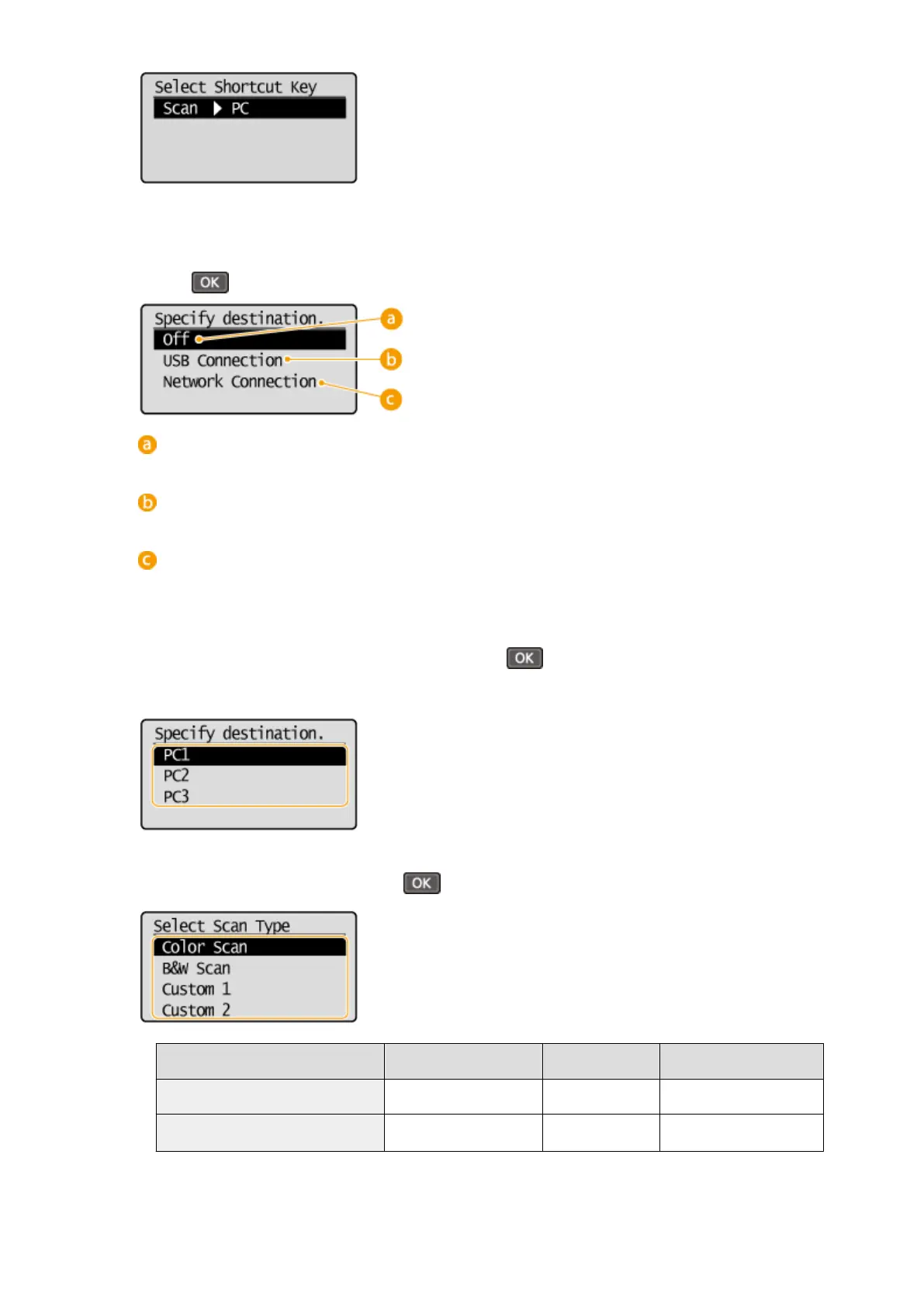
If you are using the MF232w / MF231, select the shortcut key to which you
want to r
egister settings, and press
5
Select the type of connection that is used between the machine and computer, and
pr
ess
.
<Off>
Select this setting to er
ase registered settings.
<USB Connection>
Select this setting if the machine and computer ar
e connected via USB.
<Network Connection> (MF244dw / MF232w)
Select this setting if the machine and computer ar
e connected via a network.
6
Select the destination computer, and press
.
● This scr
een is not displayed if you select <USB Connection> in step 5.
7
Select the scan type, and press .
Scan type Color Resolution File format
<Color Scan> Color 300 dpi JPEG (Exif)
<B&W Scan>
Black and white
*1
300 dpi
PDF (searchable
*2
)
*1
Documents are scanned in black and white only, with no intermediate shades of gray.
*2
A PDF format where characters on the document are scanned as text data and the text can be searched using a computer.
Using the Machine as a Scanner
134


 To Next Page
 Loading...