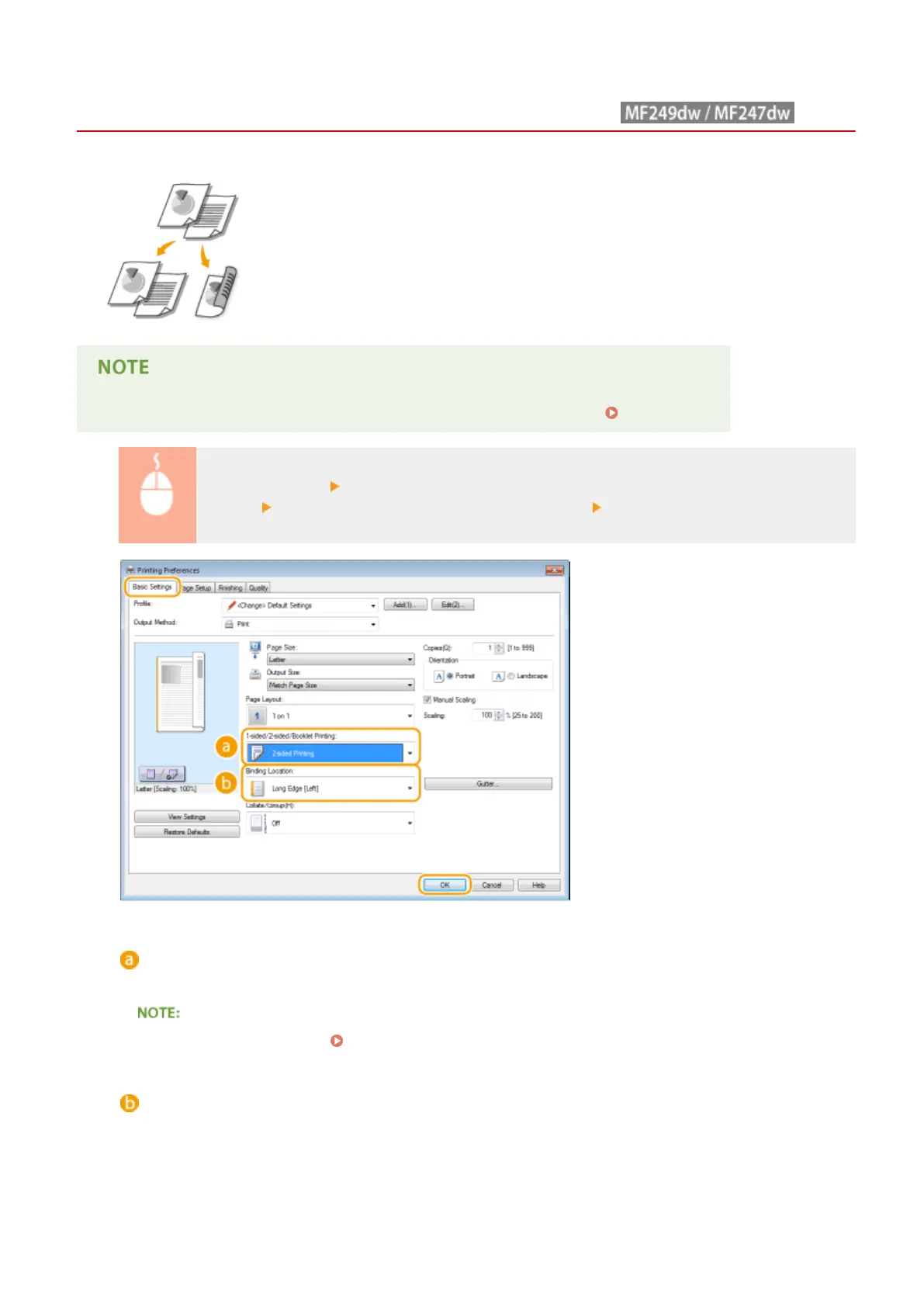
Switching 1-Sided and 2-Sided Printing
1469-0EL
You can make both 1-sided and 2-sided printouts. The default setting is [2-sided Printing].
Change the setting as necessary.
● 2-sided printing may not be available with some sizes and types of paper. Paper(P. 650)
[Basic Settings] tab Select [1-sided Printing] or [2-sided Printing] in [1-sided/2-sided/Booklet
Printing] Select the position to bind in [Binding Location] [OK]
[1-sided/2-sided/Booklet Printing]
Select [1-sided Printing] or [2-sided Printing].
● For [Booklet Printing], see Printing Booklet (MF249dw / MF247dw)(P. 211) .
[Binding Location]
Specify the position to bind the printouts with a binding tool such as a stapler. Printing orientation will be
changed depending on the specied binding position. To specify the margin width for the binding position,
click [Gutter].
[Long Edge [Left]]
Prints images in such a way that the printed pages are opened horizontally when bound.
Using the Machine as a Printer
203






 To Next Page