Saving Documents Directly in Shared Folder
1469-04R
This section describes how to scan documents and save them to a shared folder directly from the machine. Scanned
documents are saved as JPEG images, PDF les or in other digital le formats.
● To save documents directly to a shared folder, you must complete preparations in advance, including
specication of the save destination.
Conguring the Machine for Scanning to Shared Folders(P. 367)
● Available destinations for shared folders are limited to the destinations registered in the Address Book. To
specify a destination using the Address Book, it is necessary to register the destinations for shared folders
beforehand.
Setting a Shared Folder as a Save Location(P. 368)
Registering Address Book from Remote UI(P. 467)
● You can only specify one destination at a time.
1
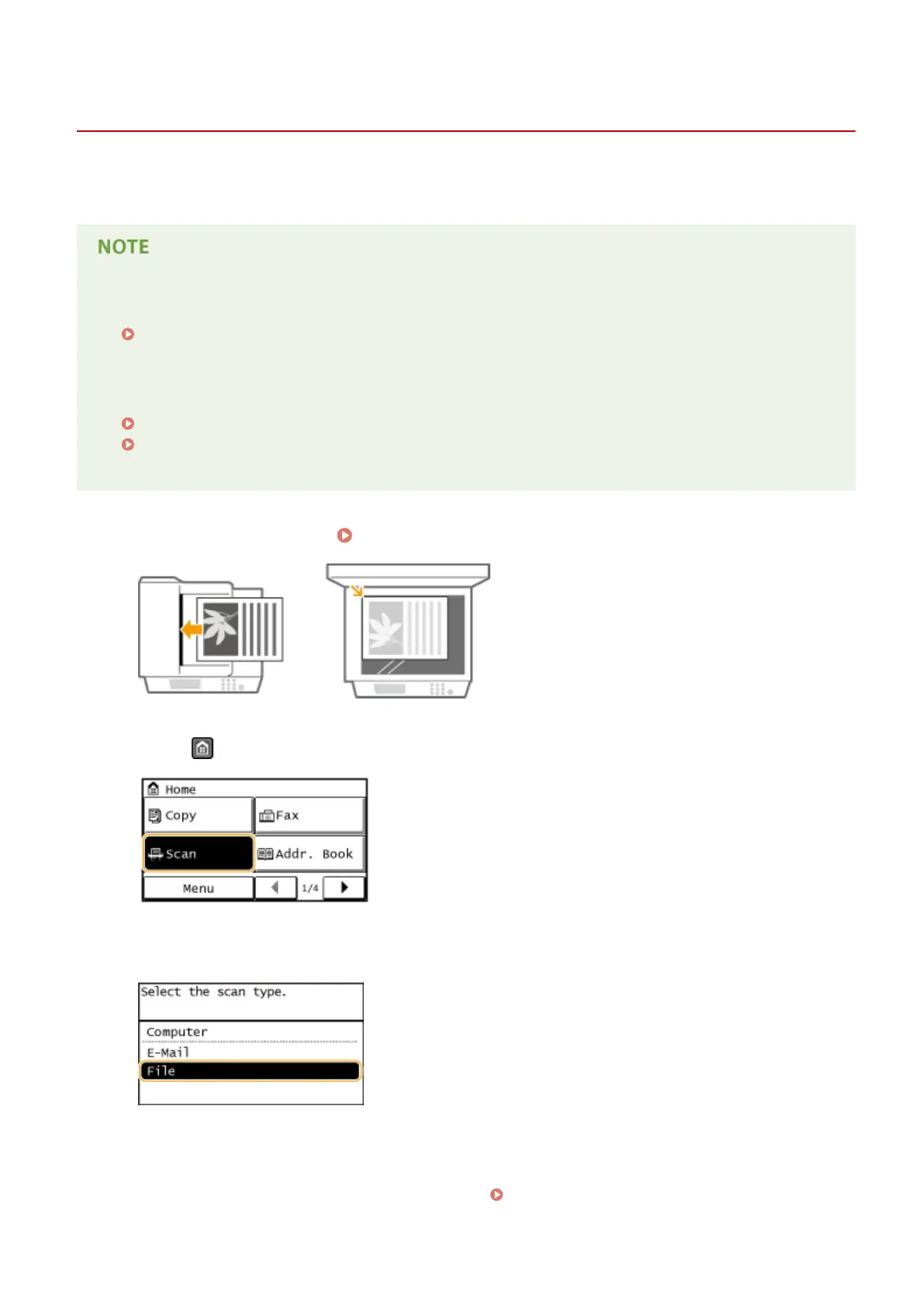
Place the document(s). Placing Documents(P. 41)
2
Press and tap <Scan>.
3
Tap <File>.
4
Select a destination from the Address Book.
● For instructions on how to use the Address Book, see Specifying from Address Book(P. 273) .
Using the Machine as a Scanner
253






 To Next Page