Setting Up Connection by Selecting a Wireless Router
1469-068
You can search the wireless routers (or access points) available for connection and select one from the display of the
machine. For the network key, enter a WEP key or TKIP. Before selecting a wireless router, check and write down the
required setup information, including the SSID and network key ( Checking the SSID and Network Key(P. 333) ).
Security settings
If the wireless connection is set up by selecting a wireless router, the WEP authentication method is set to
<Open System> or the WPA/WPA2 encryption method is set to <Auto> (AES-CCMP or TKIP). If you want to select
<Shared Key> for WEP authentication or <AES-CCMP> for WPA/WPA2 encryption, you need to set up the
connection using the manual entry method ( Setting Up Connection by Specifying Detailed
Settings(P. 329) ).
1
Tap <Menu> in the <Home> Screen.
2
Tap <Network Settings>.
● If a screen for entering a PIN is displayed, enter the PIN with the numeric keys and tap <Apply>. Setting
the System Manager PIN(P. 397)
3
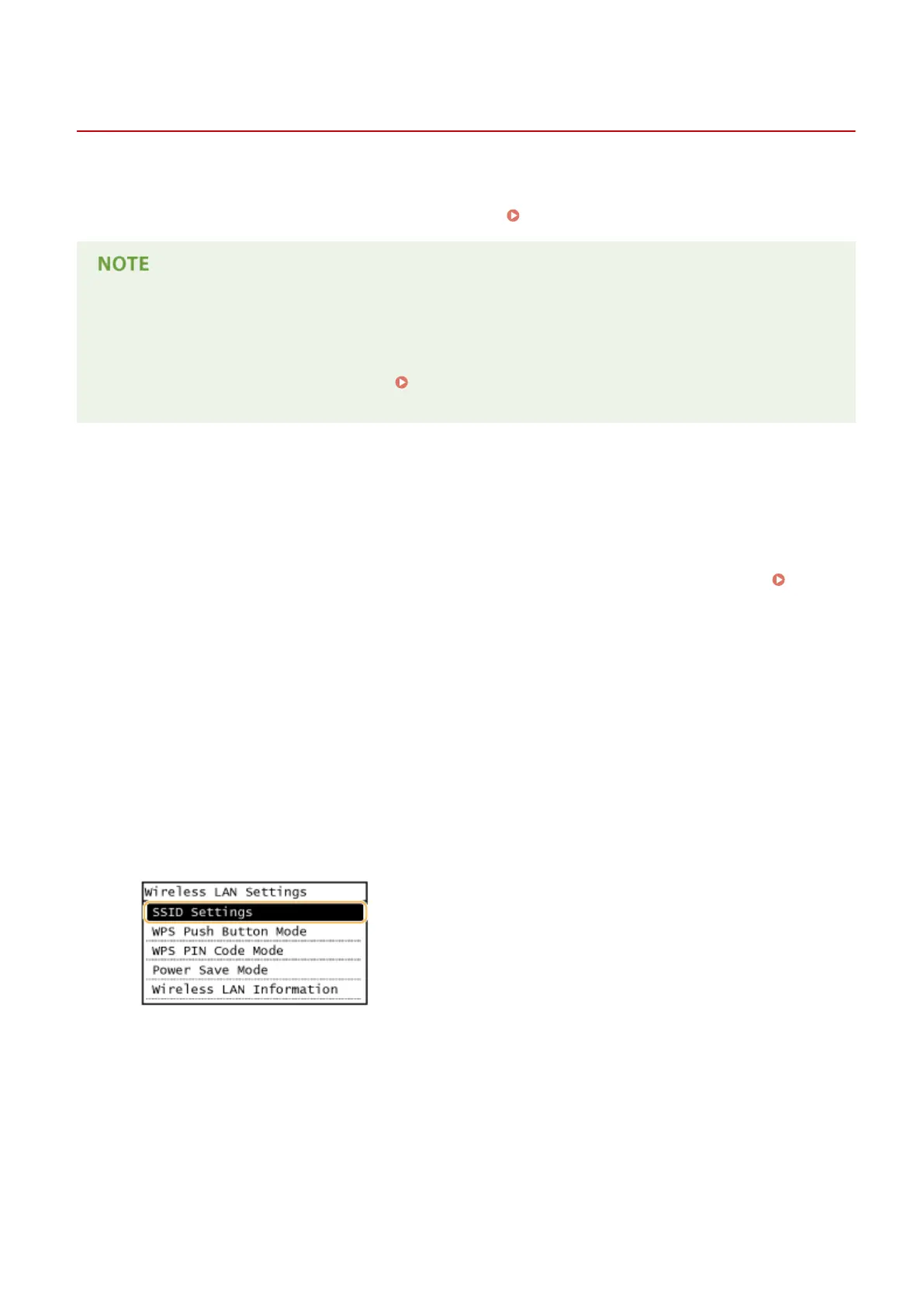
Tap <Wireless LAN Settings>.
● If the <Do you want to enable the wireless LAN?> message is displayed, tap <Yes>.
● If the <Direct Connection will be disabled. Is it OK?> message is displayed, tap <Yes>.
4
Read the message that is displayed, and tap <OK>.
5
Tap <SSID Settings>.
6
Tap <Select Access Point>.
● The machine starts searching for available wireless routers.
Network
326




 To Next Page