Customizing the <Home> Screen
1469-00J
You can change the order that buttons in the <Home> screen are displayed in according to your application or a
preferred arrangement.
◼ Changing the Home Screen Button Display Order
1
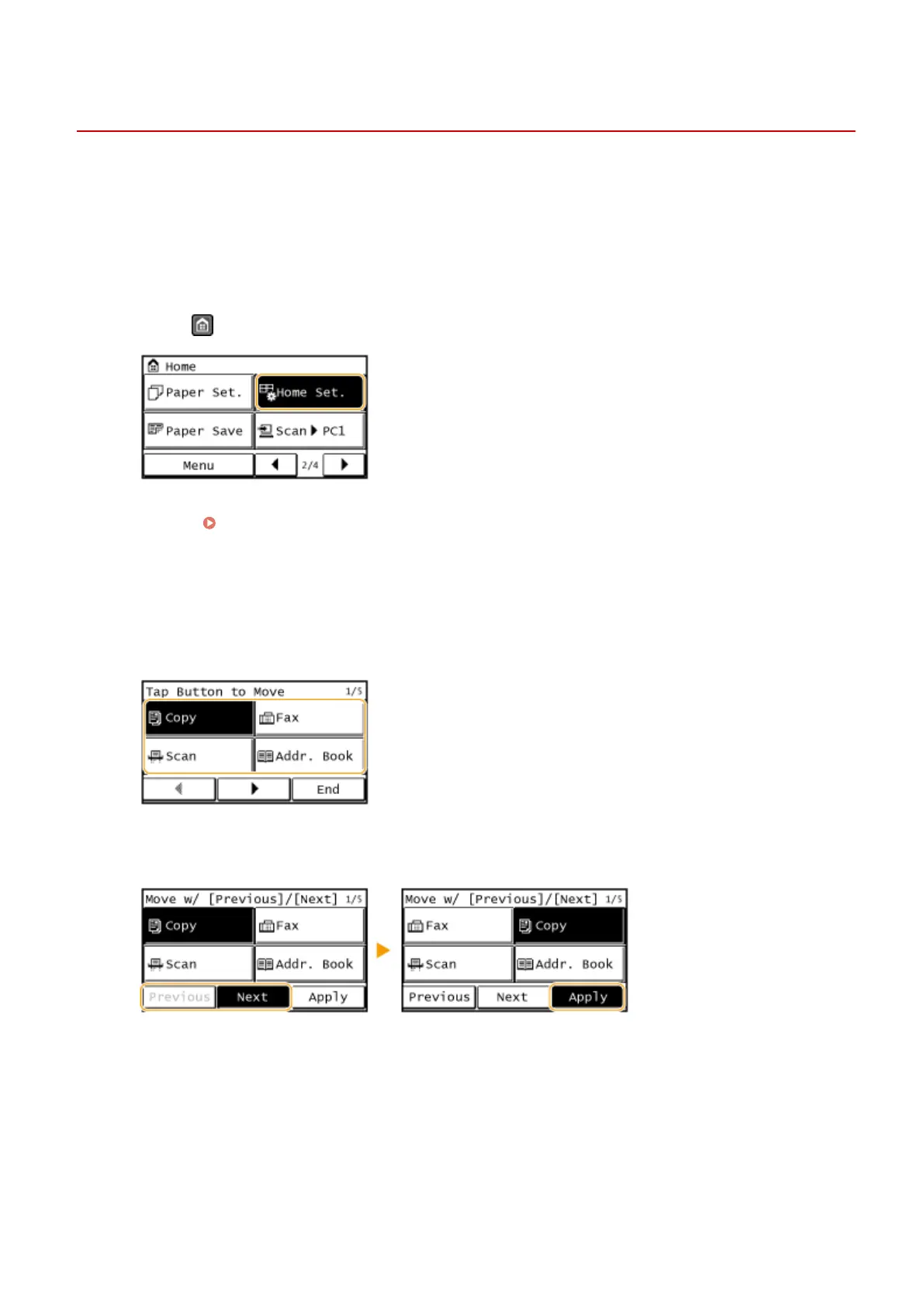
Press and tap <Home Set.>.
● If a screen appears prompting you to enter a PIN, enter the correct PIN using the numeric keys, and tap
<Apply>. Setting the System Manager PIN(P. 397)
2
Tap <Set Display Order>.
3
Tap the button to move.
4
Tap <Previous> or <Next> to move the button, and tap <Apply>.
5
Repeat steps 3 and 4 to move all buttons you want to move.
6
Tap <End>.
Basic Operations
33






 To Next Page