34
Selecting the Type of TV
During playback set the [TV TYPE] option according to the TV set to which you connect
the camcorder.
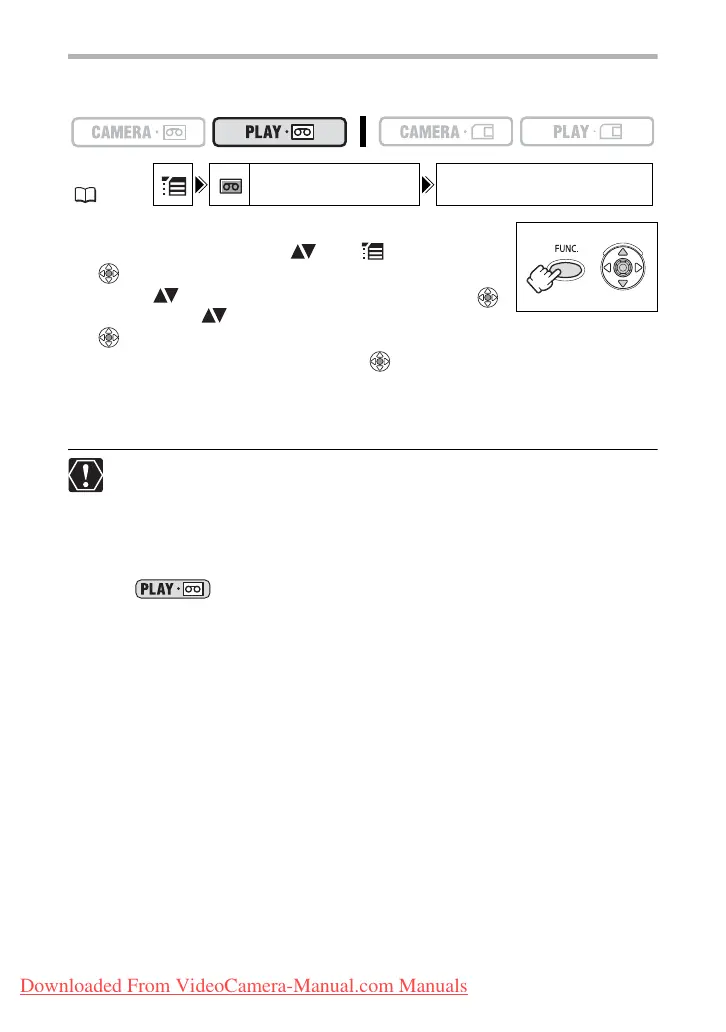
1. Press the FUNC. button to open the FUNC. menu.
2. With the joystick select ( ) the icon and press
().
3. Select ( ) the [VCR SETUP] menu and press ( ).
Then, select ( ) the [TV TYPE] option and press
().
4. Select a setting option and press ( ) to save the changes.
• WIDE TV: TV sets with 16:9 aspect ratio.
• NORMAL TV: TV sets with 4:3 aspect ratio
5. Press the FUNC. button to close the menu.
Playing back recordings made in the widescreen mode on a normal TV: If the
TV type is set to [NORMAL TV] the recording will be played back in “letterbox”
display. If the TV type is set to [WIDE TV] the image will appear horizontally
squeezed.
If you connect the camcorder to a TV with Video ID-1 system, recordings made
in the widescreen mode will be automatically played back in widescreen mode.
When the TV type is set to [NORMAL TV] the digital effects are not available in
mode.
MENU
( 36)
VCR SETUP TV TYPE WIDE TV
Downloaded From VideoCamera-Manual.com Manuals



 To Next Page