42 Chapter 5 Acquiring Images
Acquiring Single Image
Starting the Imaging Software
Open your Imaging Software.
1 On your desktop, double-click the CS Imaging Software icon or click Start > All Programs > ( the
name of your) Dental Imaging Software.
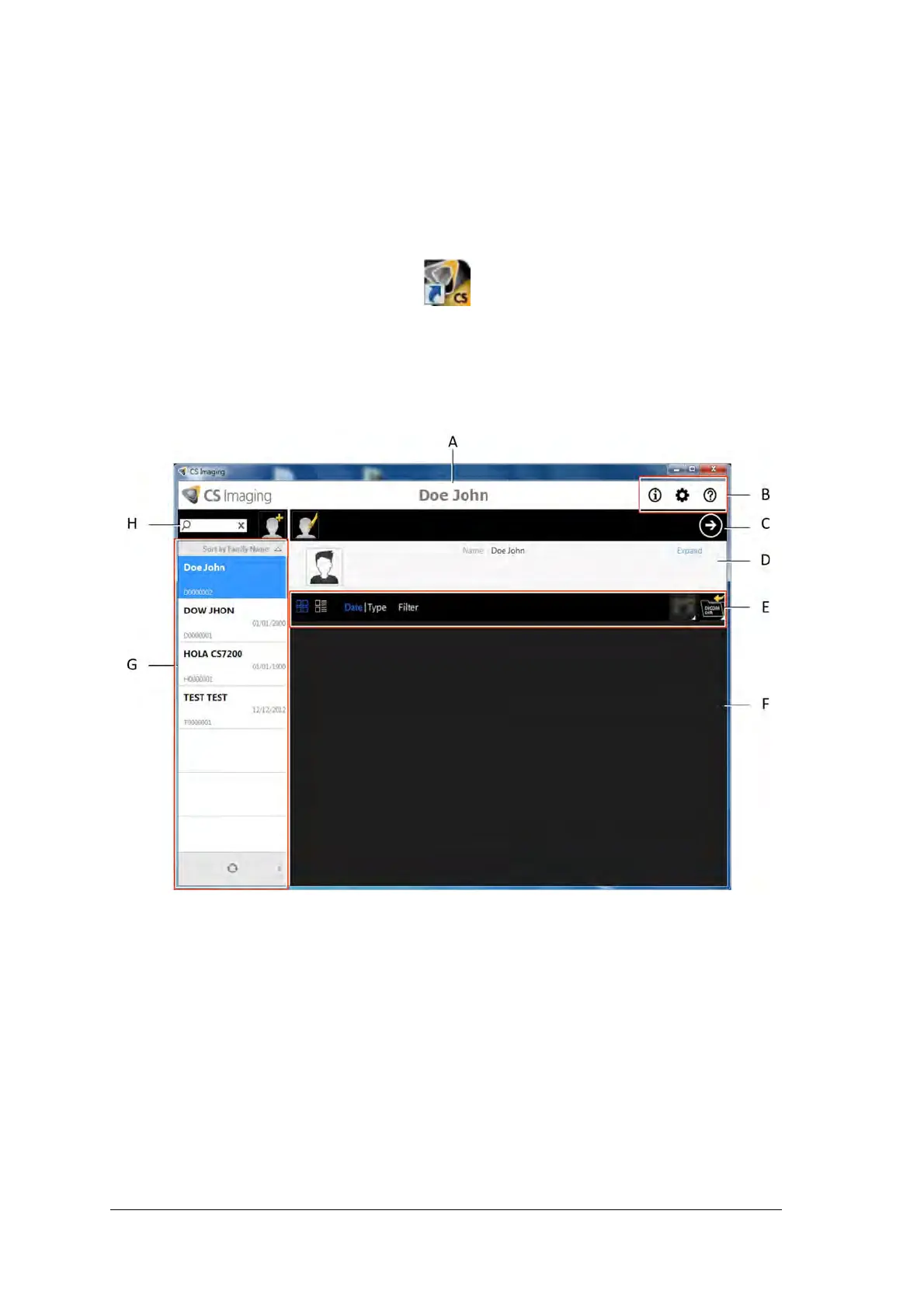
The Patient Browser window is displayed:
2 Create or open an existing patient record:
To open an existing patient record: In the Patient Browser search field (H), start typing to search
for a patient card.
To create a new patient record: Click the Create New Patient Card button alongside the search
field to create a new patient card. For more details, see “Create a New Patient Card” on page 75
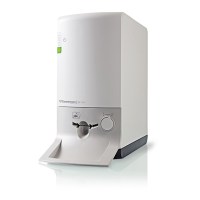
The CS 7200 indication LED turns from yellow to green, indicating that the scanner is ready for use and
the Imaging Window appears.
3. Once you have selected or created a patient, in the Patient Browser Toolbar (C) click the arrow button to
open the Imaging application. The Patient Browser window remains open and the Imaging Window is
displayed.


 To Next Page