62-12259 5–12
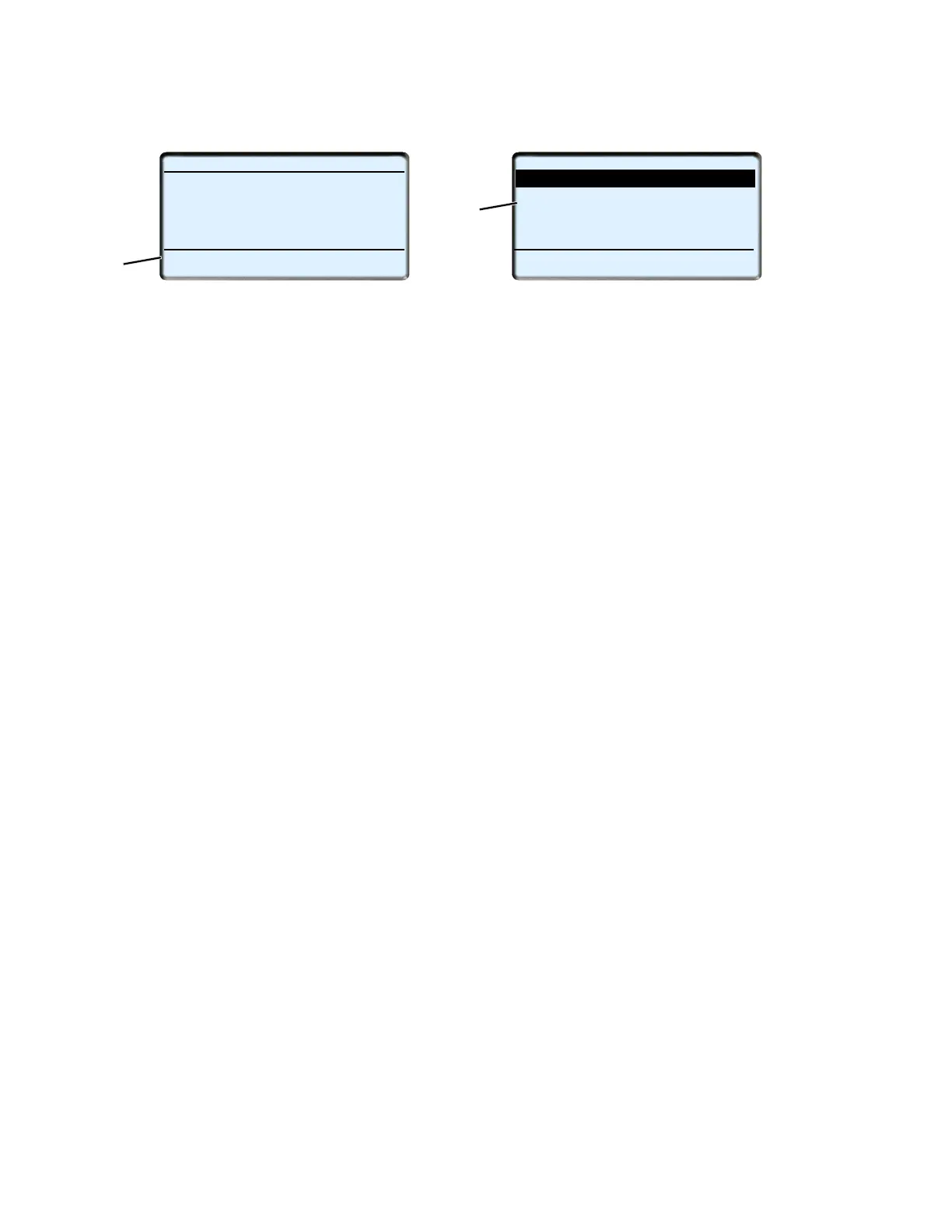
2. The Message Center will then display the USB soft keys. (The INSTALL SOFTWARE and INSTALL SET-
TINGS soft keys will not display if the applicable files are not loaded on the Data transfer USB memory
device.)
3. Press the DOWNLOAD DATA soft key. Six extraction choices will be available as shown above. To scroll
through the choices press the ▲ or ▼ key. The choices will highlight as the list is scrolled (Option not shown
above - EXTRACT: Maintenance params). With the desired choice highlighted, press the “=” key. The sys-
tem will begin downloading data to the USB and the operator message panel will display COPYING DATA -
PLEASE WAIT ##%. The percent downloaded will display as the data is copied and then the operator mes-
sage panel will display COPY COMPLETE, PRESS ANY KEY. Press any key to return to the USB soft keys.
4. The MessageCenter will return to the USB soft key display and the USB may be removed.
5. The downloaded data will now be in a folder, inside the Data Transfer USB memory device “DOWNLOAD”
folder. Each day data is extracted to the USB a folder will be created. The folder naming convention will
begin with the letters “DX” followed by the last two digits of the year, two digits representing the month and
two digits representing the day. for example a folder named DX130212 would contain data extracted Febru-
ary 12th, 2013.
6. Two files will be created inside the folder for each download. The file naming convention used is the last
eight characters of the Trailer ID followed by .zdx for the first file and a secondary file with the same name
followed by .zax.
NOTE
If the same unit (with the same asset, trailer or car ID) is downloaded twice or more on the same day,
the earlier files will be overwritten. If the earlier files will be required for later review, ensure they are
transferred off the device before starting another download.
7. When downloading Intellisets or Maintenance parameter, the file will be placed in the Config folder on the
USB and will have the current date as the file name. for example, the file will be named 210524AA for the
first file downloaded on May 24, 2021. If you download another IntelliSet or Maintenance file on the same
day it will be named 210524AB
5.3.4 Installing Software
Instructions for installing software into the APX Control System from a Data Transfer USB memory device are pro-
vided in Figure 5.8. If power is lost or USB removed this procedure should be repeated. The screen may be blank
until the USB is reinserted.
TIP
Whenever installing new software, it is always a good idea to start the unit and give it a quick check
over prior to performing the operation. All units should have the software upgraded to the latest ver-
sion, provided for Carrier Transicold dealers on the Carrier SolutionCenter.
2
START/STOP DIESEL COOL
DOWNLOAD
INSTALL
INSTALL
SETTINGS
PC
MODE
DATA
SOFTWARE
BOX TEMPERATURE
o
F SETPOINT
o
F
34.3
34
DATA EXTRACTION (1 OF 4)
EXTRACT: All Data
EXTRACT: Last 30 Days
EXTRACT: Last 7 Days
BACK
EXIT
EXTRACT: Quick Download
3
EXTRACT: Intellisets




 To Next Page