62-12259 3–8
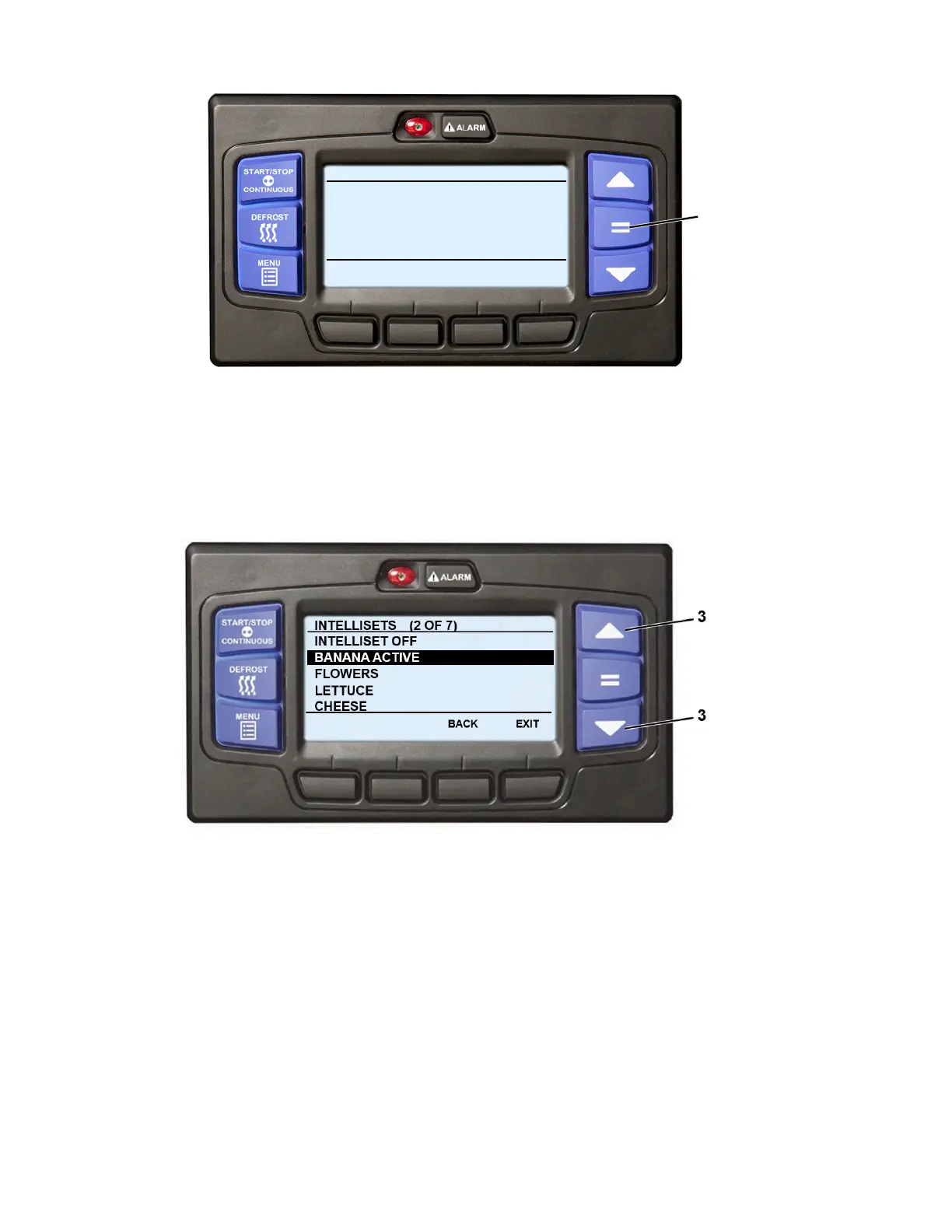
1. With the system powered up (START/RUN-OFF switch in the START/RUN position) or in PC mode and the
default screen displayed, press the “=” key. If the screen shown just above step 3 below is displayed, pro-
ceed to step 3. Otherwise, proceed to step 2.
2. Press the MENU key until INTELLISET is displayed. Then, press the INTELLISET soft key to display the
IntelliSet screen.
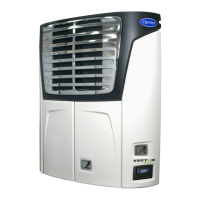
3. The IntelliSet screen will display with a 10-second timeout and five of the available IntelliSets listed. The
IntelliSet that is currently selected will have the word “Active” or “Modified” to the right. There may be more
than five IntelliSets available, as displayed in parenthesis on the first line. for example, in the provided illus-
tration there are seven IntelliSets available and the second IntelliSet is highlighted.
4. Press the ▲ or ▼ key to scroll through the list of available IntelliSets. To change to another IntelliSet, high-
light the desired IntelliSet and press the “=” key. The highlighted IntelliSet will become active and an “INTEL-
LISET CHANGED” message will display.
5. Press the EXIT soft key to return to the default display.
NOTES
• If setpoint change is allowed, refer to Section 3.8 for setpoint change instruction.
• If it is desirable to have the unit go directly to the IntelliSet screen on a press of the “=” key, set the
“ENABLE INTELLISET AT = KEY” Configuration to “YES”. Refer to Section 5.2.3.
START/STOP DIESEL COOL
Viewing Menu Soft Key
INTELLISET
PRETRIP
HOUR
METER
UNIT
DATA
Selections
Press Menu Key to Scroll
1




 To Next Page