EasyManua.ls Logo

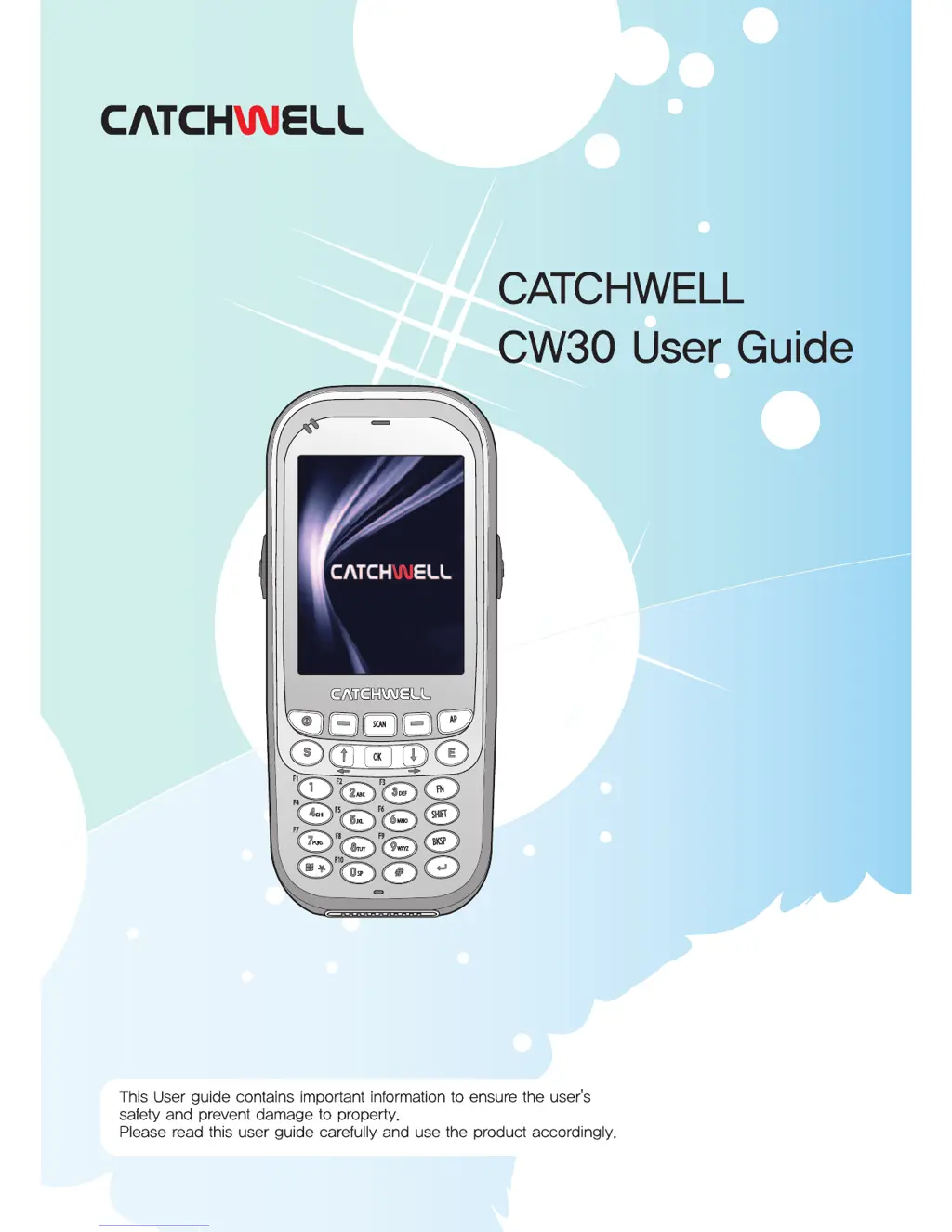
Catchwell CW30 - User Manual

Catchwell CW30
101 pages
Print Icon
To Next Page IconTo Next Page
Loading...
1

Table of Contents

Questions and Answers

  • A
    Audrey AllenSep 9, 2025
    What to do if my Catchwell Cell Phone data entry is not made after scanning?
    • J
      Joseph PrestonSep 9, 2025
      If data entry is not made after scanning with your Catchwell Cell Phone, the scan window may be dirty or impaired. Clean the scan window or replace it. Another reason could be that there is no scanning program icon. Restart the scanning program by performing reset.
  • E
    Edward JacksonSep 12, 2025
    Why ActiveSync does not work properly on my Catchwell Cell Phone?
    • J
      jonessusanSep 12, 2025
      If ActiveSync isn't working properly on your Catchwell Cell Phone, and there's no connection sign displayed even when connected, remove your PDA from the cradle, reinstall ActiveSync, and try to connect it again. Alternatively, ActiveSync may not be installed. Install the newest version of the program after downloading it from the Microsoft website. Finally, if the program cannot be installed under Windows 7, install the program after downloading it from the Windows Mobile Device Center on the Microsoft website.
  • B
    Brian MillerSep 13, 2025
    What to do if a fluid flowed into my Catchwell Cell Phone?
    • J
      Jessica JohnsonSep 13, 2025
      Promply remove the battery and contact with the purchased site or manufacturer for services.
  • L
    lauren58Sep 15, 2025
    What to do if my Catchwell Cell Phone screen is stopped?
    • A
      Amanda PattersonSep 15, 2025
      If the screen of your Catchwell Cell Phone is stopped and no operation is allowed, it might be because the program is stopped. Press the reset. If the symptom persists, contact with the purchased site or manufacturer for services.
  • D
    David PowellSep 17, 2025
    Why is there no connection to the PC through the USB cable with my Catchwell Cell Phone?
    • J
      Jamie AtkinsSep 18, 2025
      If there's no connection to the PC through the USB cable with your Catchwell Cell Phone, first check whether your computer and the device are both turned On. If you're using a USB hub, check the USB cable connection status and connect the device and PC directly without using the USB hub. Also, under Control Panel > PC Connection, check whether 'Enable direct connection to the desktop computer' is checked.

Summary

Precautions for Users

Chapter 1. Getting Started

Product Components

Details on the various components included with the product.

Installing SIM and Battery

Step-by-step guides for installing the SIM card and main battery.

Chapter 2. Using CW30

Resetting CW30

How to Perform a Soft Reset

Procedure for a soft reset to restart the device.

How to Perform a Hard Reset

Procedure for a hard reset to restart and reconfigure the device.

Locking CW30

Locking with a Password

How to secure the device by setting a password.

Text message

Sending Text Messages

Instructions for composing and sending text messages.

Chapter 3. Data Capture

Laser Scanning

Details on using the laser scanning feature.

Barcode Scanning Procedures

Procedures for scanning and decoding barcodes.

Image Scanning and Decoding

Image scanning, decoding, and operation modes.

Chapter 4. Using the phone

Chapter 5. Using a GPS Navigation

Chapter 6. Using Bluetooth

Advanced Bluetooth Services

Using serial port, ActiveSync, and A2DP/AVRCP services.

Chapter 7. Maintenance and Troubleshooting

Maintenance Overview

General maintenance guidelines for the device.

Battery Safety Instructions

Crucial safety information regarding battery handling and charging.

Catchwell CW30 Specifications

General IconGeneral
Network TechnologyGSM / HSPA
GPRSYes
EDGEYes
SIMDual SIM (Mini-SIM, dual stand-by)
MultitouchYes
LoudspeakerYes
3.5mm jackYes
RadioFM radio
2G bandsGSM 900 / 1800 / 1900
3G bandsHSDPA 2100
TypeTFT
Card slotmicroSD
VideoYes
Secondary2 MP
Alert typesVibration
WLANWi-Fi 802.11 b/g
BluetoothYes
GPSYes
USBmicroUSB 2.0
SensorsAccelerometer
MessagingSMS, MMS, Email
BrowserHTML
BatteryLi-Ion 1200 mAh battery
ColorsBlack