53
User’s Manual
CellaVision
®
DM1200
4.1.6 Signing a Slide
A summary of the WBC, RBC and PLT analyses is presented in the Sign Slide tab.
The signing procedure is as follows:
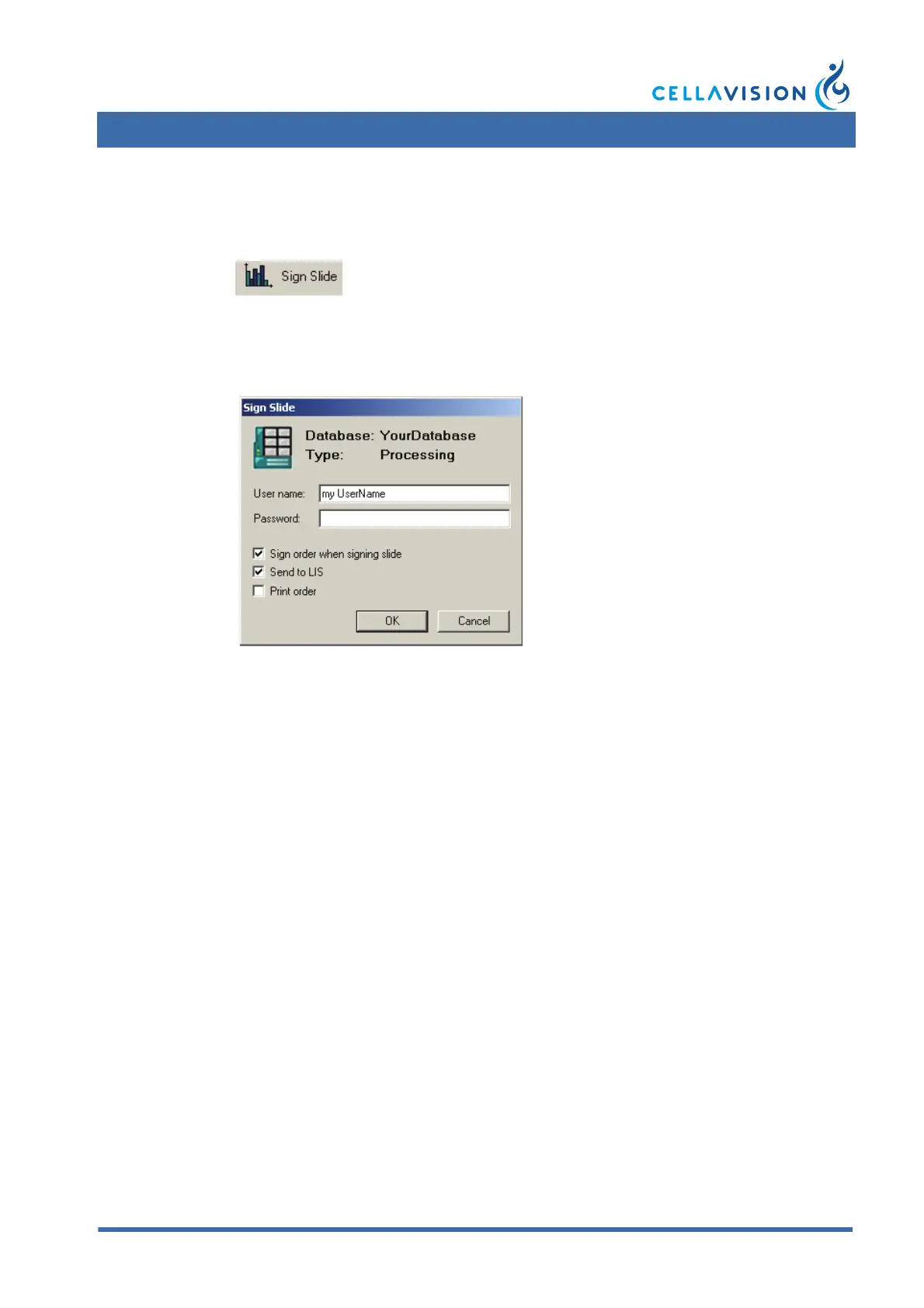
1. Click Sign. The Sign Slide dialog appears.
2. Enter User name and Password.
3. Activate/deactivate the automatic options Sign order when signing slide, Send
to LIS and Print order.
4. Click OK.
Note! If the slide is part of a multi-slide order, all slides in the order must be signed
before the operator is given the option to sign the order.
Note! Slide data cannot be changed after signing. Comments may still be added.
If all ordered analyses have been viewed when the Sign Slide tab is selected, the
Sign Slide dialog will automatically appear. Default values for the Sign Slide dialog
are set in Settings under Report/Sign. The option to send results to the LIS is
activated in Analysis in settings.
When the last slide is signed in a multi slide order, the operator has the option to
sign the order.


 To Next Page