Configuring VPN
Quantum Spark 1500, 1600, and 1800 Appliances R81.10.X Locally Managed Administration Guide|232
Connections Between Remote Access VPN Clients in the
Same Office Mode Pool
Follow this procedure to allow connections between Remote Access VPN clients that get an IP address from
the same Office Mode Pool.
Procedure
1. Go to Users & Objects > Network Resources > Network Objects.
2. Click New to create a new Network object for the Office Mode network:
a. In the Type menu, select Network.
b. In the Network address field, enter the applicable network IP address.
c. In the Subnet mask field, enter the required subnet mask.
d. In the Object name field, enter the applicable name.
For example: OMPOOL.
e. Click Apply.
3. Go to Device > Advanced > Advanced Settings.
4. Configure the parameter VPN Remote Access - Back Connections enable:
a. In the top search field, enter:
VPN Remote Access - Back Connections enable.
b. Select the parameter VPN Remote Access - Back Connections enable and click Edit.
c. Select the option Back connections enable.
d. Click Apply.
5. Configure an Access Policy rule to allow traffic between computers in the Office Mode network:
a. Go to Access Policy > Firewall > Policy.
b. In the section Incoming, Internal and VPN traffic, click New.
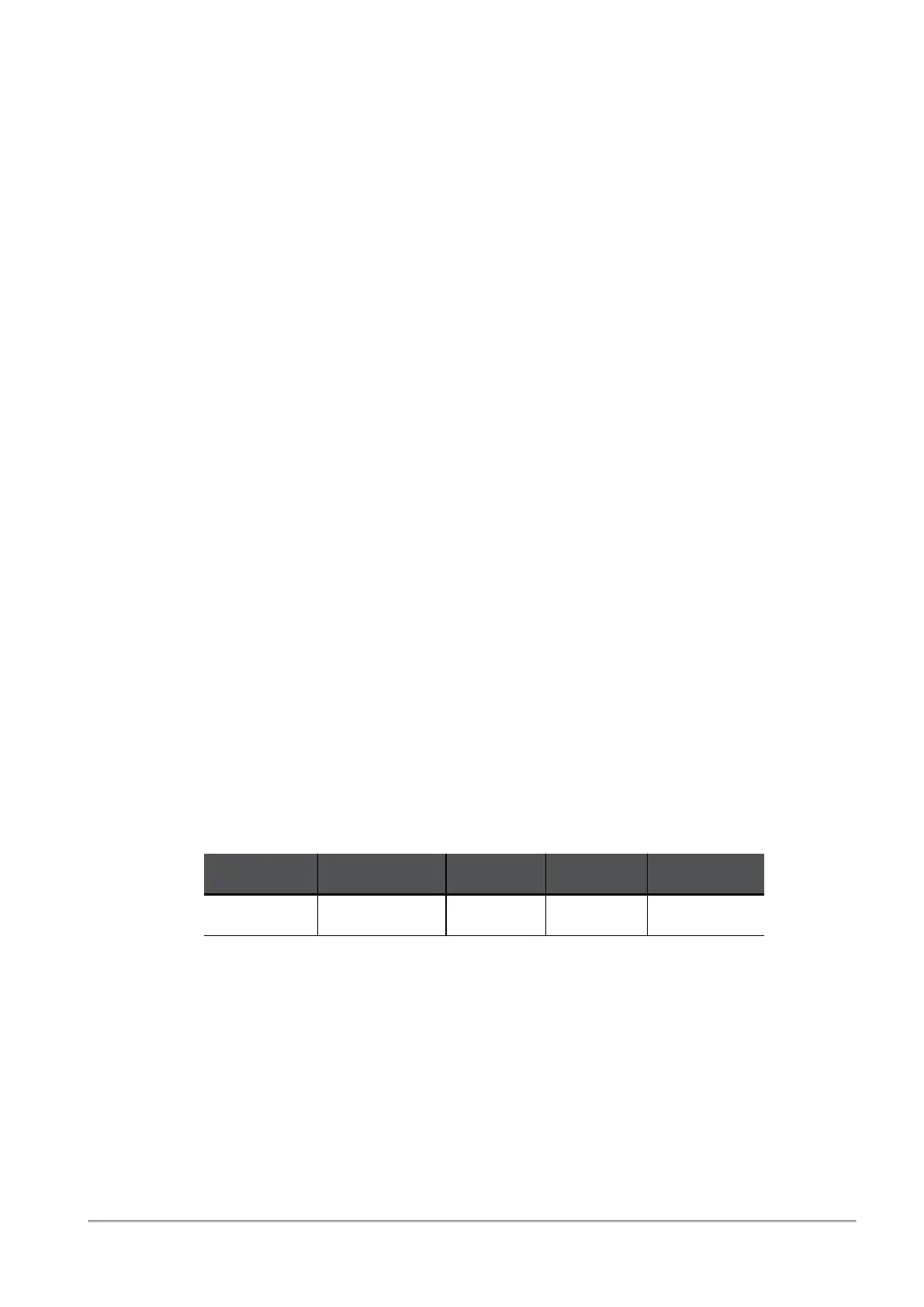
c. Configure this rule:
Source Destination Service Action Log
OMPOOL OMPOOL
*Any Accept
Log, or None
d. Click Apply.
6. Configure the NAT Policy rule to disable NAT on the traffic between computers in the Office Mode
network:









 To Next Page