29
Chapter 2 Using the RS30 Mobile Computer
An LED indicators located above the touch screen provide information about charging status,
scanner light beam, and scanner "Good Read" during data collection.
Charging
Green, solid Charging complete
Red, solid Charging the mobile computer
Red, blinking
Charging error (for instance, battery not in
place)
Barcode or wireless
tag decode
Green, flash once Good read
Wireless radio Blue, blinking Wi-Fi, Bluetooth, or mobile data is in use
Note: For Scanner decode and Scanner beam LED to function, LED notification must be
enabled in Reader Configuration. See Notification Settings.
The speaker is used to play sounds for events in windows and programs, or play audio files.
In addition, it can be programmed for status feedback. In noisy environments, you may
consider connecting a headset instead. A headset jack is provided on the top of the mobile
computer, which is a 3.5 mm DIA stereo earphone jack. The mobile computer also supports
using Bluetooth headsets.
Supported audio file formats include: WAV, MP3, AAC, AAC+, Enhanced AAC+, AU
(including ADPCM), Midi, XMF, AMR (NB and WB).
Use the volume buttons on the side of the mobile computer to adjust the system volume.
The mobile computer is integrated with a vibrator, which is software programmable for
tactile feedback. This can be helpful when working in noisy environments.
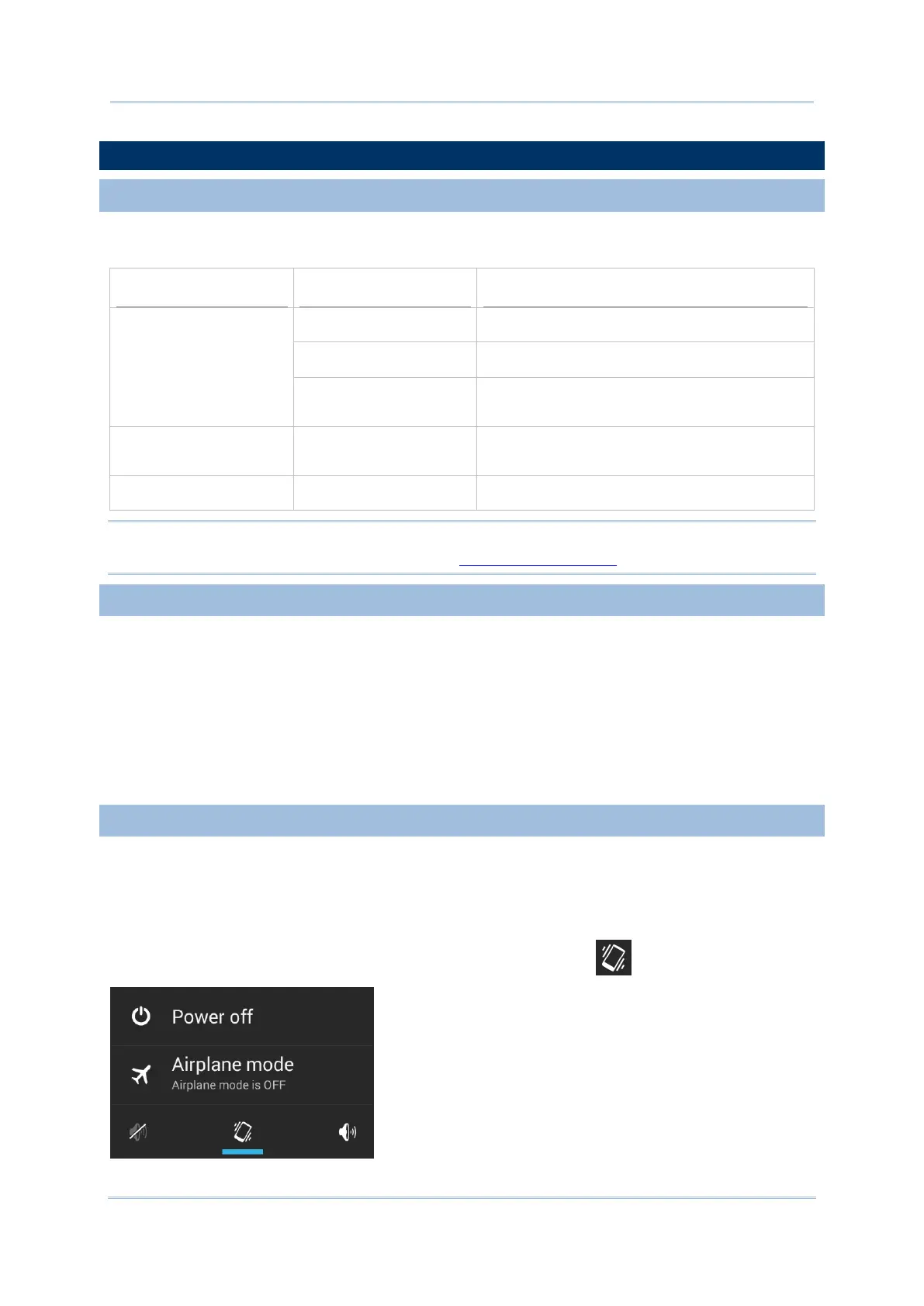
You may also set the mobile computer to vibrate only, in which all system sounds will be
muted and replaced by the vibrator.
Press and hold the power key, and tap the vibrate mode icon in the menu.


 To Next Page