Manage Files
39
19. Manage Files
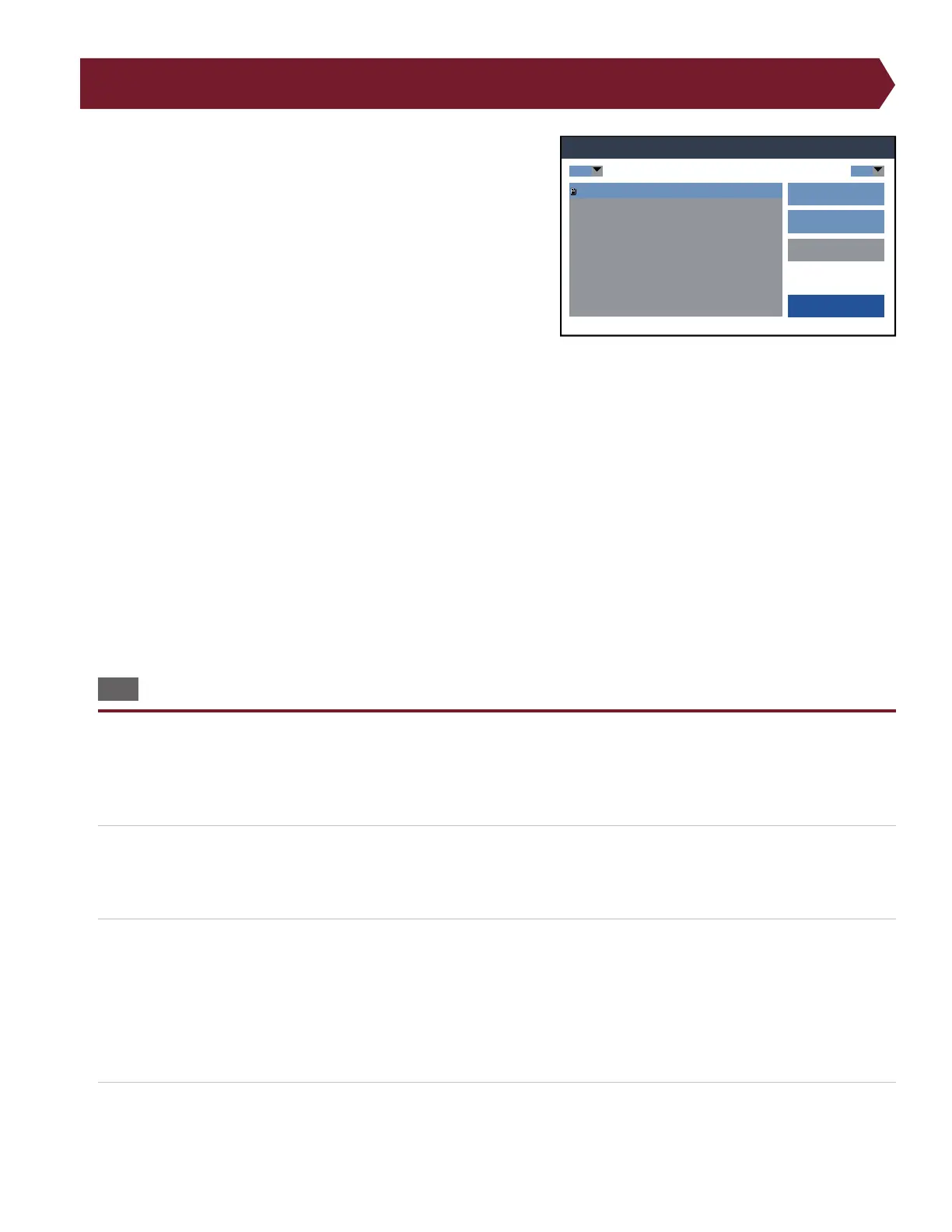
All test programs, report templates, and other les can be accessed
through the Manage Files menu. From this menu, test programs can
be organized, copied, and deleted.
Filter les: Use the drop-down list to lter les. The * symbol shows
all les.
Open a folder: Double-tap on a folder to open it.
Create a new folder: Press the New Folder button, type the name of
the new folder, and press Done.
Return to the previous folder: Double-tap the top folder in the list
labeled with “< >” to return to the previous folder.
Copy a test program: Select a test program and press the Copy/Move button. Navigate to the folder where you wish to
save the copied test program and press Copy. The test program can now be found in both the previous location and the
new location.
Move a test program: Select a test program and press the Copy/Move button. Navigate to the folder where you wish to
save the test program and press Move. The test program will no longer reside in the previous location but will only be found
in the new location.
Delete a test program: Select a program or le and press Delete. Conrm that you want to delete the program or le by
pressing Continue.
WARNING! There is no recovery option after a test program or folder is deleted. Verify the le selected before you delete
any les.
19.1 Test Program Backup via PC Connection
By connecting your tester to a PC, you can move les to and from the PC like you would with a USB ash drive. This allows
you to back up test programs, organize les, and customize labels and reports.
1. Use the PC cable to connect your tester to your PC.
2. Make sure the tester is turned o.
Note: If the tester is running, you will not be able to access it through a PC.
3. When connected to the PC, the tester will behave like a USB drive. You will be able to view and organize les using your
computer’s le management system. With your tester connected to the PC, you can do the following:
a. Organize test programs into folders for easy access.
b. Backup your test programs to your PC.
c. Edit test programs using a text editor and save the revised test program to your tester.
4. When nished, remove the PC cable, or turn the tester back on. Either action will disconnect the tester from the PC.
Manage Files
Done
*Double tap folder to open
Delete
New Folder
Copy / Move
NewTest.wir
C:\C:
*


 To Next Page