holdingdownthe_key. Now,whileagain depressingtheEmlkey
at the same time hit the II key. Release the_key and hit thellkey.
Move through the numbers, alternating with the letters, and type out the
word RAINBOW as follows:
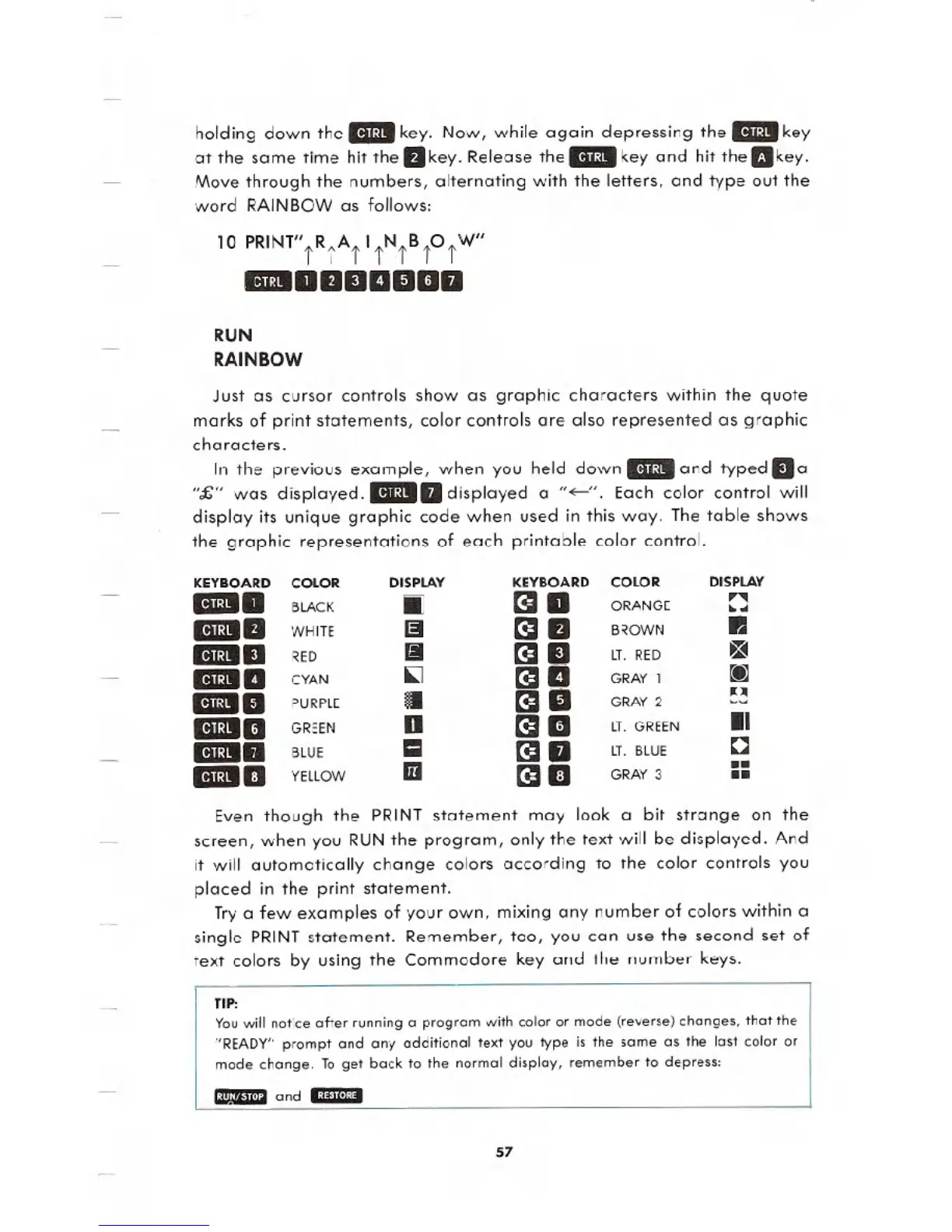
10 PRINT"jRjAjI tjBjOjW"
_allIlIlIlIlD
RUN
RAINBOW
Just as cursor controls show as graphic characters within the quote
marks of print statements, color controls are also represented as graphic
characters.
In the previous example, when you held down
EmIand typed II a
"£" was displayed.IIDID displayed a "-". Each color control will
display its unique graphic code when used in this way. The table shows
the graphic representations of each printable color control.
Even though the PRINT statement may look a bit strange on the
screen, when you RUN the program, only the text will be displayed. And
it will automatically change colors according to the color controls you
placed in the print statement.
Trya few examples of your own, mixing any number of colors within a
single PRINT statement. Remember, too, you can use the second set of
text colors by using the Commodore key and the number keys.
TIP:
You will notice after running a program with color or mode (reverse) changes, that the
"READY" prompt and any additional text you type is the same as the last color or
mode change. To get back to the normal display, remember to depress:
~ and Em
57
KEYBOARD
COLOR
DISPLAY
KEYBOARD
COLOR DISPLAY
_a
BLACK
.
a
ORANGE
n
..
EmIli
WHITE
iii
II
BROWN
II
EmIli
RED
f!I
II
LT.RED
__
CYAN
[la
GRAY1
&1111
PURPLE
.
[III
GRAY2
&1111
GREEN D
II
LT. GREEN II
IIDID
BLUE
=
D
LT. BLUE
0
&liD
YELLOW
iii
D
GRAY 3
..
..





 To Next Page