Chapter 9 Using SYSTEM TOOLS Menu
69
9.8 Message Window
This window will list out the action/s taken while doing configuring. It helps you to dig
out the history of various action/s.
To save all your actions, click on SaveAs button. The system will prompt you to save
your file in your preferred location.
9.9 Reboot Switch
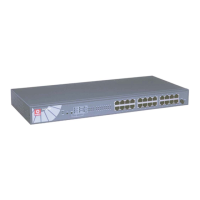
Rebooting of Compex CGX3224 is required after changes are
made in the configuration or setting.
1. Click on Reboot Switch from the Command window.
2. Click Yes to reboot the switch. The system will prompt you
to logon again after 30 seconds to see the effect:
9.10 Logout
By clicking Logout button, you will get a logout GUI as shown below. Alternatively,
you can log in again into the web-based browser via
http://192.168.100.128 or the new
IP address, which you have assigned to the switch.
NOTE
If you changed a new IP Address for Compex CGX3224, the system will NOT
automatically changed to the new IP address after you click on the Logon button.


 To Next Page